
What is it used for?
The “Target/Budget” feature in Clock PMS allows you to plan the hotel's expected results and track performance against the set targets.
With it, you can set planned values for occupancy and revenue for each day of the year. The entered data can be used in the management reports, where you can compare the planned targets with actual results achieved.
Indicators
The system allows you to plan and track eight indicators, divided into two groups. The first includes the indicators for which you set planned values:
- Available rooms;
- Occupancy percentage;
- Room revenue (rooms + packages);
- Total revenue.
The values of the remaining four indicators are calculated automatically based on the entered data:
- Sold rooms = Available rooms × (Occupancy percentage / 100);
- ADR = Room revenue / Sold rooms;
- RevPAR = Room revenue / Available rooms;
- TRevPAR = Total revenue / Available rooms.
Setting targets/budget
To enter or edit planned values, go to:
- All Settings → Hotel → Target/Budget;
- Select the year for which you want to set a budget;
- The editor displaying all days of the selected year will load on the screen. In it, you can enter the values for the indicators in the first group.
You can enter the desired targets in two ways:
- Individual entry – allows you to set different values for each day;
- Bulk entry (via the lightning bolt button ⚡) – allows you to set identical values for multiple days at once.
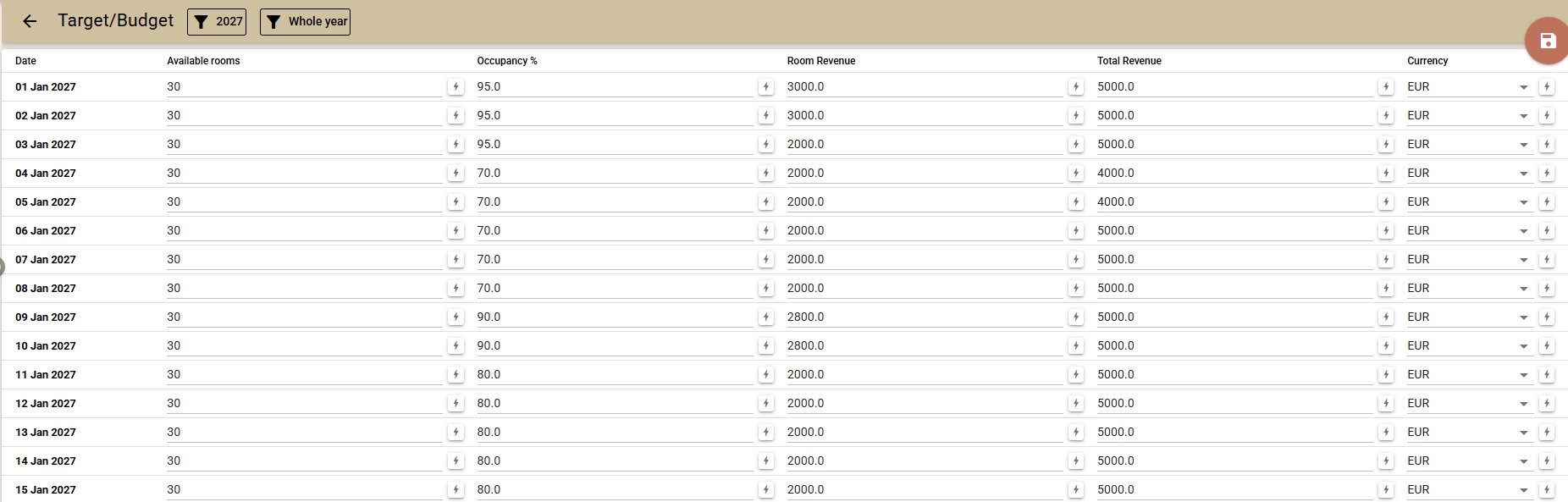
Bulk entry
The bulk entry feature allows you to set identical values for the entire year or for a selected period.
If you wish to limit the entry to a specific period, follow these steps:
- Select the period for which you want to apply the values using the “Full year” button.
- Only the days within the selected period will remain visible in the editor;
- Enter the desired value in the field for the corresponding indicator.
- Click the lightning bolt button (⚡) to automatically populate the value for all days of the period.
- Repeat the step for the remaining indicators if necessary.
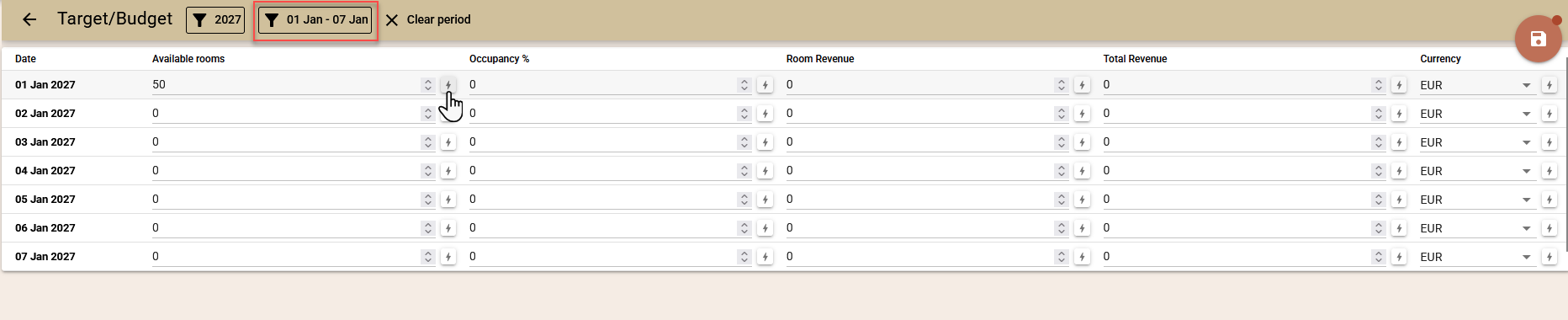
You can change the selected period and set different values for different parts of the year. When changing the period, previously entered values are retained in the editor.
Once you have finished entering the values, review the planned figures for the respective period and save the changes.
Tracking targets in management reports
All eight planned indicators can be added as separate rows in management reports. This allows you to configure a custom report tailored to the indicators you want to monitor.
For example, you can create a report comparing actual and planned values for room revenue, occupancy percentage, ADR, and RevPAR.

This makes it easy to monitor how closely the achieved results align with your pre-set targets.