
Guest Profile Search
To open the list of your guest profiles, navigate to menu Booking->Guest Profiles.
Once you are in the Guest profiles section, you can search by several different methods:
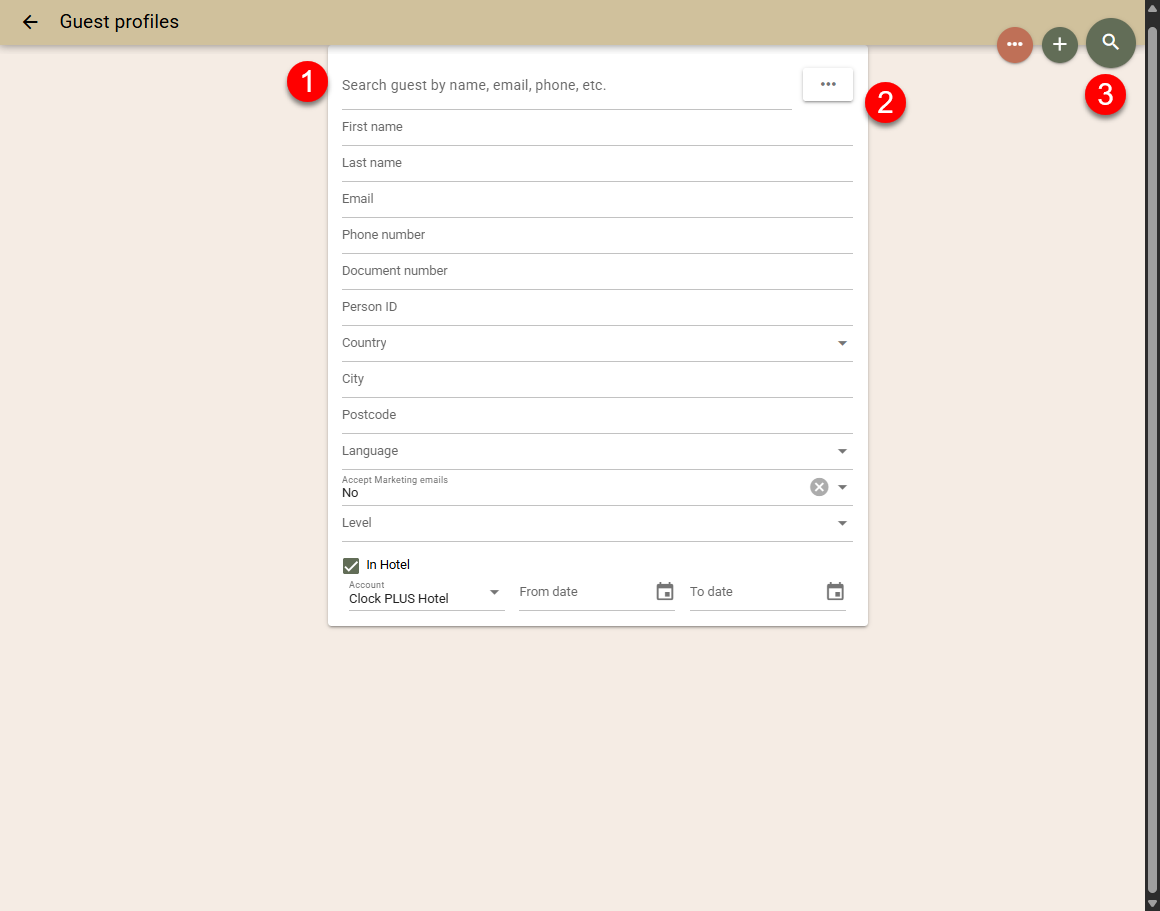
- Text search (1) - search for Guest profiles matching the entered text. You can search by Name, phone or email.
- More filters (2) - will open additional fields by which you can search for a guest
- Show all (3) -will load all guest profiles
Guest Profile Screen
The guest profile page itself is designed to be informative and present a lot of information about this profile in one place. As explained HERE, guest profiles are one of the elements that is shared between all accounts in your subscription, hence, you are able to see if this guest has also stayed in other properties from your organization.
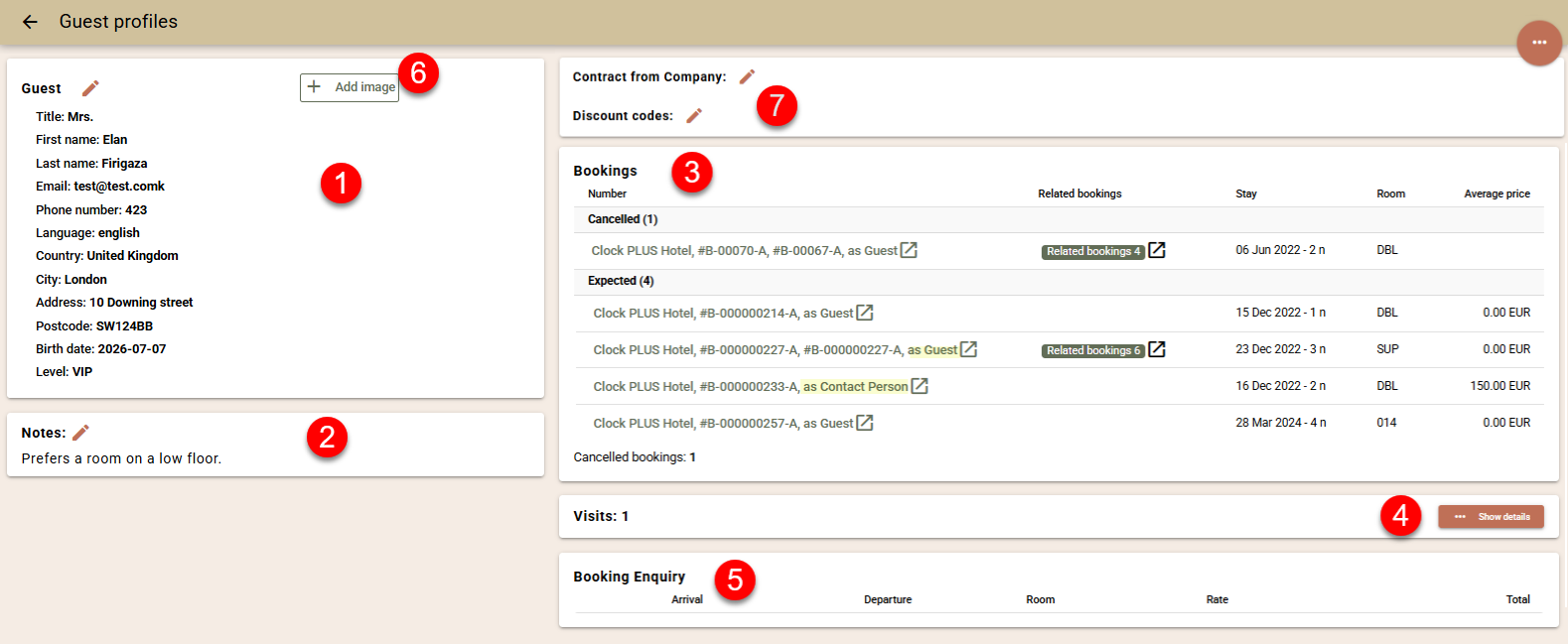
The information that you can see in the Guest profile:
- (1) - View, add, edit the main information about this guest.
- (2) - View, add, edit any notes (profile field 'Notes') attached to this profile. These will pop-up in any booking to which this profile is attached.
- (3) - You will see a list of bookings to which this profile is attached, including bookings from other properties in your subscriptions. You will see if this profile has been selected as a Guest or Contact Person in the booking,
- (4) - Clicking on Show details will list any checked-out bookings
- (5) - You will see list of the Booking enquiries sent to this guest.
- (6) - You can attach a photo to this guest profile.
- (7) - You can link the profile to a company. When creating a booking, on the "Rate and Availability" screen, select this profile as a returning guest, and the system will automatically apply the terms of the Company Contract for the linked company, if one is available. For more information, see the article Guest Profiles in Clock. Addionally, a discount code can be attached to the guest profile to automatically apply a discount when booking through the WBE or Rate and Availability screen. Read more HERE.