
Payment Links
Payment Links allow you to request payments from guests or customers by generating a link for a specific amount. You can share the link through your preferred communication channel, such as email, chat, or any other messaging platform.
Payment Links offer a convenient way to collect payments without requiring the customer to be present or provide their payment details directly to your team.
Key Benefits
Flexible payment amounts: Specify the exact amount you want to collect, regardless of the outstanding balance on the folio.
Multiple payment methods: Customers can pay by card or use alternative payment methods supported by your payment provider, such as Apple Pay, Google Pay, PayPal, Klarna, iDEAL/Wero, BLIK, Bancontact, and others.
Additional payment security: Depending on the payment provider and issuing bank, card payments may require 3D Secure (3DS) authentication, providing additional protection against fraudulent transactions and chargebacks.
Automatic payment registration: Completed payments are automatically recorded in the folio associated with the link.
Flexible sharing: Copy the link and send it through any communication channel convenient for you and your customer.
Important: The available payment methods depend on your payment provider and its configuration. Payment Links support both standard integrated payment providers (Clock Payment Enablement, Adyen, Stripe, Worldline, Elavon) and configured Custom Payment Providers.
Generating a Payment Link
Open the folio for which you wish to collect a payment.
In the Payments section, click the Payment Links button.
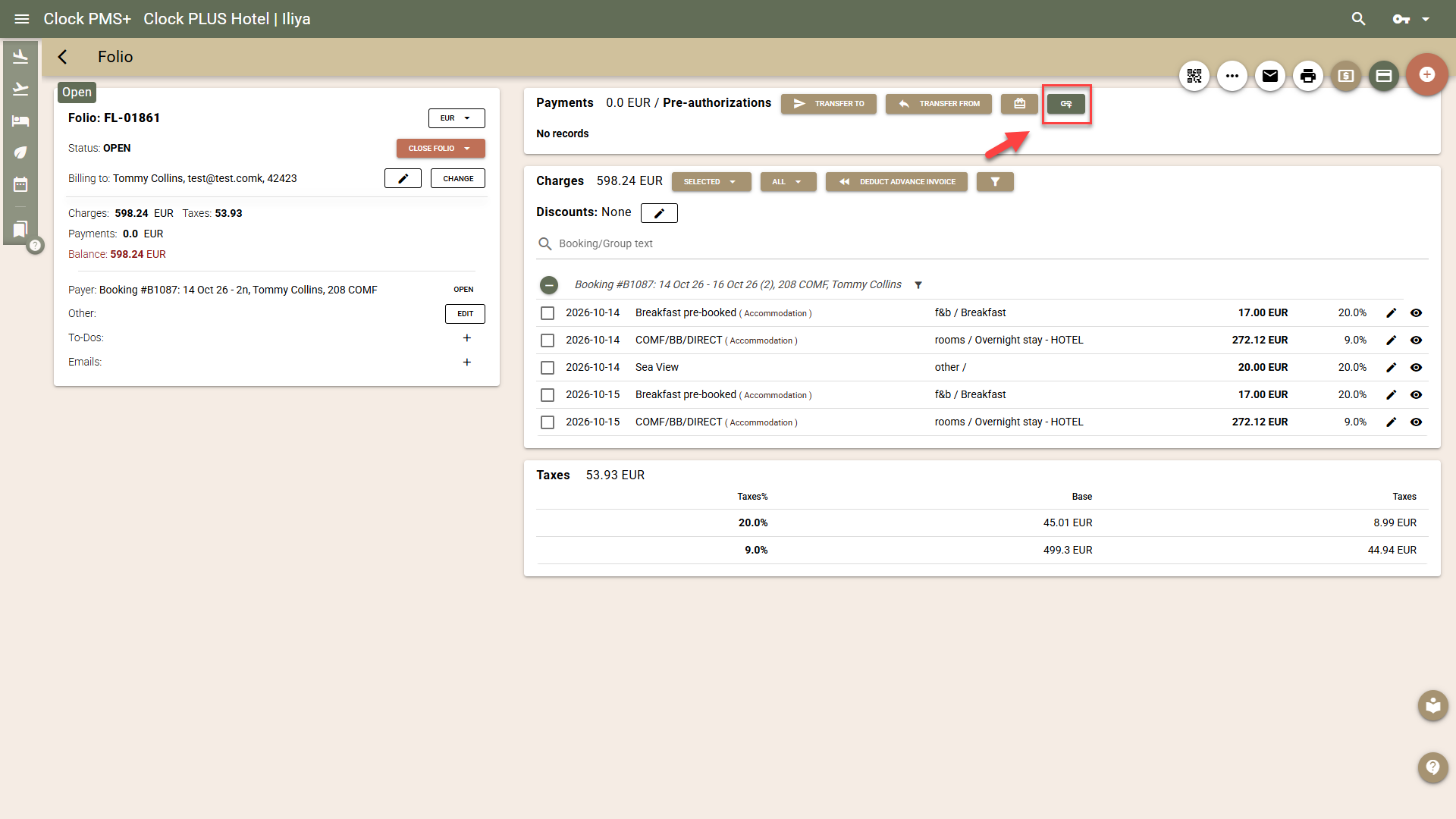
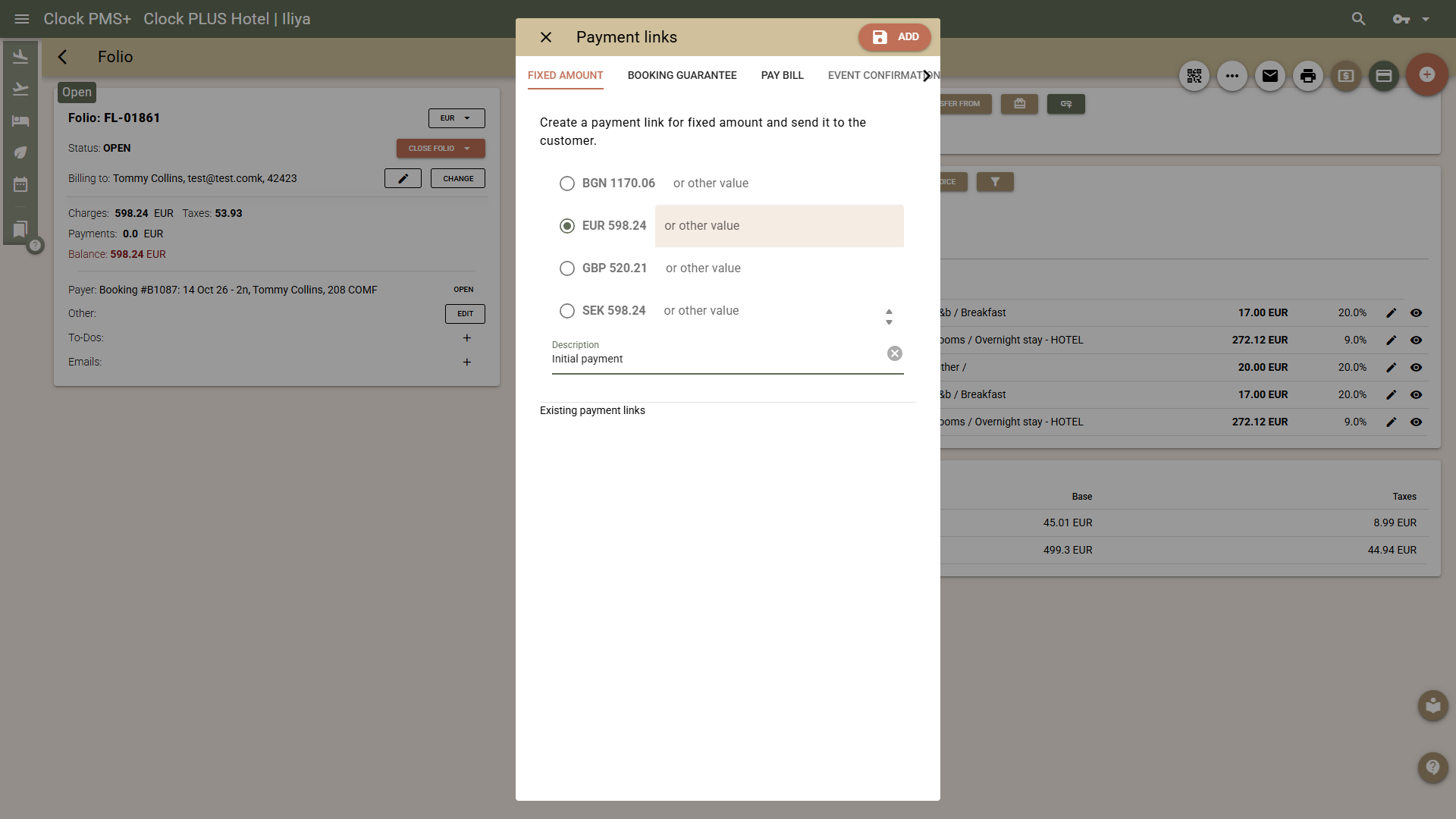
Select Fixed amount.
Enter the amount you wish to collect from the customer.
Generate the payment link.
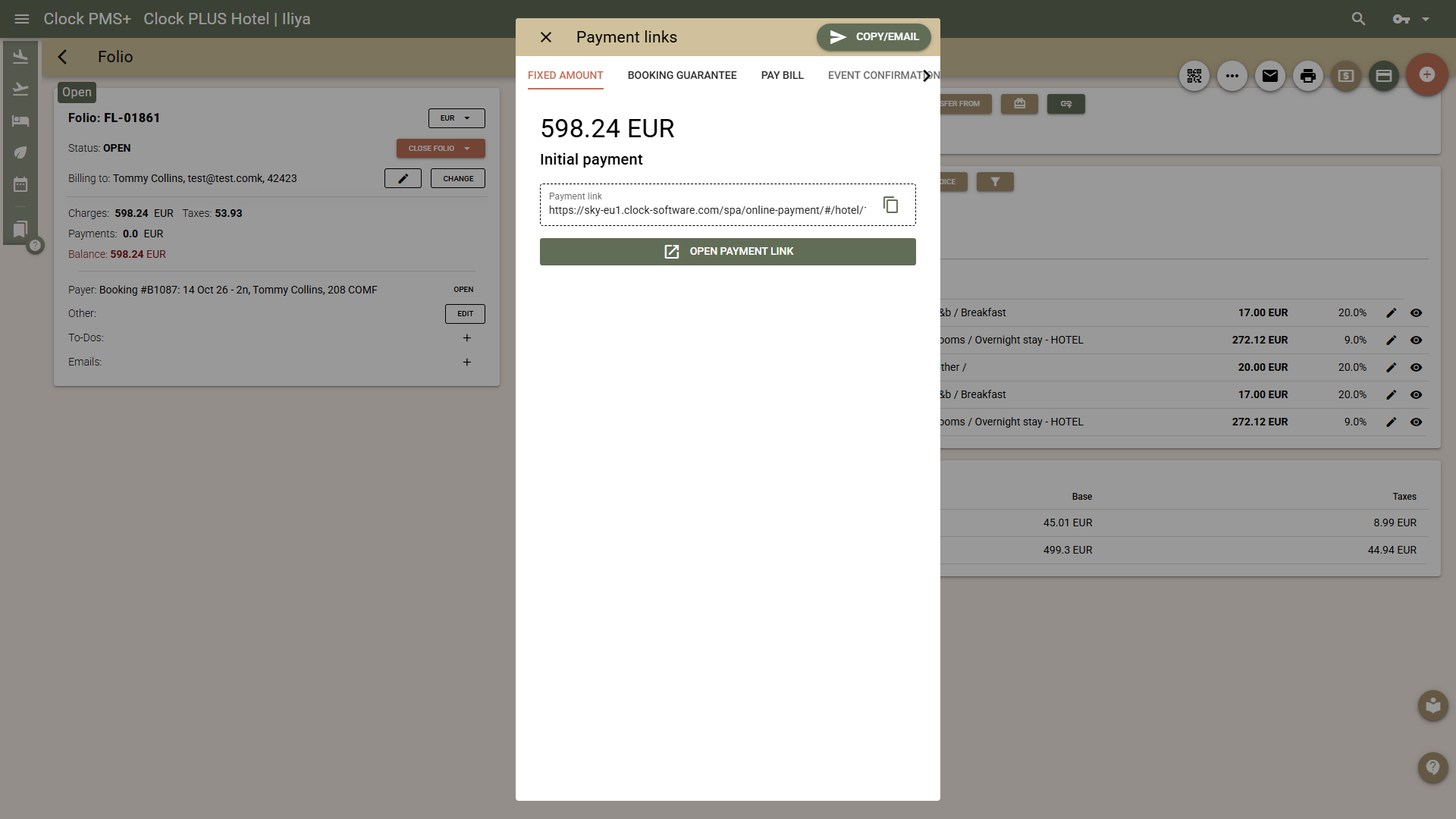
Copy the link and share it with the customer through your preferred communication channel.
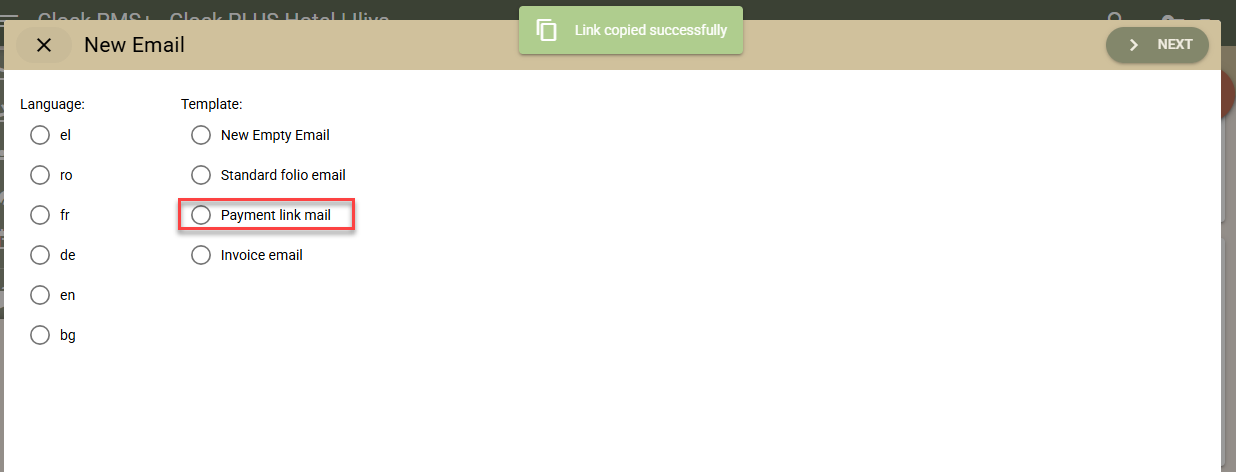
You can also use the Copy/Email button to automatically copy the generated link and open the email composition screen, where you can paste the link into your message.
Important: We recommend creating a dedicated Folio Email Template for sending Payment Links. Navigate to Settings → All Settings → Documents → Folio Email Templates and create a template for this purpose. Once you generate a Payment Link, you can select this template, paste the link into the email, and send it to the customer.
Note: Fixed Amount Payment Links are available for all folio types, including booking, company, non-resident, and event folios.
Other Available Payment Links
For convenience, the Payment Links menu also provides access to other payment-related links available in Clock.
| Link Type | Description | Availability |
|---|---|---|
| Fixed amount | Collect a specific amount entered by you. | All folio types |
| Booking guarantee | Direct the guest to the Guest Portal to pay the required deposit and guarantee their booking. | Booking folios only |
| Pay bill | Direct the guest to the Guest Portal to settle outstanding balances, with the option to request an invoice issued to a company. | Booking folios only |
| Event confirmation | Direct the customer to the Event Confirmation App to confirm an event and pay the required deposit. | Event folios only |
How Payment Links Work
1. Customer Opens the Link
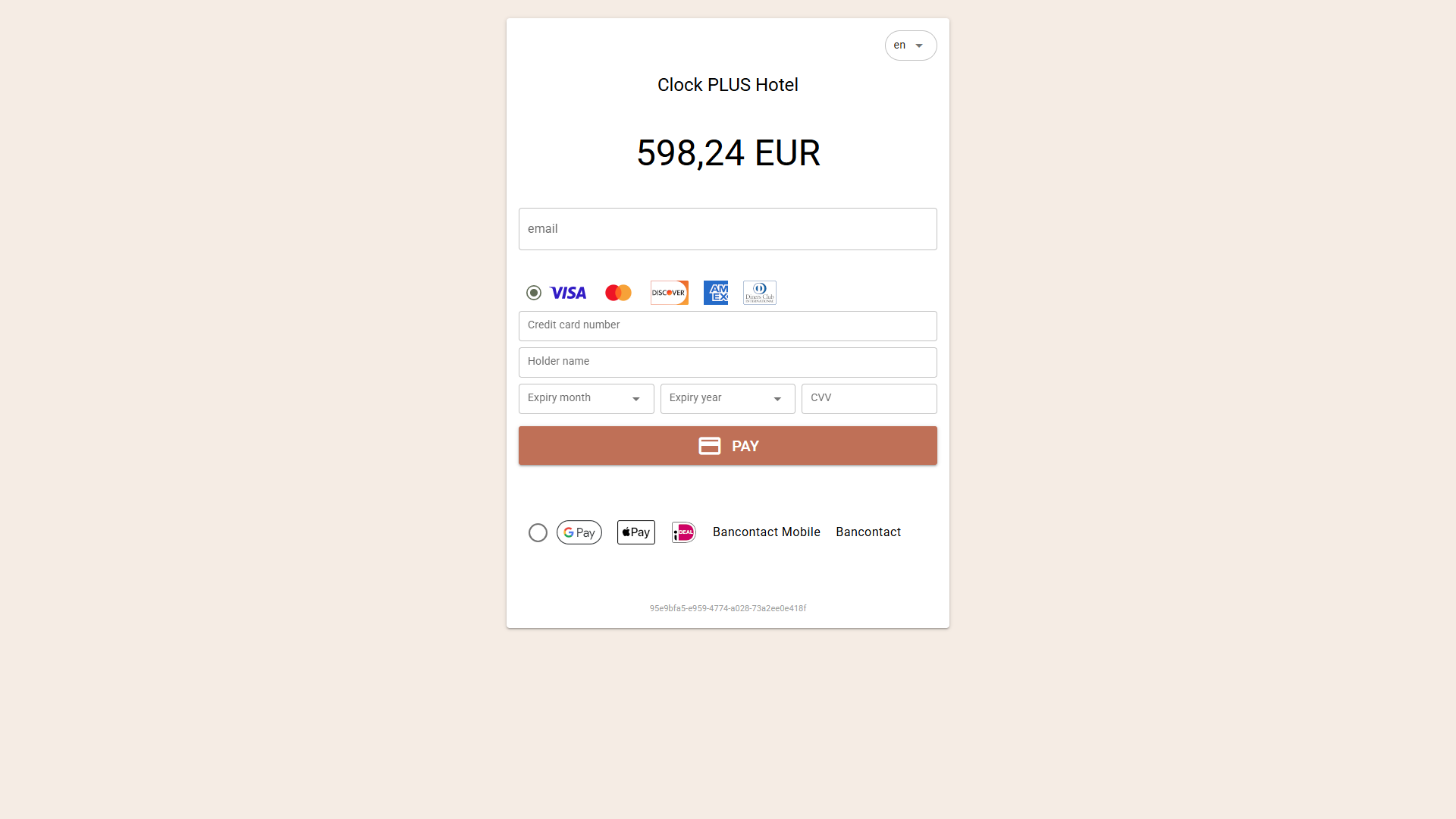
When the customer opens the Payment Link, they are presented with a payment page displaying the specified amount.
The customer can complete the payment using a card or any of the alternative payment methods supported by your configured payment provider.
Depending on the provider, these methods may include digital wallets, bank-based payment methods, and local payment solutions.
2. Payment Authentication
For card payments, the payment provider or issuing bank may require additional authentication through 3D Secure (3DS).
This adds an extra layer of security to the transaction and can help reduce the risk of payment disputes and chargebacks.
3. Unsuccessful Payment Attempts
If a payment attempt is unsuccessful, the customer can retry using the same link.
Each Payment Link allows a maximum of three payment attempts:
First unsuccessful attempt: The customer can retry.
Second unsuccessful attempt: One additional attempt remains.
Third unsuccessful attempt: The Payment Link becomes invalid and can no longer be used.
After three unsuccessful attempts, you must generate and send another Payment Link if you still wish to collect the payment.
Important: There is no need to generate another link after the first or second unsuccessful attempt. The customer can simply follow the instructions on the payment page to retry.
4. Successful Payment
Once the customer completes the payment successfully:
The payment is automatically recorded in the folio from which the Payment Link was generated.
The customer receives a payment confirmation email.
A copy of the confirmation email is also sent to your hotel email.
There is no need to manually register the payment in the folio.
Important Considerations
Payment Links are folio-specific. Each link is generated from a particular folio, and the successful payment is recorded in that folio.
The amount is specified when generating the link. It does not need to match the full outstanding balance of the folio.
Available payment methods vary. The payment options displayed to the customer depend on the configured payment provider and its supported methods.
Unsuccessful attempts are limited. After three failed attempts, the link becomes invalid and must be replaced.
Payments are registered automatically. Once payment is successful, the corresponding folio is updated without manual intervention..