
The centralised item management screen makes it easy to view and manage items across all POS accounts in your group. From a single screen, you can check which items are available in each POS, compare prices and quickly add or adjust items.
This tool is useful both when setting up new POS locations and when applying operational price updates.
How to access the screen
From the main screen select Management → Settings NEW → Menu → Items - All POS Accounts.
How to use the screen
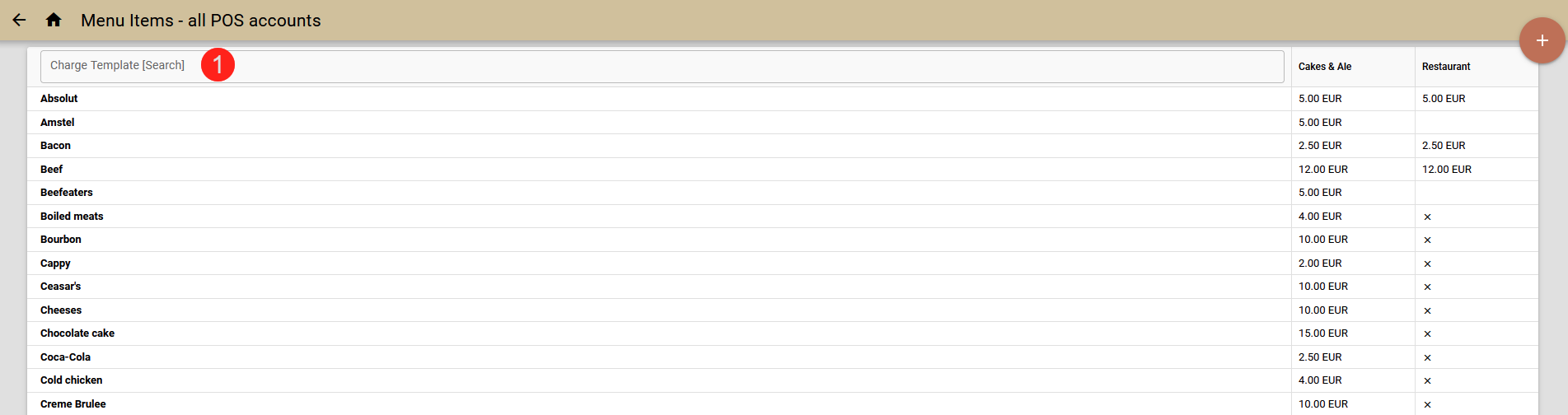
Understand the layout
- Items are listed vertically.
- POS locations are displayed horizontally.
- Use the search bar (top left corner) to find an item by name (1).
Cell indications
- If an item exists in a POS location, you will see its price.
- If an item exists in a POS location but has no price, you will see an empty cell.
- If it does not exist, an "X" is displayed.
Quickly edit prices
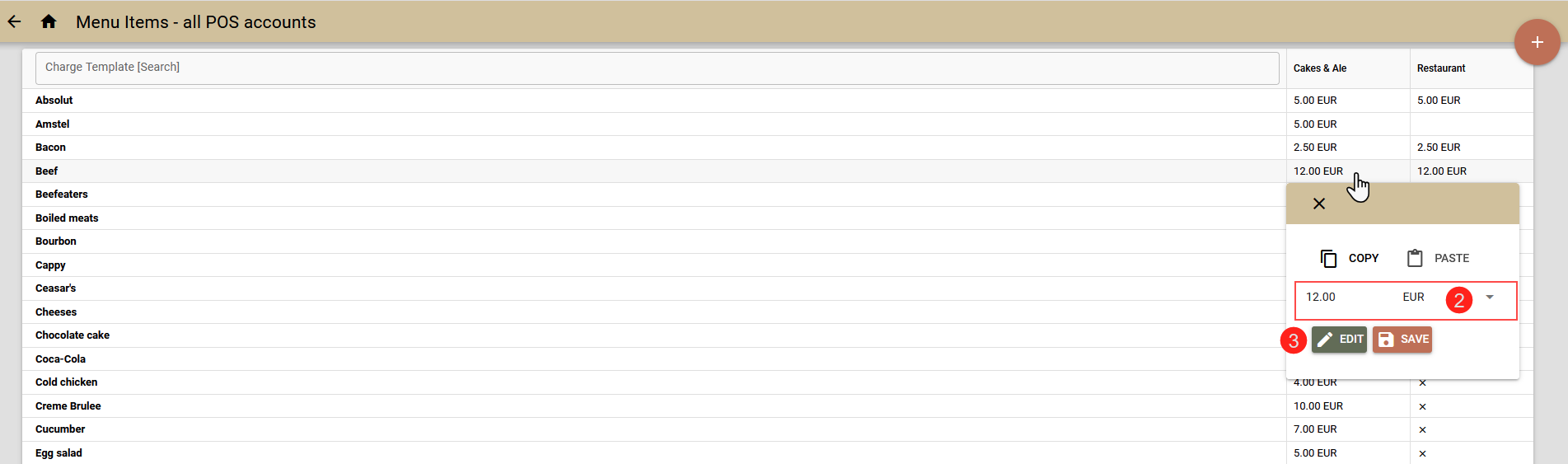
- Click in a cell to adjust the price directly (2) .
Edit the full item details
- Use the button "Edit"(3) to open the full editor with all template fields.
Copy/Paste templates
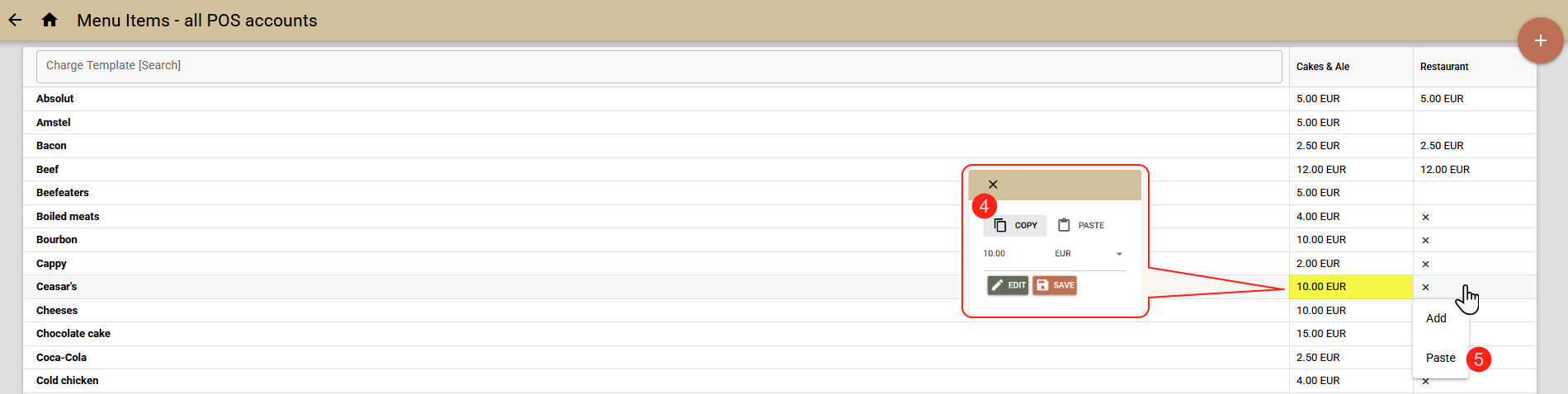
- Copy an item (4) from one POS and paste(5) it into another (or several). When pasting the item, the full editor will open for you to review the information and apply corrections if necessary.
Adding a new item
- Click the "+" button to insert a new row.

- Create the item in one POS location, then copy it to the others as needed.
Specifics when copying items
When working with items related to Kitchen and Service Order:
- These elements are defined separately for each POS account.
- When copying, the system searches for a matching item by name in the target POS.
Example: If you copy an item associated with a kitchen called "Hot Kitchen" and paste it into another POS, the system will link it correctly only if that POS location also has a kitchen named "Hot Kitchen". If no match is found, you will see a red message under the field.
Best practice
- Maintain the same names for Kitchens, Service Order in all POS accounts.
- This ensures seamless copying and avoids mismatched or missing elements.