
Guest Profile Merging
Guest Profile Merging helps maintain a cleaner guest database by identifying and consolidating duplicate guest profiles. The feature continuously evaluates guest records and can either suggest potential matches for review or automatically merge profiles when there is a high level of confidence that they belong to the same guest.
How Guest Profile Merging Works
Guest data often arrives from multiple sources and may initially contain limited information. Additional details can be added later through profile edits, rooming lists, Online Check-in, Kiosk, or front desk operations. As guest information changes over time, profile matching is performed continuously rather than only when a profile is created.
When a profile is created or updated, the system evaluates other profiles in the database and determines the likelihood that they belong to the same person.
The matching process considers available guest information, including:
- Name
- Email address
- Phone number
- Country
- City
- Postal code
- Passport number
- Personal identification number
A match in a single field is not sufficient to identify duplicate profiles. The system evaluates all available information and assigns a confidence level to each potential match.
Potential matches are classified as:
- High probability – profiles are considered very likely to belong to the same guest.
- Medium probability – profiles may belong to the same guest and require review.
- Low probability – profiles are not considered suitable candidates for merging.
Low-probability matches are discarded. Medium- and high-probability matches become merge suggestions.
Merge Modes
The feature supports three operating modes:
- Disabled
- Manual Merge
- Automatic Merge
By default, the feature is disabled.
Manual Merge Mode
When enabled, potential matches with medium or high probability are displayed as merge suggestions. Users can review each suggestion and decide whether to merge or reject it.
Automatic Merge Mode
In automatic mode:
- Profiles with a high probability match are merged automatically.
- Profiles with a medium probability match remain available for manual review.
Enabling Guest Profile Merging
- Navigate to Settings -> All Settings -> Guest Profiles -> Guest profiles - merge.

- Set Guest merge suggestions to Yes.
- Select the desired operating mode:
- Set Automerge guest profiles to No for manual merge mode.
- Set Automerge guest profiles to Yes for automatic merge mode.
- Save the changes.
Merge Suggestions
To review merge suggestions:
- Open Bookings -> Guest merge suggestions.
- Review the suggested profiles.
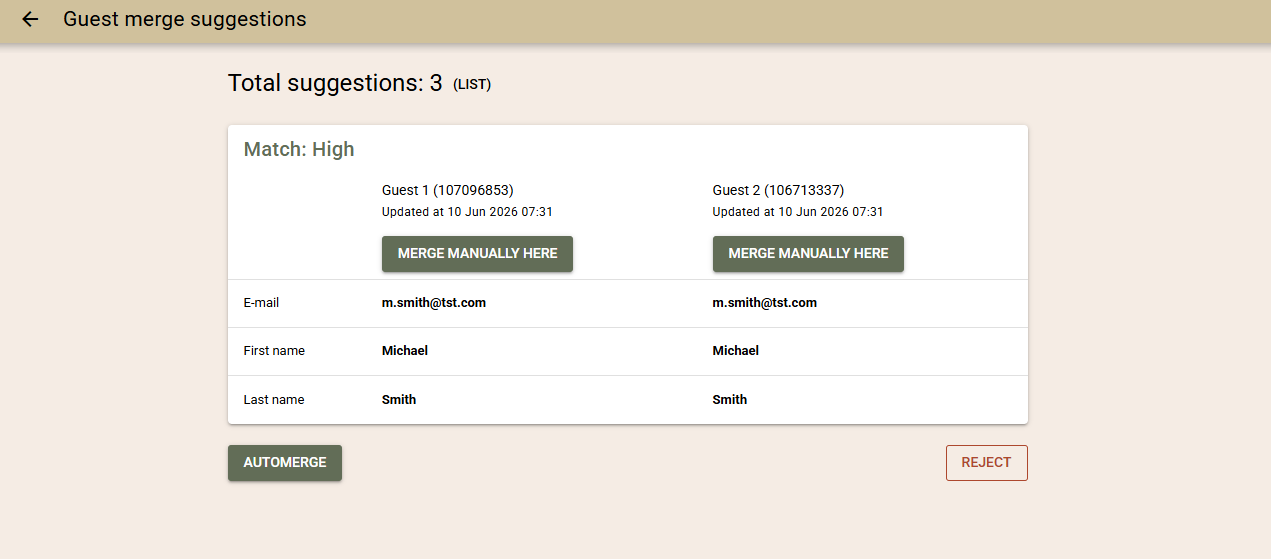
- Choose one of the following actions:
- Reject the suggestion.
- AutoMerge (automatic merge logic).
- Manual Merge.
If Automatic Merge mode is enabled, only medium-probability suggestions are displayed because high-probability matches are merged automatically.
Suggestions are dynamic and may change as guest information is updated. If a suggestion is no longer valid when you attempt to process it, the system will notify you that the suggestion is no longer available.
To view all generated suggestions, select List from the Guest Merge Suggestions screen. The list includes suggestion statuses, guest information, and details of completed manual merges.
Merging Guest Profiles
Automatic Merge
During automatic merging, the system retains the newer profile as the primary profile and transfers any missing information from the older profile.
Email addresses receive special handling:
- Personal email addresses are prioritized over masked email addresses.
- When both profiles contain email addresses, the system evaluates which value is more reliable before completing the merge.
Manual Merge
Manual merging provides full control over the process.
When merging manually:
- Select the profile that will remain as the primary profile.
- Review each available field.
- Choose which value to retain for each field.
- Confirm the merge.
Results of a Merge
After profiles are merged:
- All bookings are linked to the resulting profile.
- Booking inquiries are transferred to the resulting profile.
- Guest statistics are recalculated.
- Visit counts are updated.
- Related guest information is consolidated into a single profile.
Example: OTA Booking with a Masked Email Address
Many OTA channels provide masked email addresses instead of guests' personal email addresses.
When a guest completes Online Check-in and provides a personal email address, the system can use the newly supplied information to identify an existing guest profile. If sufficient matching information is available, the profiles may be merged automatically or presented as a merge suggestion, depending on the configured merge mode.
Example: Direct Booking
When a guest makes a booking through the Booking Engine using their personal email address, the system can evaluate the profile immediately. If a high-probability match is identified, profiles may be merged automatically when Automatic Merge mode is enabled.