
What is it used for?
The Single Sign-On (SSO) feature allows users in Clock PMS to log in to the system using their corporate Google or Microsoft accounts, without needing a separate password for Clock PMS.
Through this integration, you can link users in your Clock PMS subscription to their corporate Google or Microsoft accounts and manage their authentication centrally.
The main benefits of SSO are:
- Login without a separate Clock PMS password – users can use their corporate Google or Microsoft accounts;
- Passkey support – ability to authenticate via passkey provided by Google or Microsoft;
- Centralised password management – passwords are managed in the respective corporate platform;
- Centralised access management – when access to the corporate Google or Microsoft account is revoked, login access to Clock PMS via it is also revoked.
SSO Setup
Setting up SSO involves enabling the selected authentication provider and linking Clock PMS users to their corporate accounts.
1. Enabling SSO
- Open Settings → Users → Single sign-on (SSO);
- Select an authentication provider – Google or Microsoft;
- Enter the corporate account identifier:
- Google – the company domain associated with the corporate Google account;
- Microsoft – your organisation's Microsoft Tenant ID;
- Select “Enabled” and save the settings.
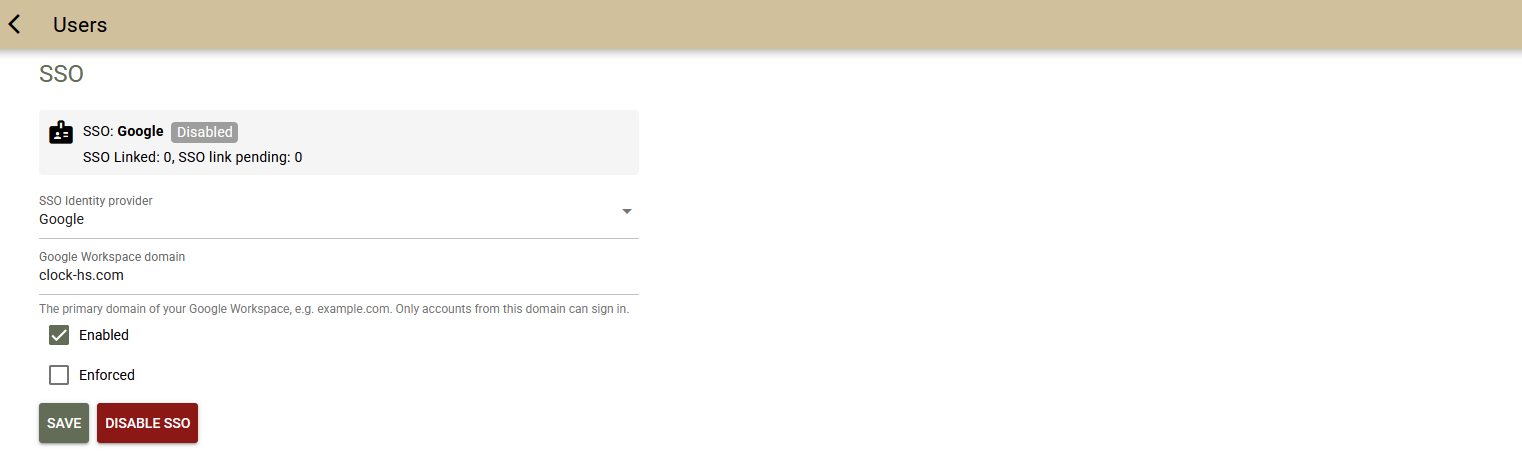
Once enabled, a login button for the selected provider – Google or Microsoft – will appear on the Clock PMS login page. At this stage, users cannot log in via SSO yet, as their Clock PMS profiles are not linked to their corporate accounts.
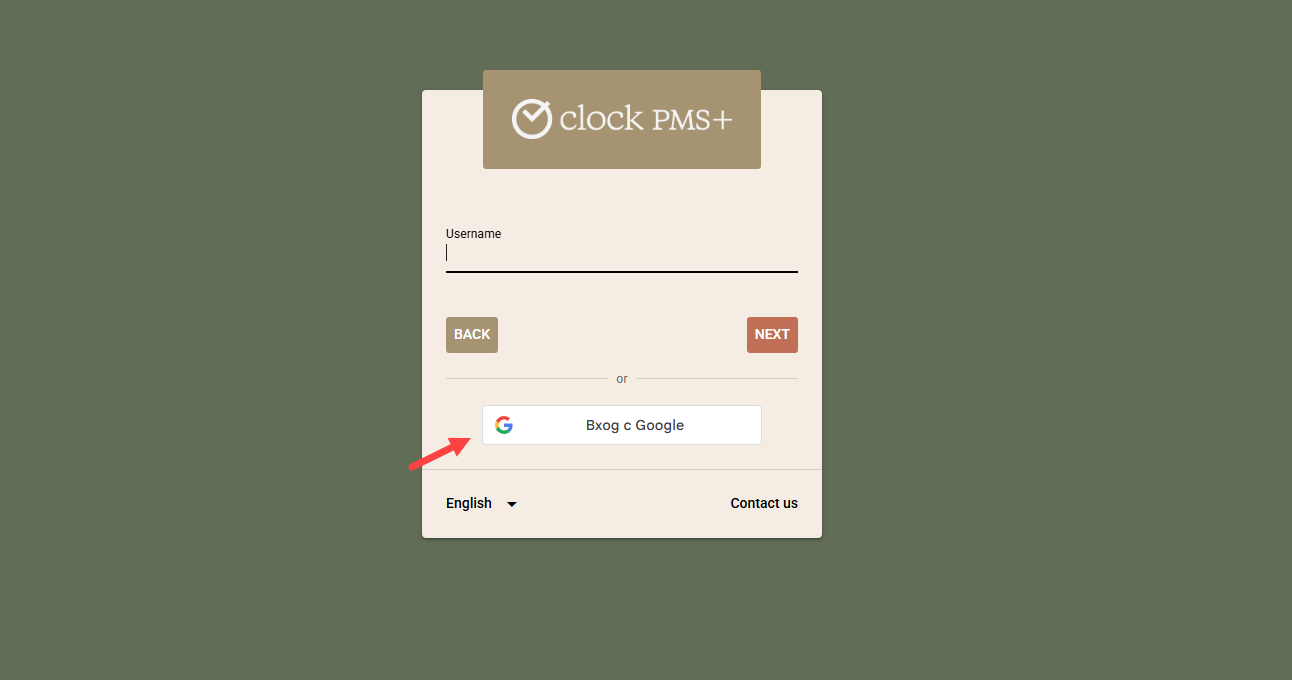
2. Linking Clock PMS Users to Corporate Accounts
For each user who will use SSO:
- Open the user edit screen in Clock PMS;
- Go to the “SSO” tab;
- In the “SSO Email” field, enter the email address that the user uses in their corporate Google or Microsoft account;
- Activate SSO access using the "Add SSO" button.

After saving the settings, the user can log in to Clock PMS via the respective Google or Microsoft button on the login page.
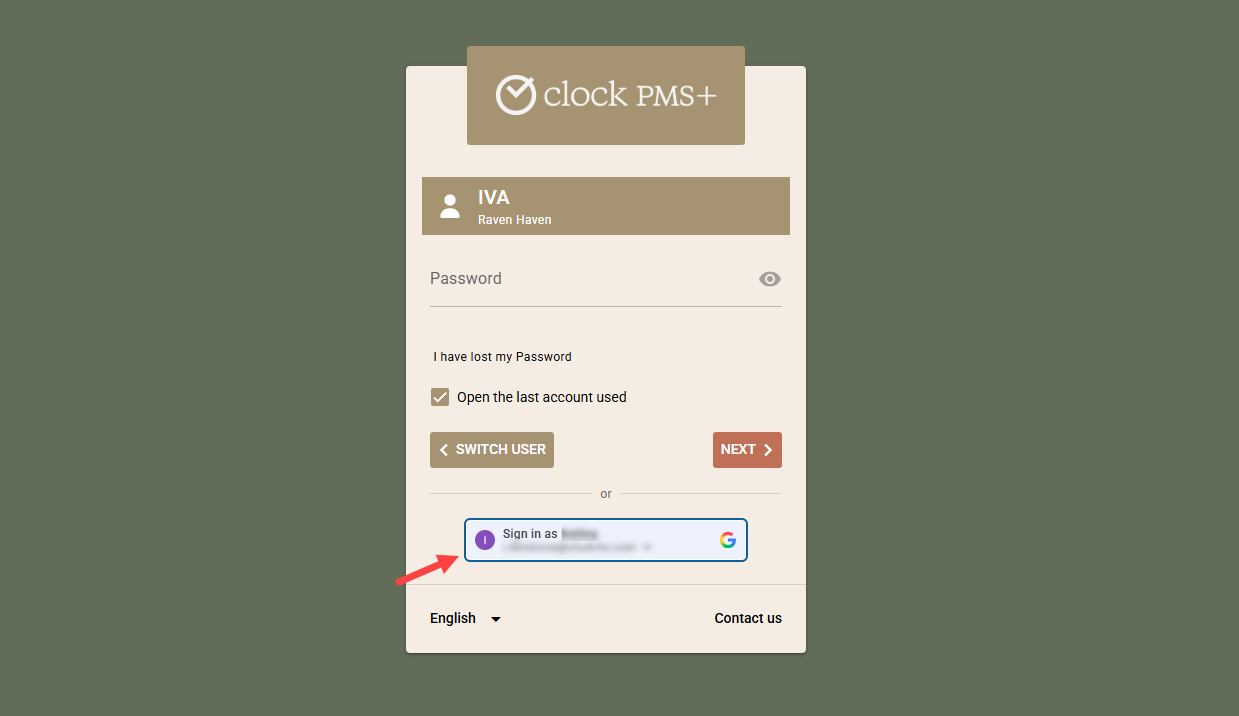
At this stage, both login methods remain available – via SSO and via the standard Clock PMS password.
3. Enforced SSO Login
If you want users with linked corporate accounts to log in exclusively via Google or Microsoft, you can activate the enforced SSO login mode.
To do so:
- Open Settings → Users → Single sign-on (SSO);
- 2. Select the “Enforced” option;
- Save the settings.
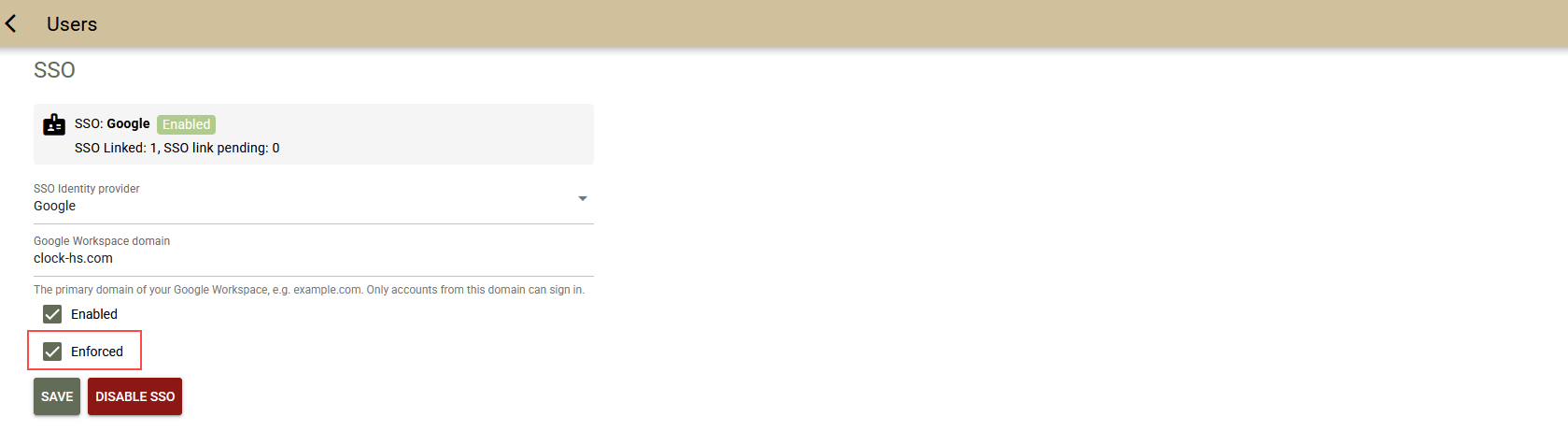
Once this option is activated, users with an “SSO Email” populated will no longer be able to log in using their standard Clock PMS password. For them, login will only be possible via the configured provider – Google or Microsoft.
Important: It is recommended to configure and verify the SSO access of users before enabling enforced mode.
Exceptions to Enforced SSO Login
The “Enforced” mode does not apply to:
- Users without an “SSO Email” populated – they continue to use the standard login method in Clock PMS.
- The Master User – they can log in both via SSO and with their Clock PMS password, even when enforced mode is active.