
This group of settings includes some of the most important system settings - Tax settings and revenue date mode. These allow you to determine how tax on services is calculated and how the financial date is managed in the system.
Tax Settings
To configure the tax settings, from the POS home screen select Management->Taxation.
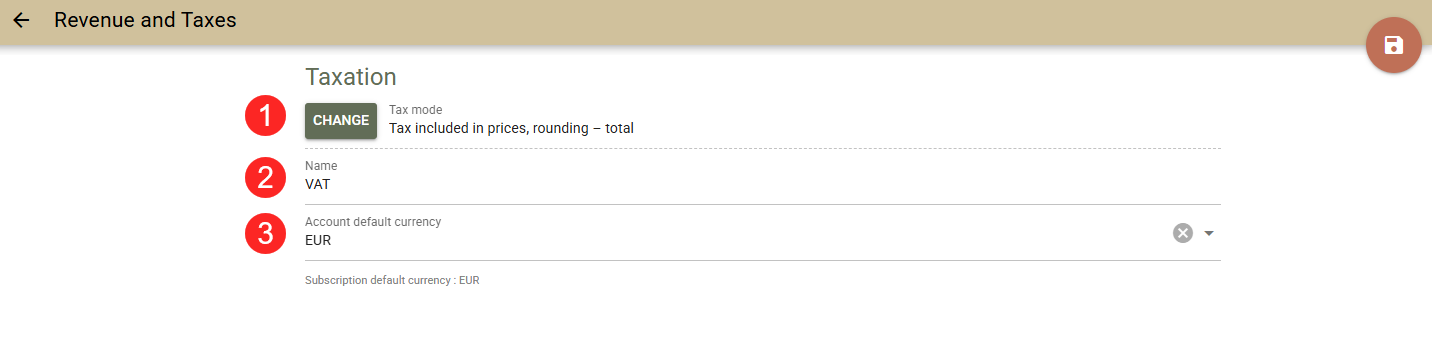
Use these groups of settings to define:
- Tax mode (1) - the mode type determines how the info in your invoices will be arranged and the method of tax calculation. Clock POS provides its users with a wide range of tax modes. Before selecting the mode matching your way of work, please familiarise yourselves with their specifics HERE.
- Tax name (2) - enter a short name for the tax. For example, VAT, TVA, MWSt, Moms, GST, Tax, etc.
- Account default currency (3) - select your account's currency.
Revenue Date Mode
There are several modes that you can make use of:
- Auto Revenue Date - the default one. In this mode, the Revenue Date changes automatically at midnight without any user's intervention. No changes to the past revenue date are possible. Such changes are registered as a correction on the new date. Additionally, you can also set an 'Offset' for the time that the date will change. If you wish the date not to change automatically at midnight but later, from the POS home screen select Management->Revenue date mode in field 'Auto revenue date offset' enter how many hours after midnight you wish the system to change the date.

For example: Тoday you void a closed bill that was posted yesterday. The negative correction will be recorded for today - yesterday there was +50 EUR revenue; today there will be -50 EUR revenue.
- Manual Date - similar to the above one, however, here the Revenue Date does not change automatically. It is to be changed by the user on a daily basis. Also, the user chooses the time for this change (either before or after midnight). Upon entering the new date, it is no longer possible to register a revenue with the past date, and all changes are registered as corrections on the new date.
- Manual Period - this mode, allowing you greater flexibility in terms of past days, but also letting you lock already reported periods. Here is a practical example of the use of the new mode:
- A company paying taxes based on its revenue reports is to submit the related documentation by the 15th day of the next month.
- This company needs the corrections to charges to be reflected as precisely as possible, i.e. they have to refer not to the current date, but to the date of rendering the service, even if it is in the past.
- In the second case, the system will register the correction as referring to the past date revenue, provided that this date is not already closed (the date must be after the 15th day of the previous month). Thus the information of the services rendered is most accurate and up to the last possible moment – the 15th day of the month.
- The corrections made after closing the reported period are registered as referring to the present date.
Note: Changing the date is done from menu Management->Revenue date mode . The user needs to have the Change Revenue Date and Settings: Tax right.
Warning: Make sure to always change the date if you switch to Manual mode.
Important: If you wish to change the reporting mode for the revenue date, please contact our Customer Service team at clockpms@clock-hs.com