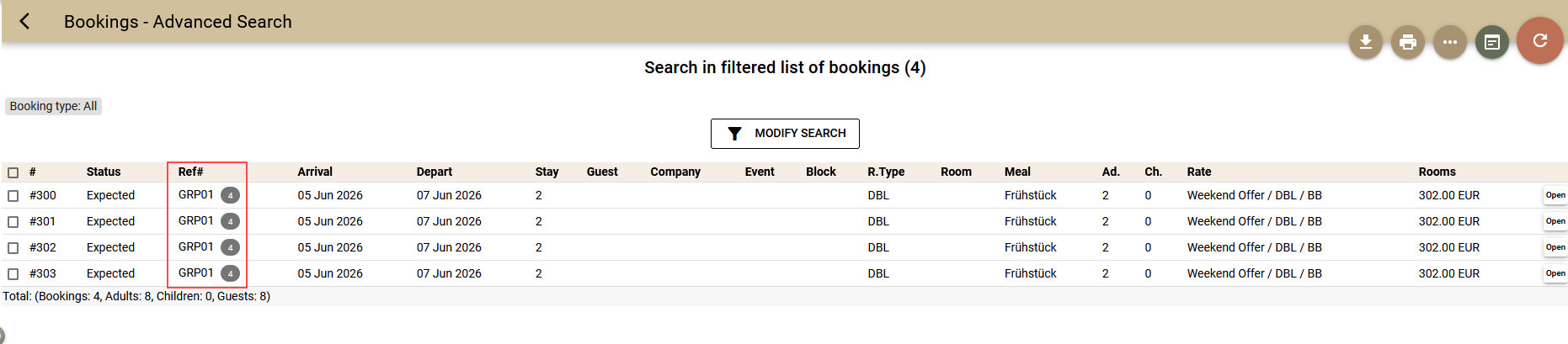
In Clock PMS, you can easily create multiple bookings at once and mark them as a group so you can search for and manage them together.
The process begins the same way as when creating an individual booking via the “Rate and Availability” screen. The difference is that instead of a single booking, you add multiple products to the cart.
Adding Bookings
Set the parameters and load the rates in the usual way.
- Click on a product's price to add it to your cart;
- Each click adds a separate booking. You can also use the quick buttons to add multiple bookings for a single product;
- You can change the parameters and load prices for different guest combinations to add bookings to the cart;
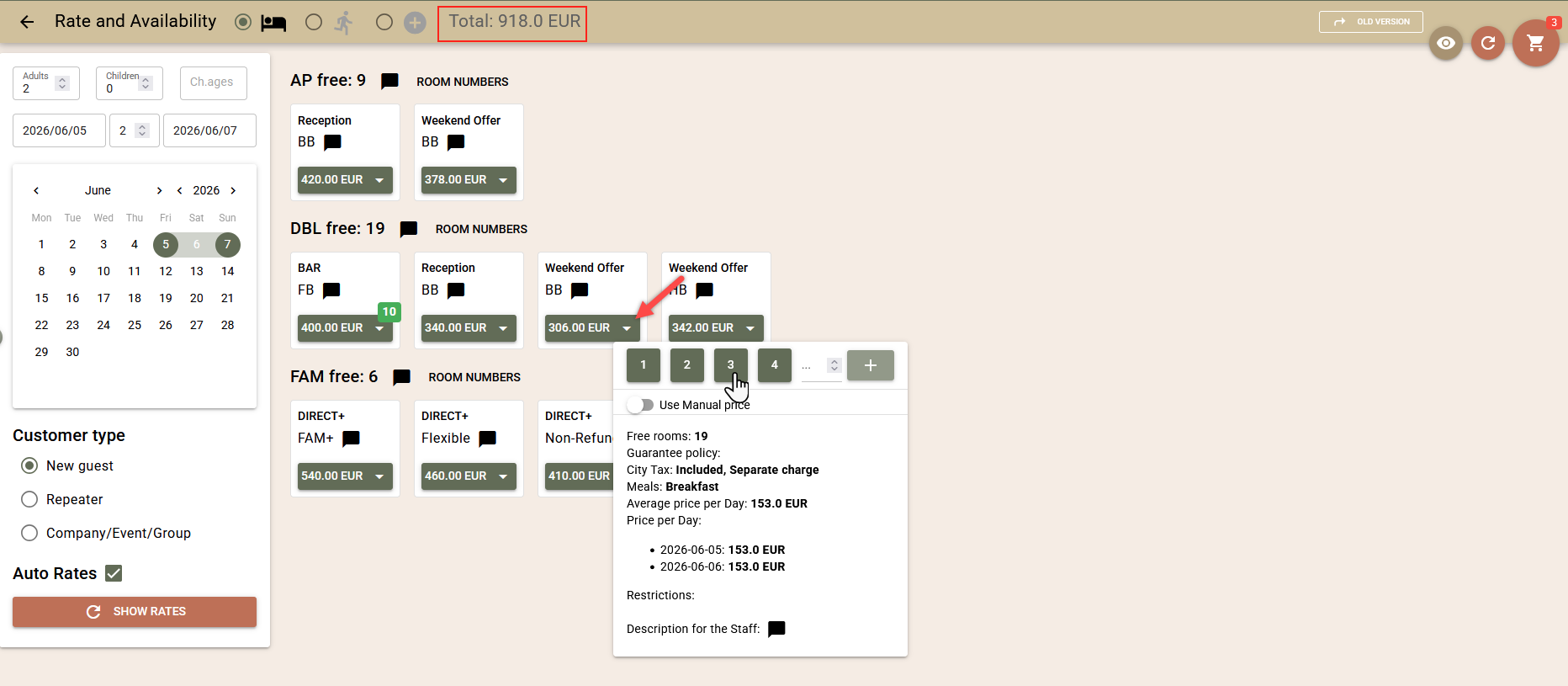
The number of added bookings is displayed on the „Cart“ button in the upper right corner, and the total price for all rooms is shown at the top of the screen.
Once all products have been added, you can proceed to fill in your contact information.
Contact Information
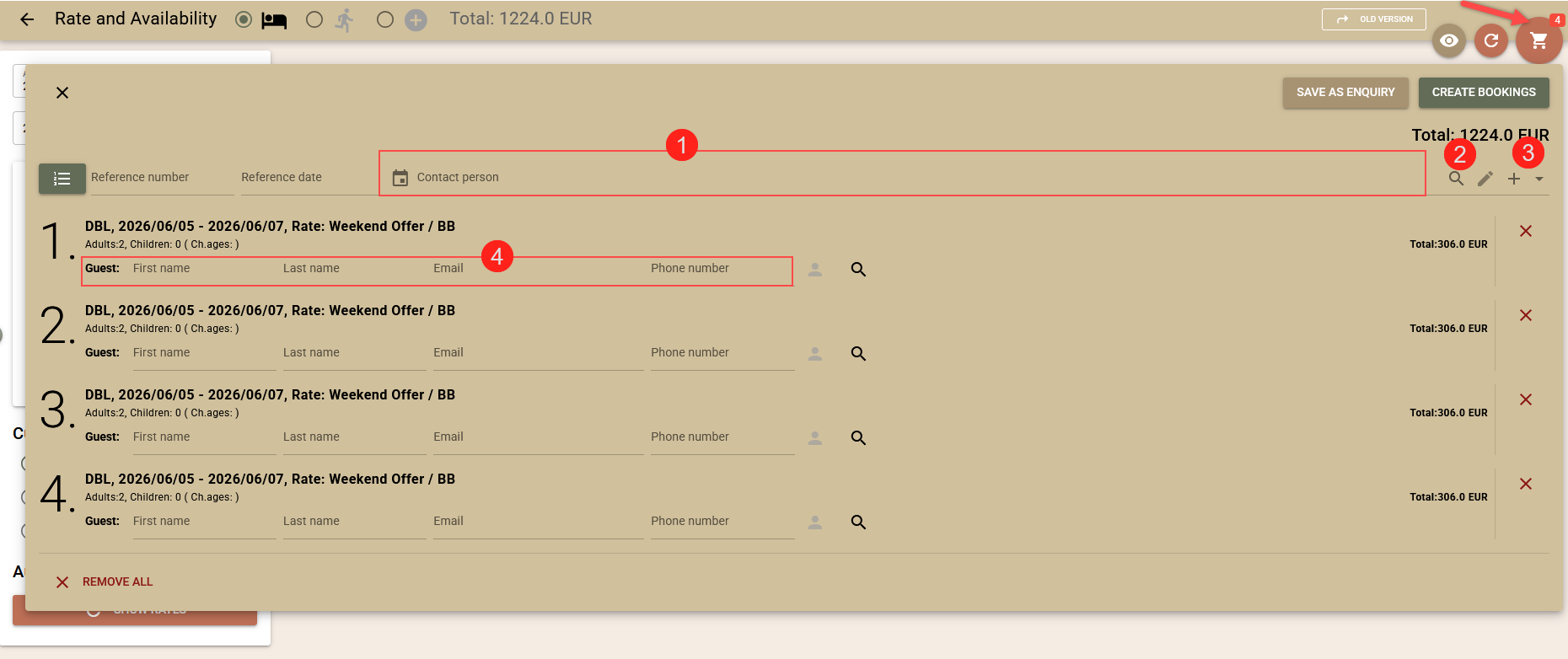
Open the cart. Before creating the bookings, fill in your contact information.
- You can designate a contact person (1) for the group by selecting an existing profile (2) or creating a new one (3);
- If necessary, you can enter a primary guest (4) for each booking, similar to individual bookings;
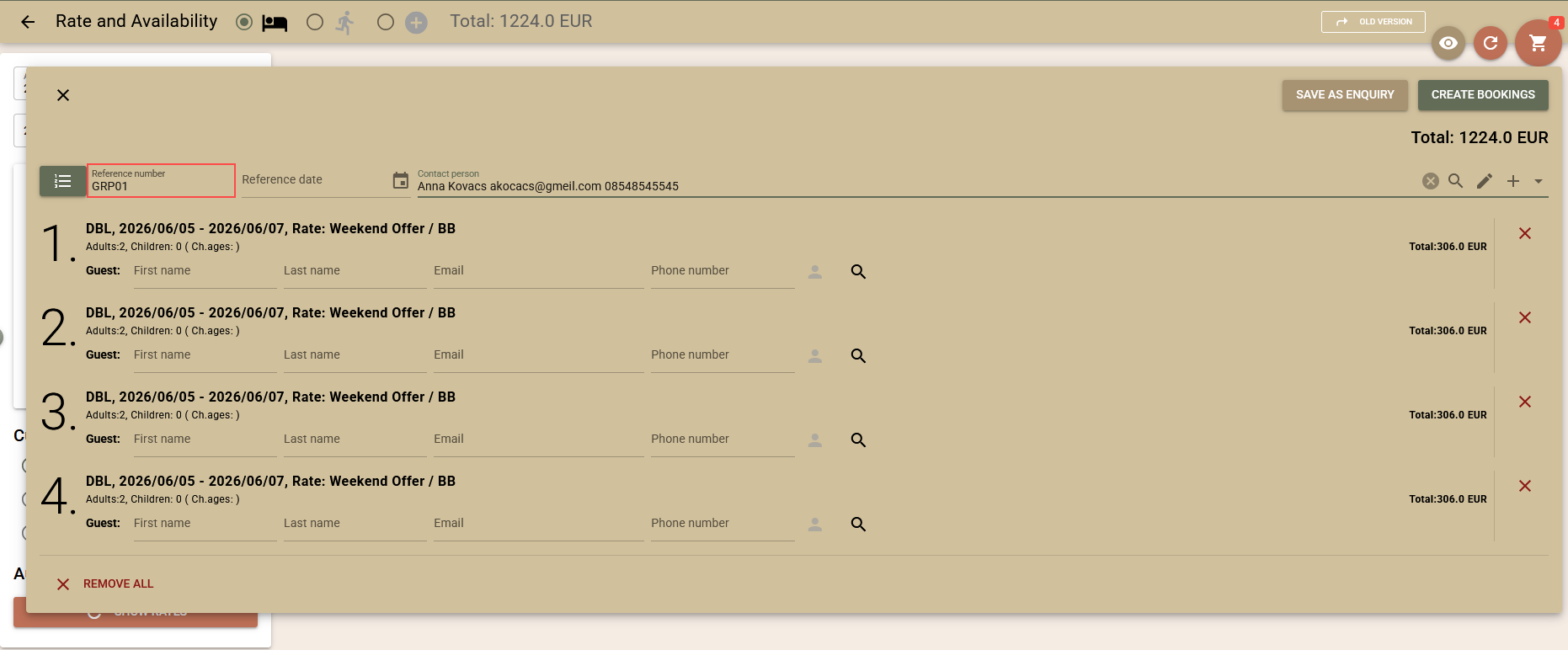
Reference number
All bookings you create at once are automatically grouped under a common reference number. It matches the number of the first booking in the group.
If necessary, you can set your own reference number or group name by entering it in the field above the list.
Creating Bookings
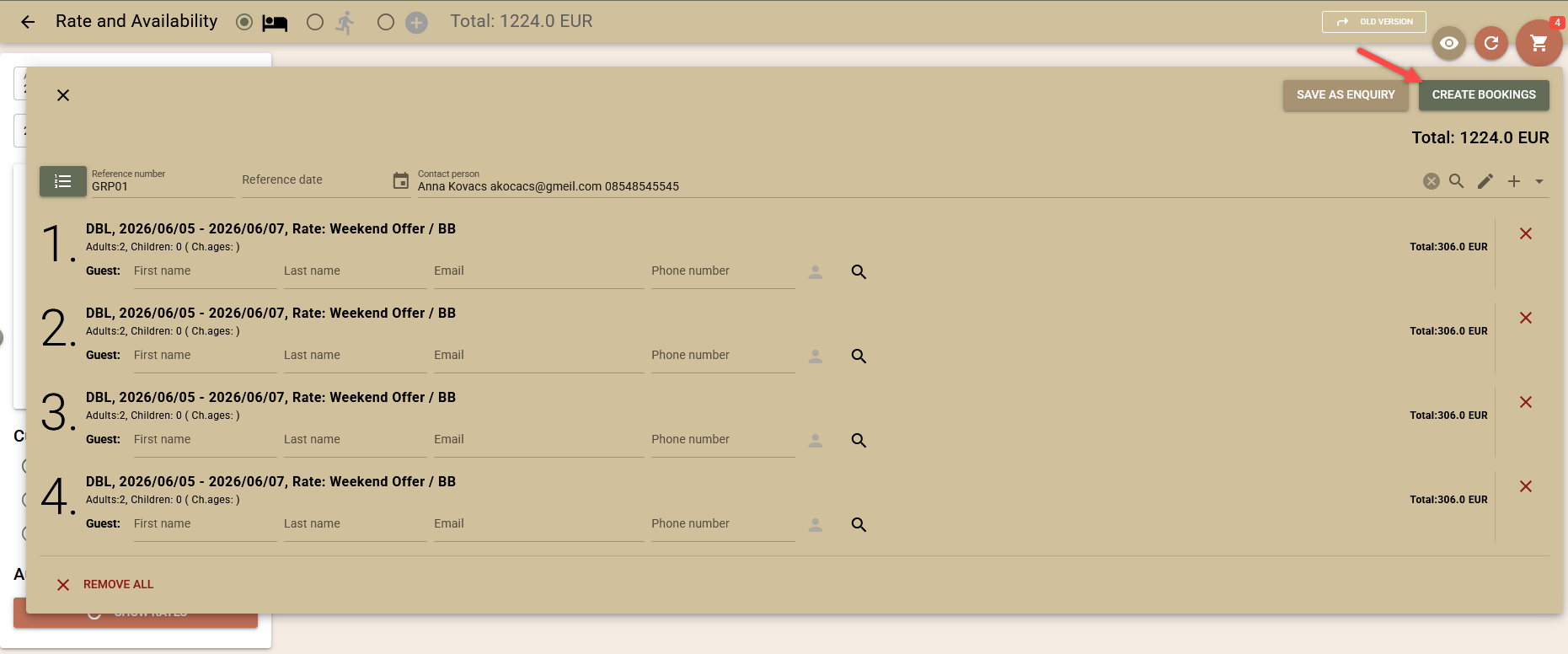
Once you have verified that all bookings in the cart have been added correctly and the contact information has been filled out, you can proceed to create the bookings.
- Confirm by clicking the „Create Bookings“ button.
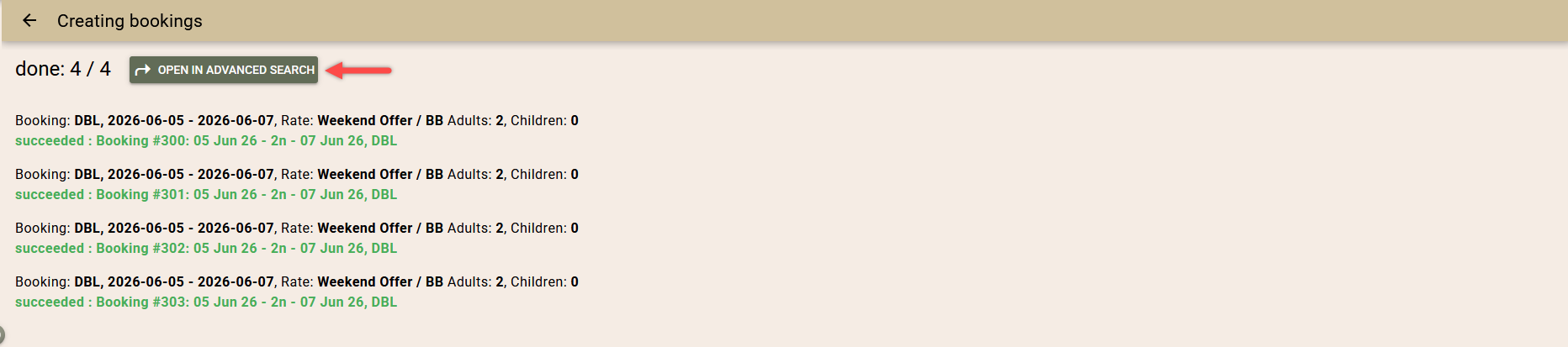
- In the next window, the system will display the progress of booking creation in real time.
- You can open the created bookings using the „Open in Advanced Search“ button.