
New features
Custom Management Reports
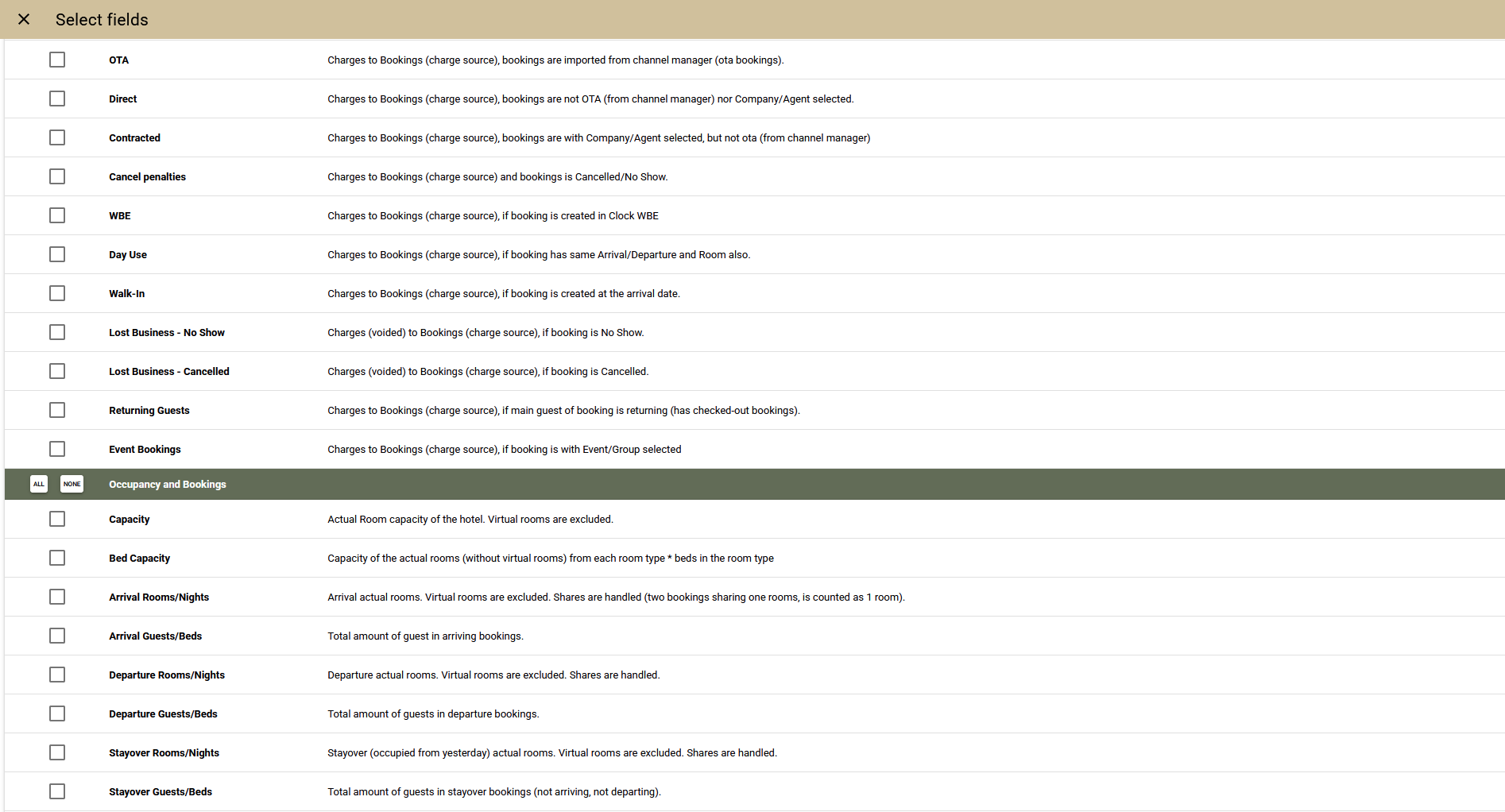
We present to you our new powerful and flexible statistical report engine designed for building various manager reports. With the new functionality, you can gather the most important statistics for you in a single report, compare them to a past period in Day-Month-Year format, or see them in dynamics - by days, weeks, months, or years. And for better visualization, you can add charts for the indicators you selected.
You can use the prepared 130 indicators covering various areas: Occupancy, Rooms, Bookings, Nights, Events, Revenue, Payments, Lost business, Direct business, OTA business, Corporate business, and many other KPIs. In addition to these 130 indicators, there are another 80 for average value per period. The full list of indicators and a description for each can be found in the application.
Standard Reports
For your convenience, we have prepared 4 standard reports based on the new statistical engine. Through them, you can quickly get an idea of what you can achieve with it:
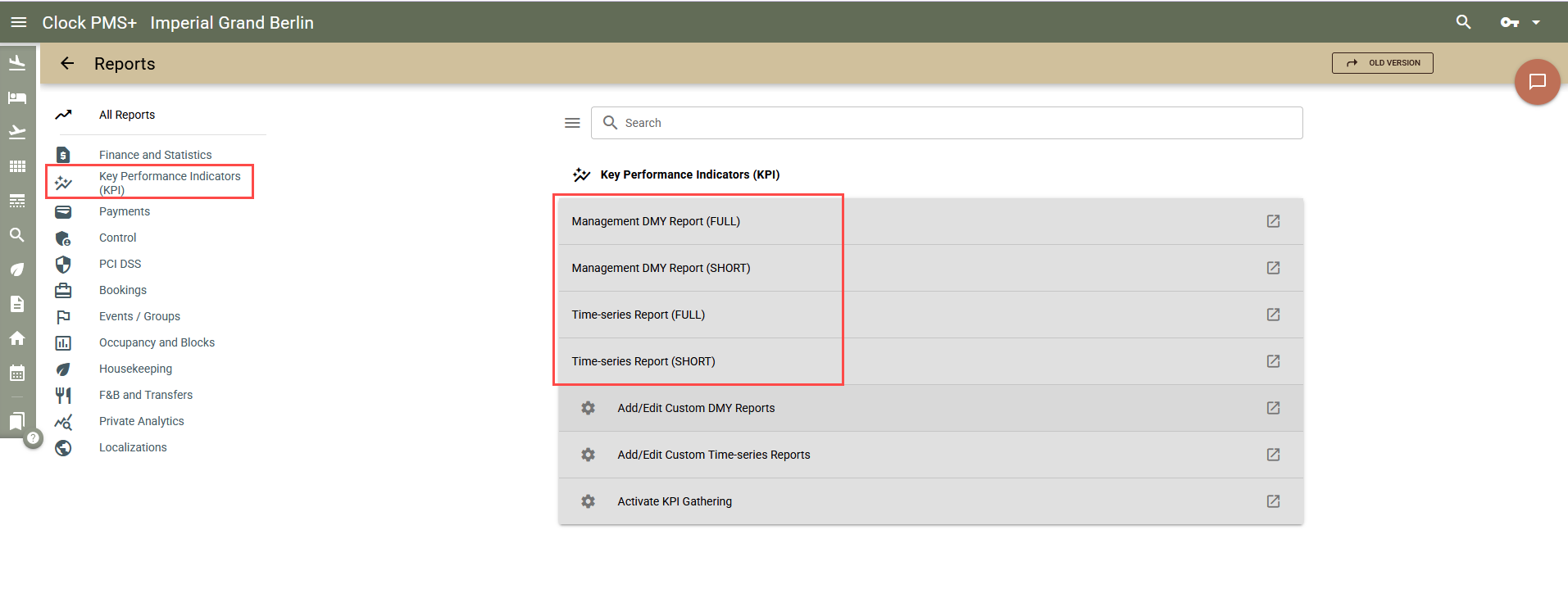
- Management DMY Report (FULL) - contains all 210 indicators in Day, Month, Year format, and the corresponding comparison of the day, month, and year with last year. The report allows for quick selection of indicators and customisations similar to custom reports. This way, if you have a one-time need for information, you can use it for a quick review without needing to make a separate custom report,
- Management DMY Report (SHORT) - designed to collect the most important information on a single page (without the chart). The report is a newer version of the current Occupancy and revenue by days, months, and years, adding several important indicators and a chart.
- Time-series Report (FULL) - This type of reports provides information for a selected period in different series - by days, months, weeks, or years. It also has the option for comparison with last year (past period). This way, you can track the dynamics and occurring changes and dynamics of the indicators.
- Time-series Report (SHORT) - designed to show data by days, where for the report we have selected the most important indicators so that they fit on a single page in landscape orientation.
Custom Reports
This is where the real power of the new statistical engine lies. When we talk about customisation, we mean not only which indicators the report itself includes, but also how it calculates the main indicators - available rooms, total revenue, total event revenue, and even more importantly - their related KPIs - Occupancy %, RevPAR, Revenue per Guest, etc. For maximum flexibility, you can even have different reports that calculate the main indicators in different ways.
Content of the Custom Report
Here is what you can do:
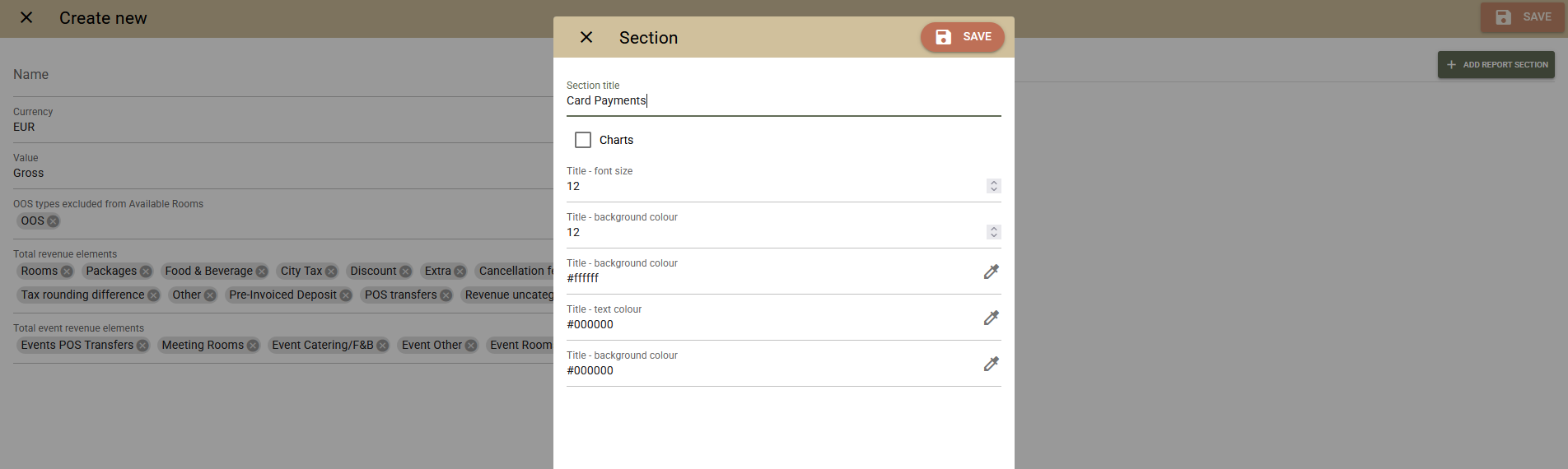
- Define sections in the report for a clear, visual division of data by assigning a name to each section. And for quick orientation, you can assign a colour.
- Add the parameters you wish to each section. For each parameter, you can rename it so that it is clearest for you.
- Sort the sections and the indicators in them so that they are most convenient for you.
- Add sections with charts of selected indicators in different parts of the report. The same indicator can be added both as a chart and as numbers.
- Change the font size of the sections (separately for the header and data) for better readability or more space.
Calculation of Main Indicators
Here are the customisation options regarding data calculation in the report.
- Currency - If you use different currencies, you can select which currency the amounts are displayed in.
- Gross/Net - Select whether amounts and their related KPIs are displayed and calculated based on tax-inclusive or tax-exclusive amounts.
- OOS types excluded from Available rooms -You can choose how available rooms are calculated and, more specifically, how OOO, OOS, and House Use blocks are treated. In this setting, select which block types to deduct before getting the Available rooms indicator.
Example: Capacity: 100, Bookings: 80, OOO: 1, OOS: 2, House Use: 3. If you select OOO and OOS in the setting, you will get 100 - 80 - 1 - 2 = 17 for Available rooms. And if you also select House Use in the setting, you will get 14. The indicator and method of calculating Available rooms also affects other related indicators based on it, such as Occupancy %, RevPAR, and TRevPAR.
- Total revenue elements - You can select which revenue groups to include in the revenue total and consequently reflect in the calculation of related parameters. This provides an easy way to exclude deposits and POS transfers from these numbers if you wish. Beyond the parameter itself, this amount also relates to the following ratios: Revenue per Room, Revenue per Guest, Revenue per Adult, TRevPAR.
- Total event revenue elements - You can select which event revenue elements to include in the total and consequently be reflected in the calculation of Event Revenue per Day and Event Revenue per PAX indicators.
How to Activate the Statistical Engine
To use the Management reports, you must first activate it, which is free of charge:
- Select Reports -> All Reports -> select the Key Performance Indicators (KPI) group -> Activate KPI Gathering.
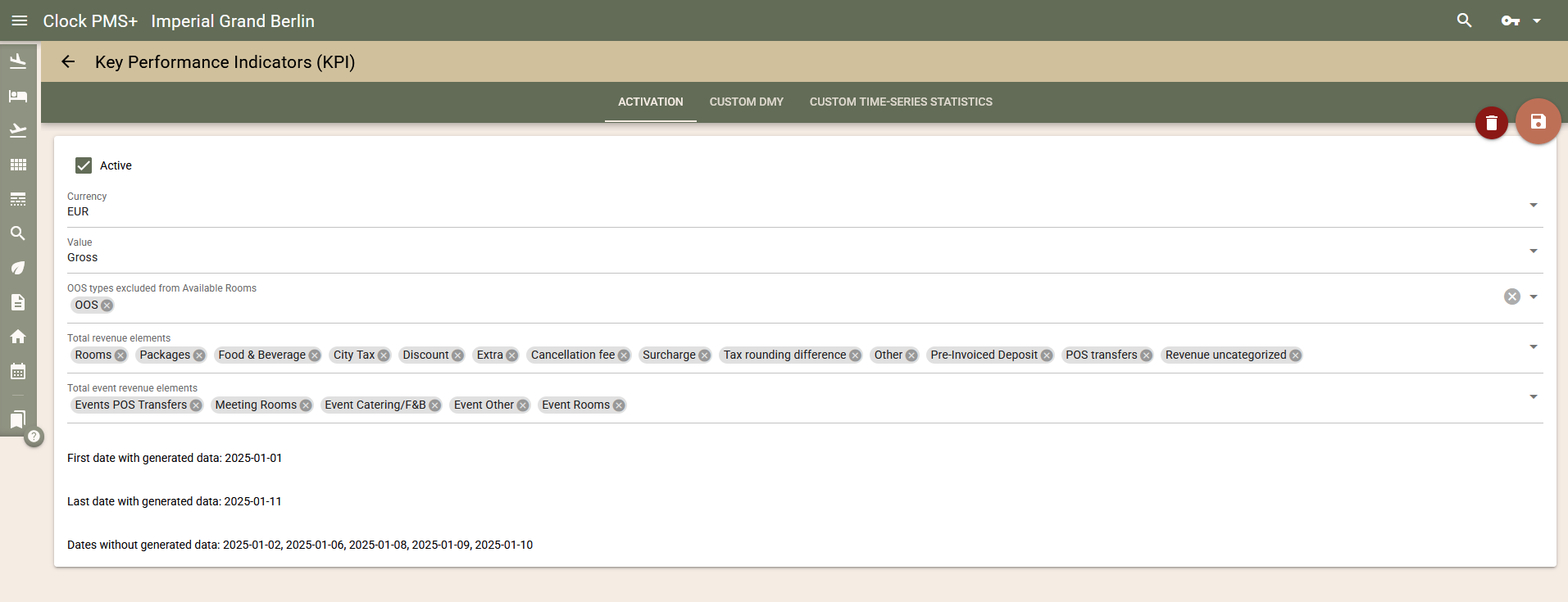
- Tick the Active checkbox
- Fill in the fields for Currency, Value, Total revenue, and Total event Revenue. These fields are auxiliary and serve as default values for subsequent use of reports and creating custom ones. Even if you are not sure what to enter now, you can change it at any time.
- Save.
- Data collection will take some time. After activation, data from the beginning of last year will be collected. You can track when the process is complete by refreshing the screen - in the Start date with generated data field you should see the first date of last year, the Missing data dates field should be empty, and in the Last date with generated data field you should see yesterday's date. When the generation process is complete, you can use the new statistical engine.
What Is the Difference from Our Previous Reports?
Technically, our previous reports are based on detailed charge and booking data. Since this data volume grows significantly over longer periods, we have introduced limits on the maximum period for which some reports can be generated.
In contrast, the new Management reports are based on pre-aggregated data generated daily after the financial date closure. This allows efficient work with much longer periods and combining indicators of different natures, yielding instant report results.
Data generation occurs in two stages - after the night audit, everything is generated, but at this point, data concerning no-shows and lost business from them is not yet fully clear. Therefore, the day's data is generated once more during the next night audit.
Example: Data for January 1 is generated once after it ends (on January 2) and once more on January 3.
A drawback of this data setup is that if for any reason you modify bookings two days after their departure, these changes will not be reflected in the booking-related statistics. Regarding charges, there is no such issue because they follow a strict chronological model by revenue dates.
If situations arise where you need to edit many bookings two or more days after departure, we have provided solutions for this case - you can regenerate an entire selected date from the statistics.
Guest Profiles, Discounts, and Customer Loyalty
We have added a suite of features that allow you to organise discounts for your regular guests, as well as to attract them toward direct bookings (via WBE) by enrolling them in a discount-based customer loyalty program.
For those of you who haven't used the discount codes present in the Company, Event, and Booking for some time, we will quickly explain their function. The organization of discounts itself is on two levels — discount codes and discounts. Codes are simply words — for example "GoldMember", "Discount-5", "Level1", etc., while discounts define, for each individual hotel, what exactly is discounted (revenue groups) and to what extent (discount percentage). This structure allows you to set discount codes in the company (for example "Level1"), while the actual discount for each of your hotels can be different (different base and percentage for each hotel). Furthermore, if you have no discount defined for this code in a given hotel, there will be no discount for that hotel either.
Discount Codes in Profiles
You can now select discount codes (multiple) in guest profiles, available in the new profile edit screen: Navigation -> Bookings -> Guest Profiles (New button). Once you select a discount code for a given profile:
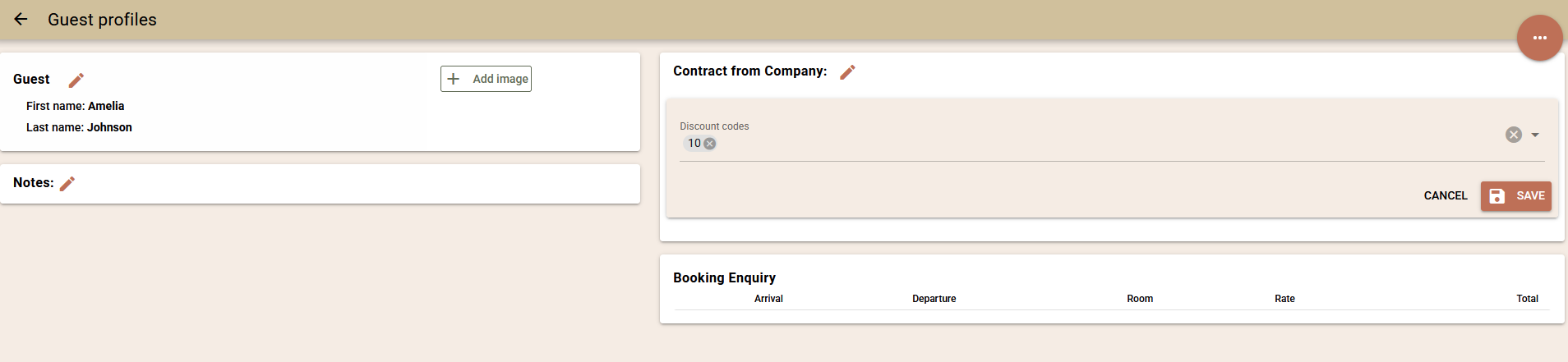
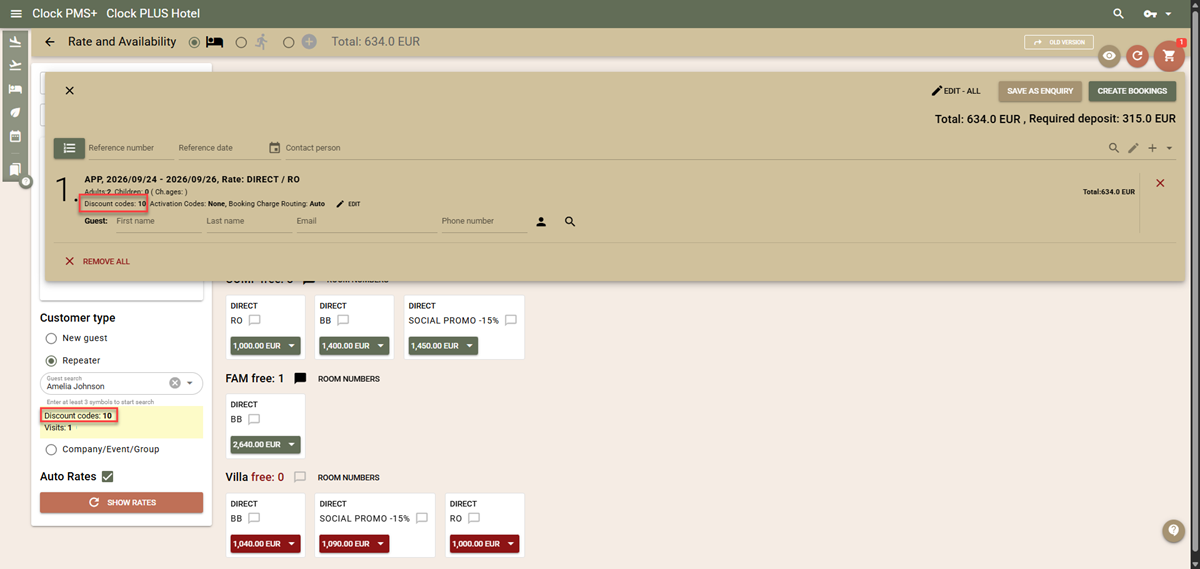
- In the Rates and Availability screen, select "Repeater" for "Customer type" and select the guest profile.
- In the notes field, you will see the profile's discount codes.
- Product prices (rates) will not change — they remain as you defined them.
- When you add a product to the cart, the discount from the profile will transfer to the line item in the cart.
- Its price, the total price of all bookings, and the required deposit will reflect the discount. The final price you see on screen can be communicated to the customer.
- If desired, you can remove the discount from the line item in the cart — open the cart and select Edit next to the line with the code.
- Upon completing the cart, the discount will transfer to the booking and consequently to its folios.
WBE and Customer Loyalty
We have prepared tools to help you encourage direct bookings through your WBE without conflicting with OTA portal rate parity requirements. On one hand, you can encourage new guests to register for the customer loyalty system by receiving a discount off standard rates, and on the other, existing profiles can log in to apply their terms (the discount codes set in their profiles). This provides you with tools covering the entire “Attract and Retain” cycle — attracting new direct guests and stimulating existing ones to book directly again.
Let's look at the process of attracting guests to the customer loyalty system:
All you need to do is add the discount codes that new customers registering in the WBE should receive: Settings -> All Settings -> Guest Profiles - "WBE - Sign-up Discount codes".
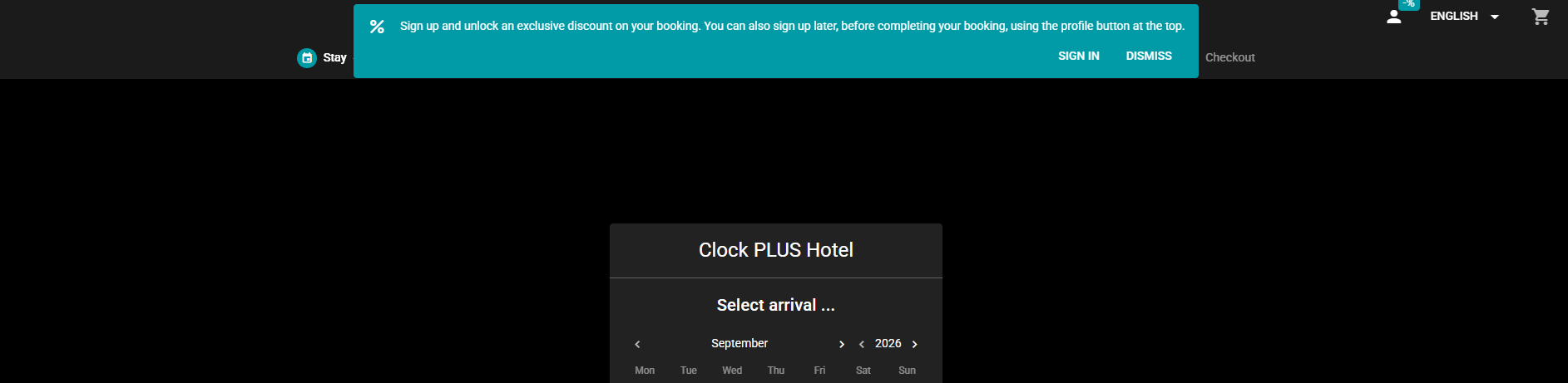
Once you open the WBE, a short promo banner will appear to hint to customers that if they register, they will receive a discount. The text on the banner can be modified by you via Settings -> App Translations.
The guest can follow the registration button on the banner or register using the login icon at the top of the screen.
On the login screen, there is another link for more information, the text of which is intended for a longer description of the loyalty registration terms. You can edit this text via Settings -> App Translations.
The registration process is identical to the login process, designed to have minimal requirements and be clear and simple.
Once registered, the configured discount codes are saved in the new profiles and take effect immediately, applying at the final step in the WBE. That is, rate prices do not change; for clarity, guests see a banner indicating their codes will apply at the final step, and at the final step, the discounted prices and the amount the customer will pay are displayed.
For guest convenience, they can register even after adding products to the cart. After registration, they will receive a discount both on the products already added to the cart and on new products they add.
Logging in for existing profiles works as follows:
The login/registration process is designed to ensure there are no obstacles for new or returning users. No passwords or usernames that are easily forgotten are required. Customers can log in using:
- Google profile - quick and easy.
- Own email - the customer enters their email and name, a verification email with a code is sent to them, which they enter back to log in.
Logged-in users are remembered for the device they are using, and repeat login is not required for that device.
The codes in their profiles are applied in the same manner as above — at the final step of the WBE, where the discounted prices and the total amount the customer needs to pay are displayed.
If you have more than one hotel in your subscription, keep in mind that the customer loyalty system is built to work for the entire chain — codes set in profiles apply to all hotels in your subscription. This does not mean everyone will necessarily receive a discount everywhere — that depends on the discount configuration, but it means that profile codes are unified because profiles are at the subscription level and are shared. Here are a few guidelines on how to proceed if you manage a chain of hotels:
- Build a unified strategy for codes — Define codes that are recognised across all hotels.
- Set the codes in the "WBE – Sign-up Discount Codes" setting, ensuring all hotels are aware of these codes.
- For each hotel, decide which code carries what discount and whether it carries a discount at all — Set the corresponding discounts for each code and each hotel.
Special Considerations
- Routing instructions — Please keep in mind the more complex way discounts work alongside routing instructions. Discount codes on a booking apply discounts only to the folios of that specific booking. The price you see on the Rates and Availability screen applies only to scenarios where the booking will pay its own bill, not if charges are transferred manually or automatically (via routing instruction) to other folios. If transferred manually or automatically to other folios, they will not receive a discount or may receive a different discount — meaning the final price in such scenarios will differ from the price seen in Rates and Availability.
- Offers — When booking via WBE through a sent offer, the price stated in the offer will remain as is and will not receive an additional discount, even if the logged-in profile has a discount or is newly registering for the customer loyalty program.
Improvements
- Meal reports now include meals from Events - charges directly in Events, Meeting Room bookings, and Caterings that are marked as meals are now included in meal reports – both detailed and summary reports. This gives you a much clearer forecast of how many breakfasts, lunches, and dinners you need to prepare for any future date, as well as complete operational information for the specific day.
- Here is a specific detail regarding the restaurant filter in meal reports: unlike Catering, an Event and a Meeting Room booking do not have a restaurant field. This means that if you post meal charges to meeting room bookings or directly to an Event, they remain without a restaurant, and accordingly, if you use a filter by restaurant, it will not account for them.
- Added quick access to the new Bookings - Edit multiple feature on the following screens – Create Group Bookings, Guests / Rooming List, Rate and Availability.
- If you prefer the old layout of the Rate and Availability screen and specifically the way bookings are created, we made a change for you – on the Rate and Availability screen, a direct link to the New Booking creation screen has been added (you can find it in the drop-down menu). If you use the new button, the booking creation process will be the same as in the old implementation of the Rate and Availability screen – the button opens the new booking screen for the selected product, transferring all data just like before.
- OTA – export and import management - You can now specify exactly which data to export to the partner (for example, you can send only room availability while disabling the rest of the export). You can also stop the import of bookings. For more information, you can contact the Support team.
- SynXis - Max room - In the room type mapping, you can now set a maximum number of rooms of a specific type for export.
- Check-in Kiosk (new) – checking in bookings without key card issuance. If an encoder for key card issuance is not set in the kiosk settings, upon successful completion of the check-in process, the booking status will be "Checked-in". This feature is useful for properties using fully mobile keys.
- We added a new option to invoice printing, allowing consumed advance payments to appear in a separate table after the charges. This table includes the subtotal of services by tax group – before advance payments are deducted – and the advance payments themselves with their tax groups. The option is designed for invoice requirements in Slovenia, but can be used by anyone. It is located in Settings -> All Settings -> Default Folio Print Options -> "print Advance separately".
- We improved the behavior of Cancellation Policies, specifically the charge cancellation part, so that all charges in open folios are cancelled.
Fixes
- Check-in Kiosk (new) – checking in and issuing key cards after the arrival date. Key card validity is now properly adjusted, and if a guest arrives after midnight the next day, the card will be valid from the moment of issuance, rather than from the check-in time (as it was previously).
- Bookings - advanced search – search requests by guest name only could not be executed in certain situations. The search has been optimized.
- SmartHotel – added information to the ToDo text for failed import of extra services.
- Bookings - Edit multiple (new) – guests of bookings already sent from Guest Mailings could not be edited.
Integrations
- Feratel - Guest details from bookings with an "expected" status were previously exported to Feratel. However, these guest profiles often did not meet Feratel's data requirements, resulting in errors. To avoid this, guests are now exported only when their booking status is checked-in, checked-out, or cancelled.
- Greece Fiscalisation / Epsilon / myDATA - The Logs page has been optimised and now loads significantly faster. Additional filters have also been introduced, allowing you to quickly access the information relevant to you.
- Gastronovi POS - Charge creation has been improved to respect the configured Booking Charge Routingrules. Charges transferred from Gastronovi POS are now routed in the same way as charges created manually.
- The interface activation process has been optimised to provide a smoother onboarding experience.
- Created charges were missing the configured default values for charge custom fields. This has now been fixed.
- Company folios from other accounts were incorrectly displayed as possible transfer destinations. This was only a display issue, as folios belonging to other accounts could not actually accept the transferred charges. The issue has now been fixed.
- Private Analytics - The data export has been optimised to make data lookup easier, while the existing table schemas remain unchanged.
- Lightspeed POS K Series - The End of Day (EOD) data may contain receipts with a total amount of zero, which could cause division-by-zero errors during processing. These receipts are now excluded from processing, as they do not contribute any value to the EOD results.