
Important: Please make sure you go through Room Access control - General settings as well.
Introduction
The integration between Clock and Ving Vision / Vostio(PMS Converter) enables you to streamline your operations and save time for your employees due to the convenient function to issue and encode key-cards directly through Clock PMS+. The flexibility of the integration allows you to control not only access to the room, but also access to common doors (e.g. main entrance; floor main door) or special zones (e.g. SPA or parking garage). Furthermore, you are able to control the times on the arrival and departure dates from/until keys will be active respectively.
Configuration
Important:
- A Clock IoT device is required for this integration and it must be connected to the same local (internet) network as the Ving Vision / Vostio(PMS Converter) server.
- The communication protocol used for this integration is VingCard PMS Interface - Version 1.51
- Ving version should be 4.0 or higher and VTCLink service enabled on your Ving server
- Vostio PMS Converter used for communicaiton between Clock PMS+ and Vostio. It has to be configured to work on port 4000. Please confirm the configuration with the support of your Vostio door lock system!
1. Access Clock PMS+ and navigate to section Settings->AppConnector->locate Ving Vision / Vostio (Assa Abloy) and activate it-> click button 'Settings'
2. Once the pop-up window is brought up, enter the respective information:
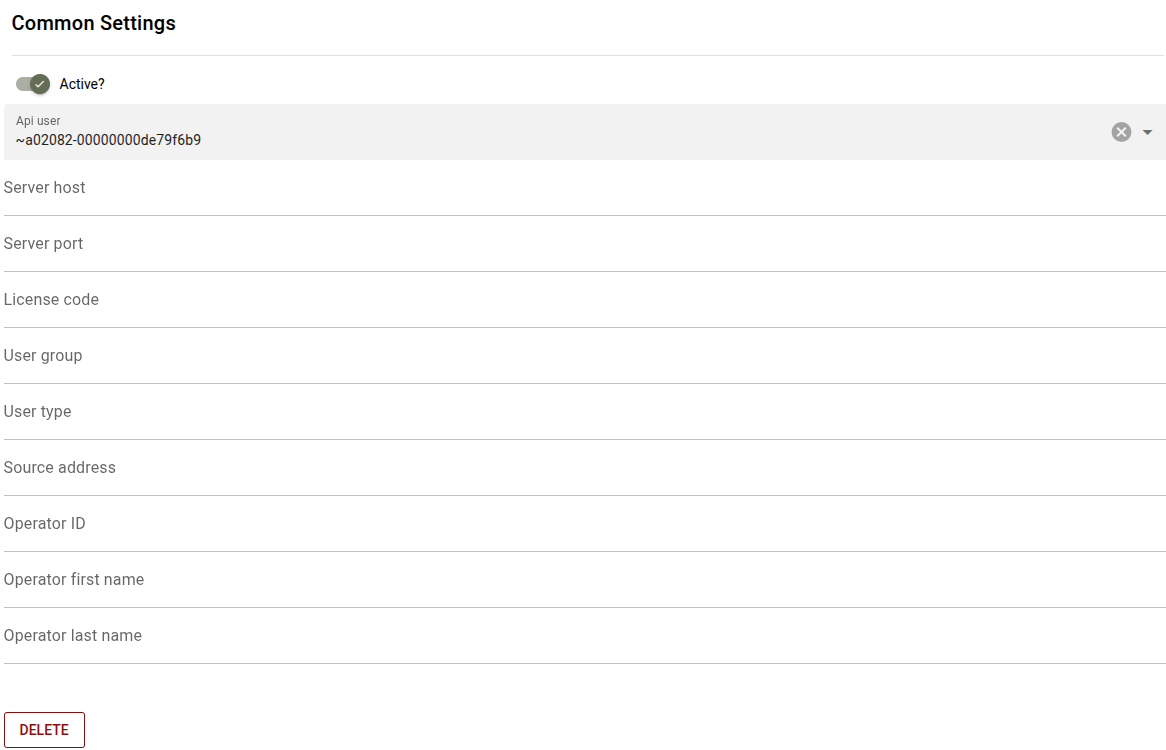
- Active - select once all configurations are completed.
- API user - select the Clock IoT device.
- Server host - enter the IP address of the Ving Vision / Vostio(PMS Converter).
- Server port - 3015 for Ving Vision installation and 4000 for Vostio(PMS Converter) (Have to be confirmed by Assa Abloy support).
- License code - for Ving Vision installation request it from Assa Abloy support; for Vostio(PMS Converter) use 42976713.
- User group - for Ving Vision installation request it from Assa Abloy support; for Vostio(PMS Converter) use a default one 01, but you can confirm it in your Vostion installation (Settings / Guest Access Profile / PMS access profile ID).
- User type - for Ving Vision installation request it from Assa Abloy support; for Vostio(PMS Converter) use a default one 01.
- Source address - Use the default 00 or the Clock IoT device IP address (Settings > All Settings > Clock IoT connector)
- Operator ID - for Ving Vision installation request it from Assa Abloy support; for Vostio(PMS Converter) use a default one ClockPMS.
- Operator first name - for Ving Vision installation request it from Assa Abloy support; for Vostio(PMS Converter) use a default one Clock.
- Operator last name - for Ving Vision installation request it from Assa Abloy support; for Vostio(PMS Converter) use a default one PMS.
Encoders
Enter the encoder/s details by clicking 'Add' under the section 'Room key Encoder'. Important: Only network device encoders may be used!

You will be presented with two fields to complete:

- Name (1) - enter the name of the encoder. You will see this name within Clock PMS+. It can be very useful if you operate with many encoders as the name will assist you in distinguishing between them and selecting the correct one when you encode a card.
- Identifier (2) - this is the ID of the encoder within the access control system. The encoder needs to be first added within their system and then add its ID here. We recommend that you keep the ID of the encoder short.