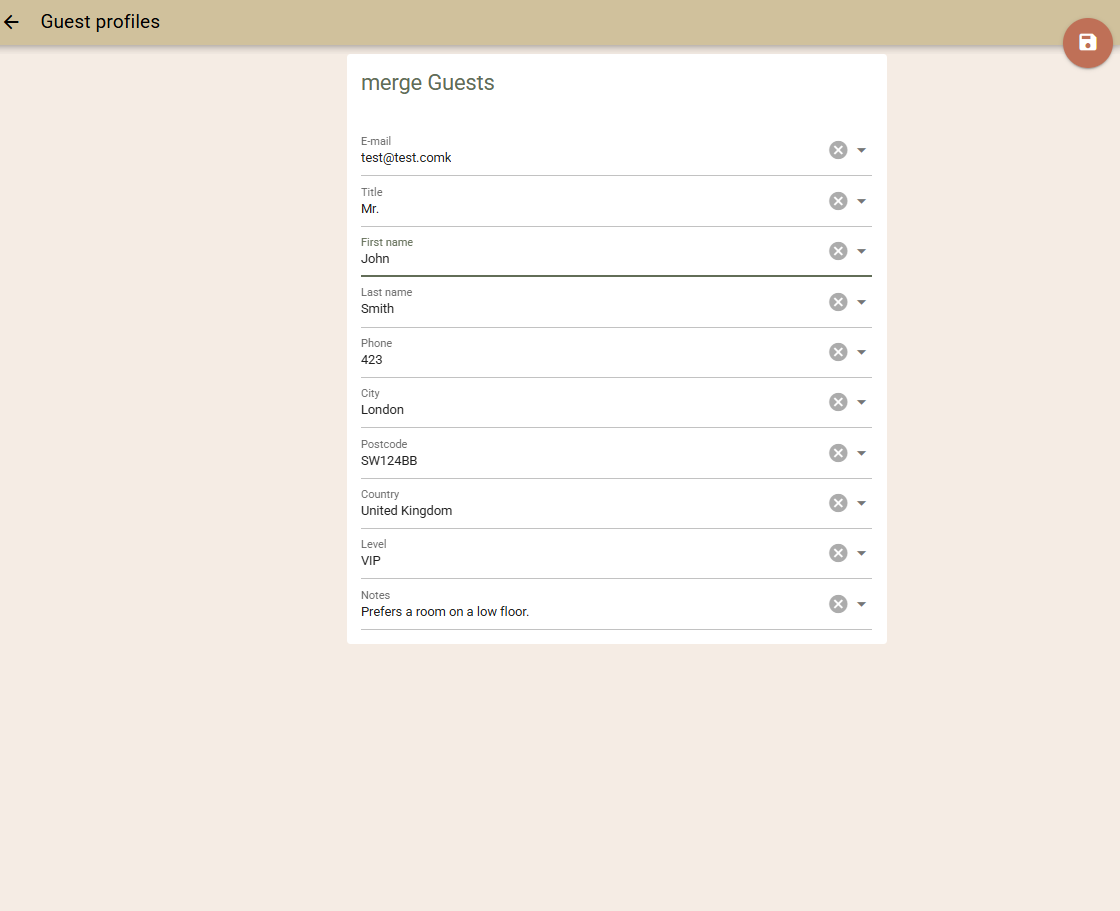
If you do not use automatic guest profile merging, you can manually review and merge potentially duplicate profiles.
Over time, the number of profiles can grow significantly, making manual review slow and inefficient. Therefore, we recommend using automatic guest profile merging.
Manual merging of guest profiles
To view the list of guest profiles, select Bookings → Guest Profiles. Load the full list or use the search filters to find specific profiles. If you find two or more profiles for the same guest, you can merge them. This way, the entire history and information will be stored in a single profile.
To merge guest profiles:
- Search by a common element in the guest profile to load those profiles
- Select the profiles you would like to merge (they will get highlighted in green)
- Click the three dots on the top right and select 'Merge selected guests'.
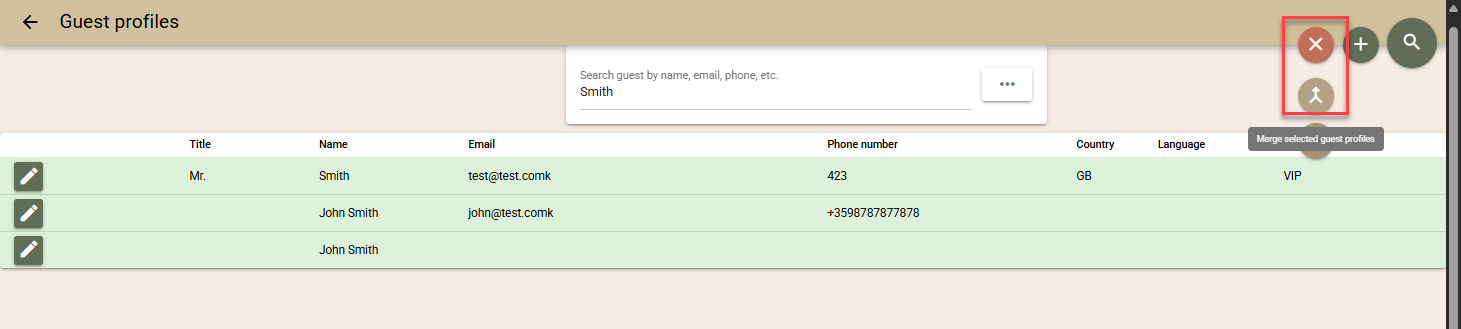
- Select the 'Target guest', i.e. it will be the profile to remain. We recommend selecting the profile that has the most information or the most up to date information to be the target.

- On the next screen, the system will present to you the completed fields for each of the profiles so you can select the (final) information that will be allocated to the merged profile before saving.