
New Functionalities
Automatic Guest Profile Merging
We have added a new functionality aimed at drastically reducing the number of duplicate profiles and, ultimately, making your guest profile database truly useful.
Although the task may seem simple, there is a significant challenge behind it that requires a very careful and balanced approach. The difficulty stems from the fact that guest data is often incomplete and, in practice, there is no single characteristic that can unequivocally prove that two profiles belong to the same person. For example, many people have the same names, and this is common even within the same city. Even the email address, which is usually accepted as a modern identifier, is not always reliable – online platforms and operating systems can hide or replace it, generic or business email addresses are often used, and bookings made on behalf of a friend or acquaintance (i.e., with someone else's email address) are also not uncommon.
Our algorithm also accounts for another feature characteristic of the hospitality sector – guest data is often received with a minimal set of information, and sometimes even without any data at all. Subsequently, the information is supplemented through edits, rooming lists, Online check-in, Kiosk, or at the front desk. Because of this specificity, traditional solutions where a profile is checked only at the moment of its creation do not function effectively in the hotel industry.
Our solution takes all these features into account and performs a constant and dynamic assessment of profiles to detect potential matches. The detected matches are analysed by a complex algorithm that determines the degree of reliability. Depending on the result, the system can automatically merge profiles (with a high score) or suggest a manual review and merge (with a medium score).
Here are more details about the new functionality:
- The function has three modes: disabled, enabled in "manual merge" mode, and enabled in "automerge" mode. By default, the function is disabled.
- When enabled, the function dynamically monitors profiles. When creating a new profile or changing an existing one, it searches for similar profiles and assesses the probability of a match. This constant "scanning" of the entire profile database ensures that profiles will be merged at the earliest possible moment when there is enough certainty that they belong to the same person.
- Match assessment. This is the most delicate part of the process. It takes into account available data for the guest - name, email address, phone number, country, city, postal code, passport number, and personal identification number. A match in only one field is not enough. Through a probability determination system and an assessment of all available data, a final score for the probability of a match is calculated. Depending on this score, profiles are classified as having a "high probability", "medium probability", or "low probability" of a match. Low-probability matches are rejected, and those with medium and high probability move to the next step.
- Automerge. If the function is enabled in "automerge" mode, profiles with "high probability" are automatically merged by the system. Those with "medium probability" remain for manual review and possible merging by a user.
- Manual merging. Found suggestions with "medium probability" and "high probability" are displayed on a special screen where they can be reviewed one by one. After review, the user can accept the suggestion and merge the profiles or reject it and move to the next suggestion.
- The two modes allow you to first enable the manual mode, check the algorithm's performance, and then proceed to the automatic mode.
- The suggestions themselves change dynamically. If they are not accepted or rejected by the user, the system will reassess them upon changes in the data of the related profiles. This means it is possible to encounter a suggestion that is no longer current, which is normal given the dynamics of creating and removing suggestions. In such a case, you will receive a message that the suggestion is no longer available if you try to merge the profiles.
- You can activate the new functionality in automatic or manual merging mode from the menu Settings → All Settings → Guest Profiles → Guest profiles - merge.
In the "Guest merge suggestions" field, select "Yes", and in the "Automerge guest profiles" field, select "Yes" for automatic mode or "No" for manual mode. Then save the changes.

Here are several real-world scenarios that show how our approach is tailored to the specifics of the hotel industry:
- Let's assume a guest has already stayed with you and you have their personal email address.
- You receive a new booking from Booking.com or another OTA channel.
- Most OTA channels mask customer email addresses to limit direct communication with them.
- Through the new functionality for flagging "masked" email addresses, the system "knows" that the corresponding profile does not contain a personal email address.
What are the benefits of this and how can the profile merging function help you?
- Upon going through Online check-in, the guest will be asked for a personal email address. This is done for all guests with masked email addresses. You can find more information in the change log below.
- After providing the personal email address, the system will automatically detect a match with the existing profile with "high probability" (two matching names and an email address are enough for such an assessment) and the two profiles will be merged automatically.
- In practice, the system can be triggered even before online check-in. For example, if two profiles have the same phone numbers but different email addresses, they will be suggested for manual merging as soon as the booking is created. Thus, if you review merging suggestions periodically (e.g., once a day), profile duplication can be prevented at the earliest possible stage.
- Let's also look at the most favorable scenario. The guest makes a new booking through WBE with their personal email address. In this case, when we have a personal email address, the system will detect the match immediately and automatically merge the two profiles (with the automatic merge setting enabled) right from the start. This way, you will have information about your loyal guests as early as possible.
Merging Profiles
What does the merging process of two profiles entail? Here is more information about how profile merging works:
- Automerge. The system selects the newer profile, assuming the information in it is the most up-to-date, and transfers the missing data from the older profile. The email address is processed in a special way, taking into account whether it is "masked" or personal, with the personal email address always having priority.
- Manual merge. With manual merging, you choose which profile to keep as the main one and have control over each field individually. For each field, you can specify which value to keep – from one profile or the other.
- After the merge, all bookings, booking inquiries, and other information related to the profiles are redirected to the new merged profile. Information about the number of guest visits is also updated, as well as the statistics for all bookings in the profile.
- To see merge suggestions, from the navigation menu, select Bookings → Guest merge suggestions. You will see the latest merge suggestion. If you have enabled automerge, only "medium probability" suggestions will be shown here, as those with "high probability" are handled automatically by the system. Review the suggestion and choose whether to reject it or merge the profiles – via fast (automatic) or manual merging. When merging manually, first select which profile to be the main one. In the next screen, specify the values for the individual fields and confirm the action.
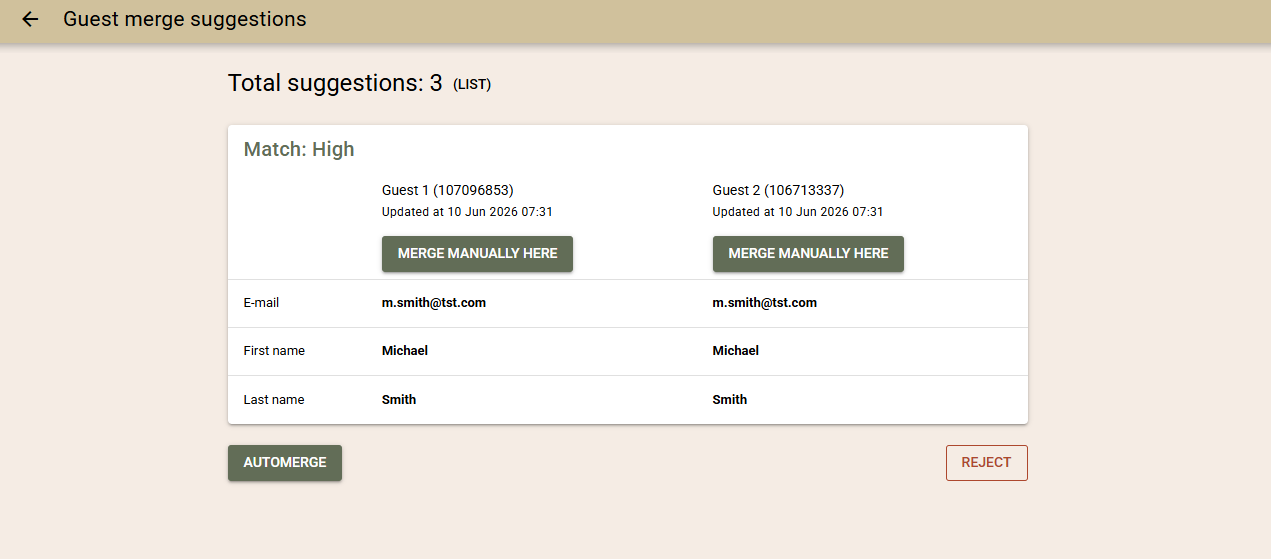
- From the same screen, via the "List" link (after the title), you can open the list of all generated suggestions, see their statuses, guest data, as well as the users who performed the manual merges.

Actual Meal Usage
Do you want to know how many breakfasts you sold and how many of them were actually consumed in the restaurant? We already have a solution to this question, without the need to note consumption on paper or maintain Excel spreadsheets. Everything can now be managed electronically.
With the new functionality, you can:
- Quickly check in the restaurant which meals each room has paid for.
- Note how many guests from a given room were present at the specific meal.
- Register guests only as a count, without bothering them with questions about their room number.
- Monitor in real-time the number of requested meals, the guests who have appeared, and the guests who have not yet appeared, which facilitates planning and managing food delivery.
- Receive summary information by dates and periods for requested and actually consumed meals (Meal Summary Report).
How the module works:
- To access the function, from the navigation menu, select Other functionalities → Daily Meal Usage.
- The use of the functionality is protected with a new permission "Daily Meal Usage Access". This permission allows you to grant limited access to the function to restaurant staff. In a next stage, we will add direct access from the POS system to facilitate the work of the restaurant staff. Until then, you can provide a direct link to the function. Restaurant users must have access to the relevant hotels and at least the "Daily Meal Usage Access" permission.
- On the screen, you will see the following fields:
- Hotel – a list of hotels to which the current user has access.
- Restaurant – if you use more than one restaurant, select the restaurant for which you will report consumption. If you do not use separate restaurants, leave the field blank.
- Meal – select the meal for which you will report consumption.
- Room– the system can function in two ways:
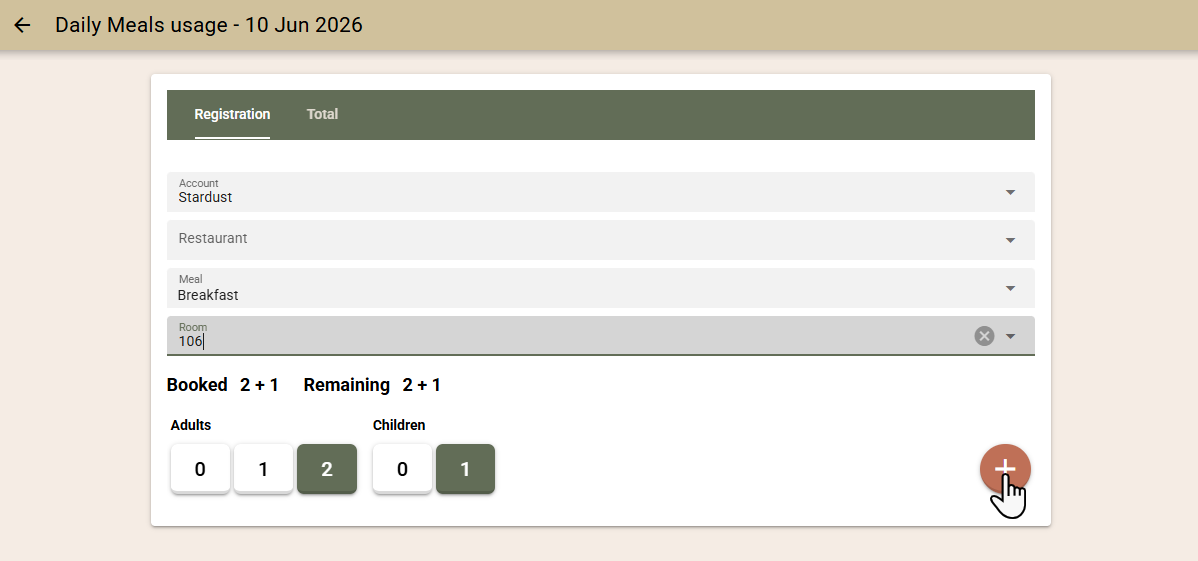
- Reporting by room – if you ask guests for their room number, enter the beginning of the name or room number and select it from the list. You will see how many guests from the room have paid for the selected meal (via a package or additionally charged meals), as well as whether consumption has already been registered for this room. You will also see the restaurant selected in the booking, which is useful if you apply guest distribution to restaurants. Through the quick buttons, you can adjust the number of guests entering the restaurant (by default, the number per booking is suggested), then press the "+" button. You can then enter the next room.
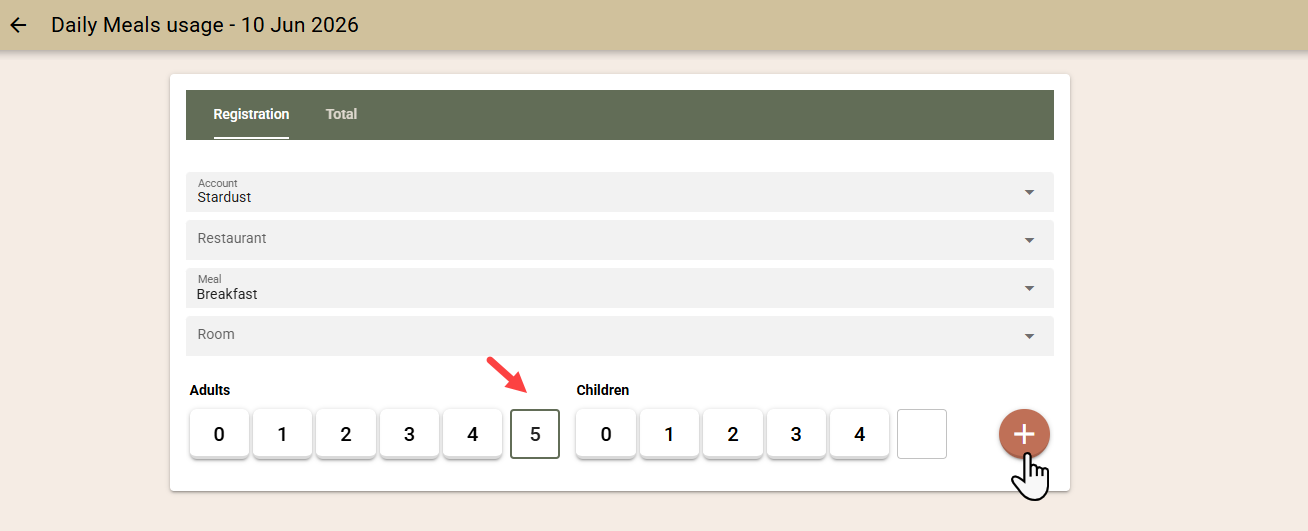
- Reporting without selecting a room – if you do not want to ask guests for their room number but want to report actual consumption, simply select the number of entering guests via the quick buttons. If there are more than 4 guests (the maximum number available in the quick buttons), you can enter the number manually in the free field. Press the "+" button to register the consumption.
- Reporting by room – if you ask guests for their room number, enter the beginning of the name or room number and select it from the list. You will see how many guests from the room have paid for the selected meal (via a package or additionally charged meals), as well as whether consumption has already been registered for this room. You will also see the restaurant selected in the booking, which is useful if you apply guest distribution to restaurants. Through the quick buttons, you can adjust the number of guests entering the restaurant (by default, the number per booking is suggested), then press the "+" button. You can then enter the next room.
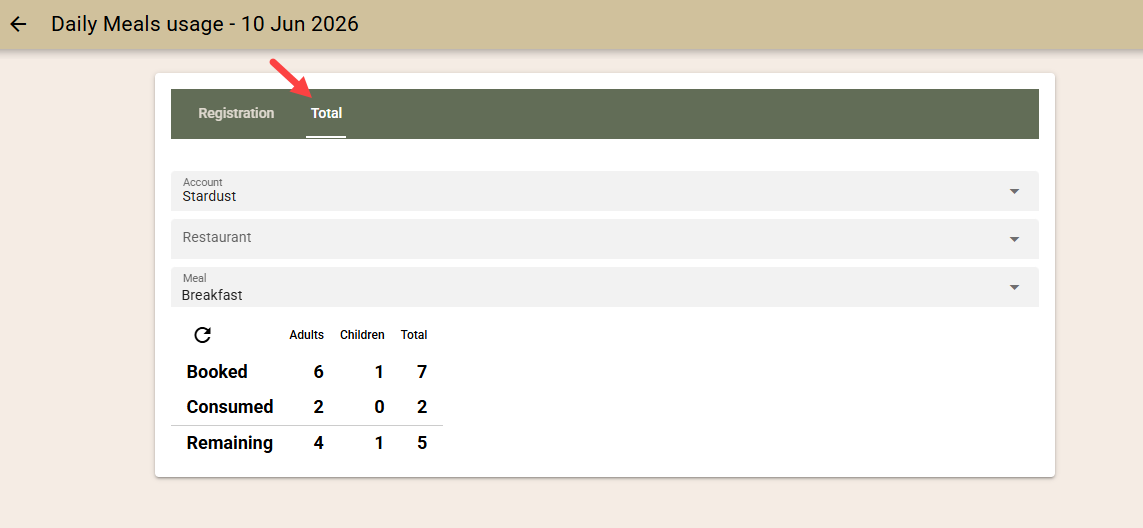
- Total – in the second tab (Total) you can get information for the selected hotel, restaurant, and type of meal: how many guests are registered and how many remain from their total number. A button for refreshing the data is also available. This information will help you in planning and managing food delivery.
Masked guest email addresses
A large portion of bookings received through OTA channels arrive with a "masked" guest email address. This way, you do not get direct access to the guest's contact details, and all communication goes through the OTA channel, where it can be modified or filtered. This often leads to difficult communication, lower service quality, and missed opportunities for direct contact with guests.
To address this problem, we have developed a solution consisting of three main components:
- The system recognises which email addresses are masked and which are personal.
- The system searches for a personal email address from previous guest stays.
- Online check-in requires providing a personal email address.
Recognising masked email addresses
To ensure the system can distinguish masked from personal email addresses, we use the "Guest email is masked" setting, added in a previous update.
The setting is found in the configuration of your channel manager, in the company mapping section. A checkbox has been added there to indicate whether bookings from a specific company or channel arrive with masked email addresses. For the direct Booking.com channel, a separate setting is available in the channel's own configuration.
We remind you that the setting is enabled by default, which means all email addresses received from channels are marked as masked. If certain channels send guests' real email addresses, the setting must be disabled for them.
Through this setting, all imported bookings and their associated email addresses can be marked as "masked".
Searching for a personal email address from previous stays
Through the new functionality for profile merge suggestions (described above), the system can detect previous stays of the same guest where you already have their personal email address.
Since the email addresses in the two profiles are different, the system will not automatically merge them, but it will create a merge suggestion. During the merge itself, personal email addresses have a higher priority than masked ones, which means the personal email address will be kept.
In this way, for guests with previous visits, you will have their personal email address available even in the early stages of processing the booking.
Requiring a personal email address during online check-in
When a guest visits the hotel for the first time, the most appropriate moment for collecting a personal email address is the Online check-in process.
The Online check-in application detects whether the email address in the profile is marked as masked. If this is the case, the guest will be explicitly asked to provide a personal email address during registration.
This minimal effort on the part of the guest creates a direct communication channel between the hotel and the client, which facilitates communication and improves service for future visits.
No additional configuration is needed for this behavior in the Online check-in module.
Other improvements
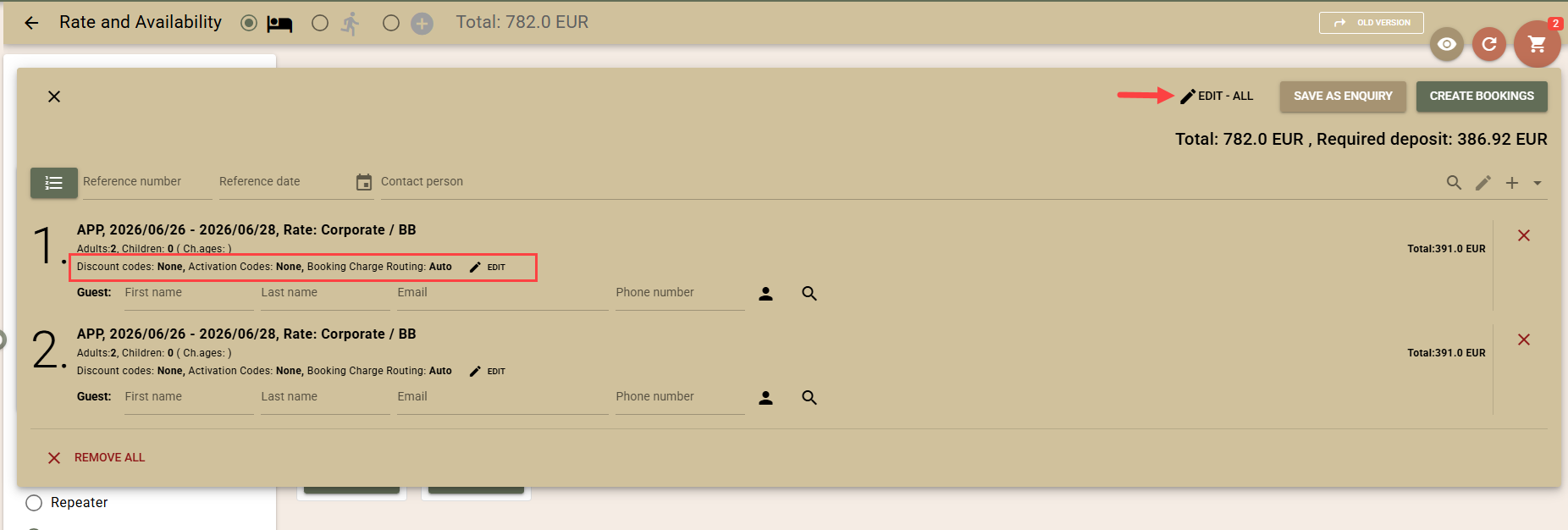
- Rate & Availability - Discount Codes, Manual Routing, Activation Codes. We have added new fields in the "Rate & Availability" screen related to pricing and booking invoicing. This way, you can prepare bookings more fully as early as the moment of their creation and avoid subsequent edits.
There is no change in the way products are added to the cart. After you add the products, open the cart. You can edit the fields for all products simultaneously via the "Edit - All" button or individually via the "Edit" button next to each product.
- Discount Codes – you can now set discount codes directly when creating bookings. The code is taken into account when calculating the price in the cart, and you immediately see the final price with the discount. The discount is also reflected in the required deposit amount when one is needed. With this change, we are expanding the possibilities for using discount codes for individual bookings, making their application convenient for both single and multiple bookings. If you are not familiar with the capabilities of discount codes, you can learn more HERE.
- Activation Codes– activation codes are part of the Tour Operator contract functionality and are a tool for pricing various package offers – SPA, ski, golf, and other specialized offers. You can now use activation codes directly in the "Rate and Availability" screen and set them before creating bookings. They are reflected in prices in real-time.
When setting activation codes for individual rows, the codes are loaded from the contract associated with the rate of the corresponding row.
Note: Keep in mind that when editing all bookings in the cart via "Edit - All", the activation codes are loaded from the contract associated with the first booking. Therefore, if you use activation codes, do not mix bookings from different contracts in one operation.
- Manual Routing – through this field, you can change the default routing for the booking using the new charge routers. Routers are a powerful tool for invoicing automation. If you are not yet using them, you can learn more about the different application scenarios HERE.
- Birthday list. We have added quick access to information about the birthdays of guests staying at the hotel. You can select a date for the report and view birthdays for today, tomorrow, or another selected date. The new report is available from the reports menu or directly from the navigation menu Reports → Birthday list.
Note: Access to the report requires the "Personal Data: Access" permission.
- "Meals" column in the Arrivals, Departures, and In Hotel screens. In the Arrivals, Departures, and In Hotel screens, we have added a new column showing the selected meal for each booking. The information is visualized in an abbreviated form using the first letter of the corresponding meal.
- Signature Pad (Customer Display) - Registration Card data added.We have expanded the information displayed on the Customer Display. Until now, when signing the registration card, the guest only saw the hotel policy they were accepting. Now, the data from the registration card is also displayed – name, address, and other guest details, so that the information can be reviewed before signing.
The displayed fields are the same as those in the registration card and are determined by the field visibility settings for the guest, specifically from the "Print" group.
We remind you that through the Customer Display, you can switch to entirely electronic registration cards. The application can be used for free on any tablet at the front desk.
For more information, contact our support team.
- Change log for blocks.We have added information about changes to blocks to the event change log. In the log, you can now track changes in the block status, rate, manual prices, and the number of blocked rooms.
There is one peculiarity when tracking blocked rooms:
- For "Flat" and "Periods" type blocks, changes are tracked entirely.
- For "Days" type blocks, changes in the number of blocked rooms are not tracked for technical reasons.
We recommend using the "Flat" and "Periods" types as they are newer and more optimized.
- Channel managers. When building rate mapping, it is now clearly visualized when a rate is stopped, and this is indicated immediately after its name.
- "Company Booking Charges by Folios" Report. Along with the folio number, its name is now displayed, which facilitates recognition and work with the report.
- POS. In the total printout for the "print on two lines" option, we added information about the applicable VAT rate to each line.
Fixes
- "Arrivals" screen - when assigning a room, in certain cases, the room was not displayed until the screen was refreshed.
- The Cancellation fees were not routed correctly by the new Charge routers.
- When duplicating a folio, the void reason was also copied, which is not correct behavior.
- Adding an item to a Rate package incorrectly required the "Charges: new" permission.
- Charge routers - it was possible to delete a router, even though it was used in an active booking.
- When creating a company, if the user did not have the "Company: Create and Edit name" permission, the system did not show a clear error message.
- Booking.com – when updating a booking, the system created new profiles for the guest and the contact person with every change, which led to the creation of duplicate profiles.
Integrations
- Gastronovi – the exchange of information between the two systems has been optimized for smoother and more reliable integration performance.
- Lightspeed K Series – processing of sales without a selected table has been improved, which ensures a more seamless data transfer to Clock PMS.
- Private Analytics – the export of data to Google BigQuery has been further optimized for higher efficiency and faster information processing.
- Clock API – a new API functionality has been added that allows the creation of multiple charges to a booking with a single request. More information is available in the API documentation.
- Salto KS – lock synchronization has been improved. All available devices are now loaded, including those configured in Easy Office Mode, which ensures more complete and accurate information in the system.