
In Clock PMS, you can create a booking via the "Rate and Availability" screen, which allows you to check availability and rates and create a booking in a single step.
Loading Rate and Availability
Open the screen from the navigation menu Available Rooms → Rate and Availability.
Follow the steps:
- Enter the booking parameters:
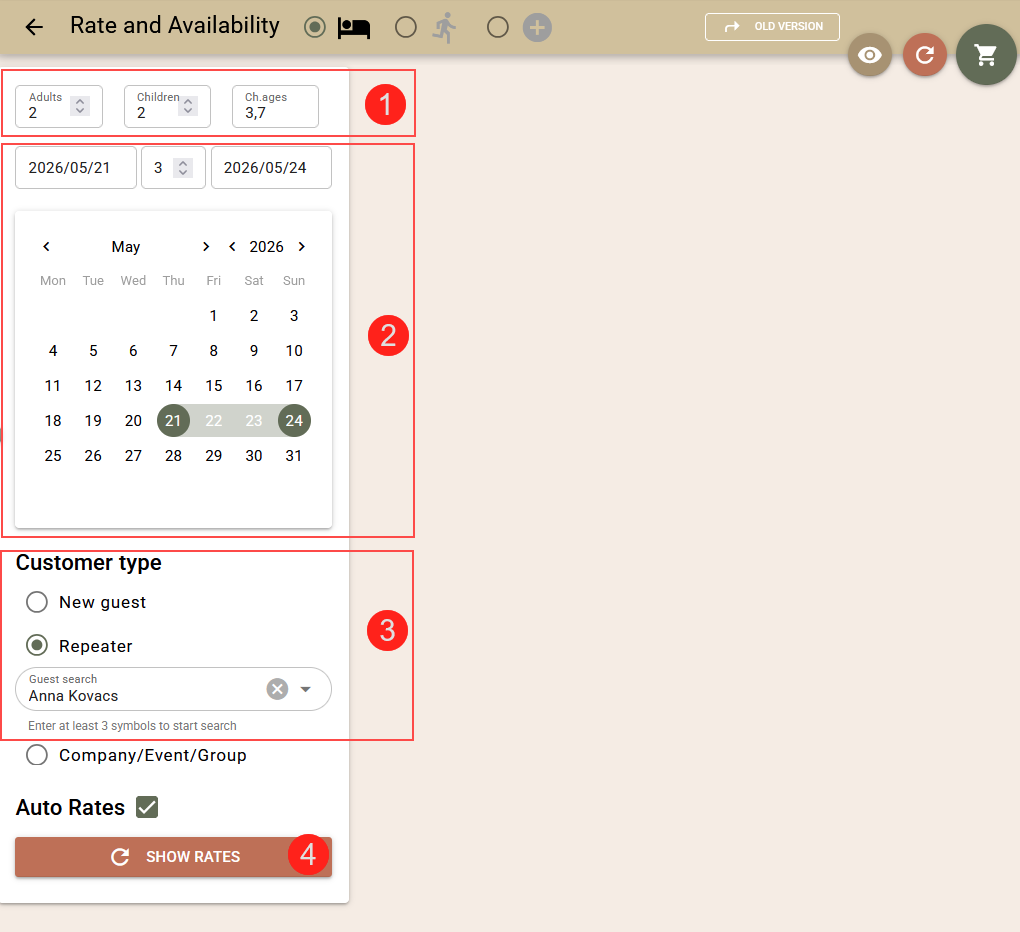
- Enter the number of guests (1) – adults and children. To calculate children’s rates correctly, you must specify their age.
- From the calendar, select the period (2) of your stay.
- Specify the guest type (3).Select one of the following options:
- New guest – if the customer books for the first time;
- Repeater – if the guest has stayed with you before. Enter part of the name, email, or phone number and select it from the list.
- Load the rates by clicking the „Show Rates“ (4).
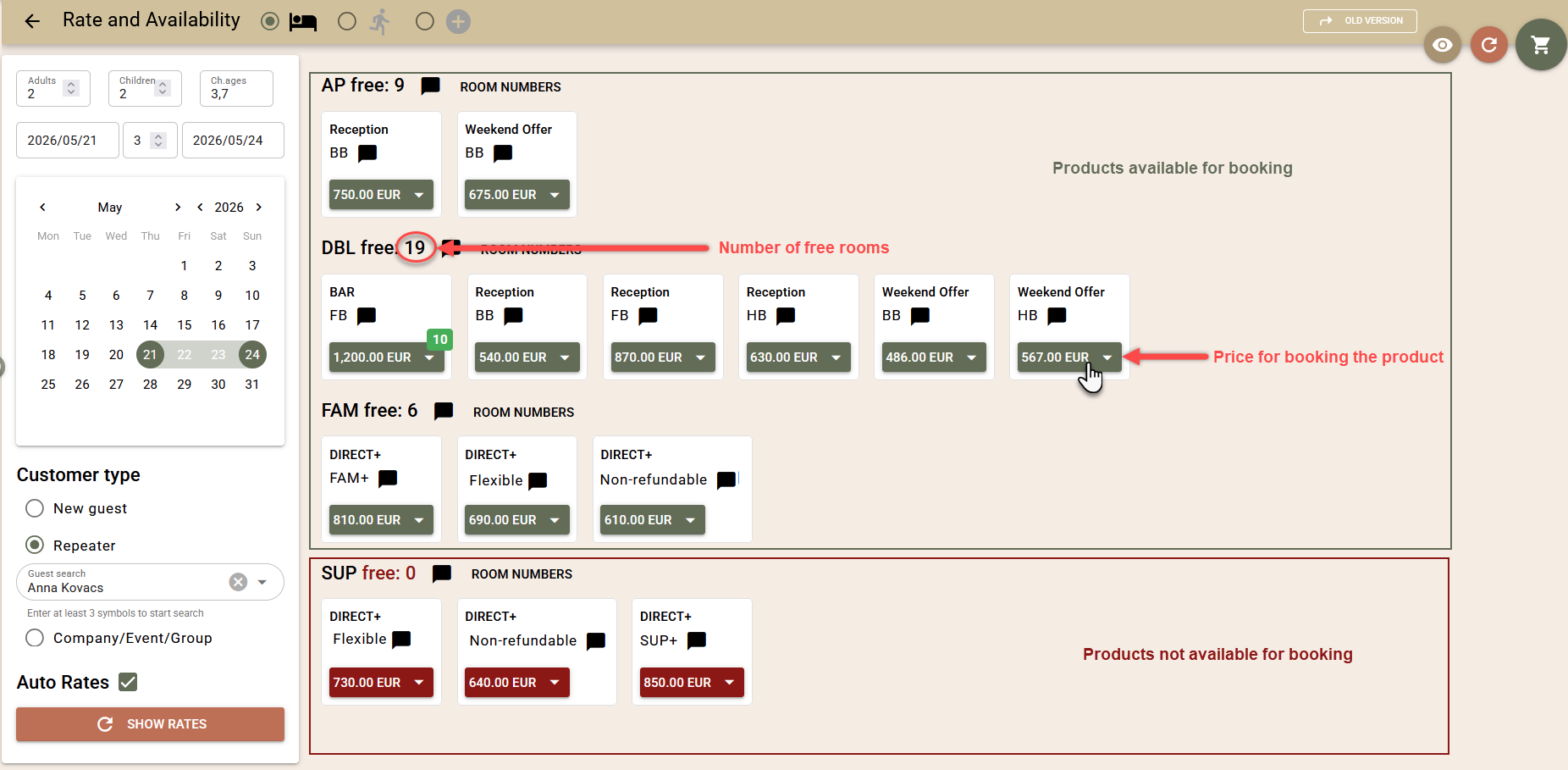
The screen will display the calculated prices of the products for the selected period and number of guests.
Working with Companies and Contracted Rates
If you are creating a booking for a company with negotiated rates, select the relevant company. The system will automatically load the associated rates (if any).
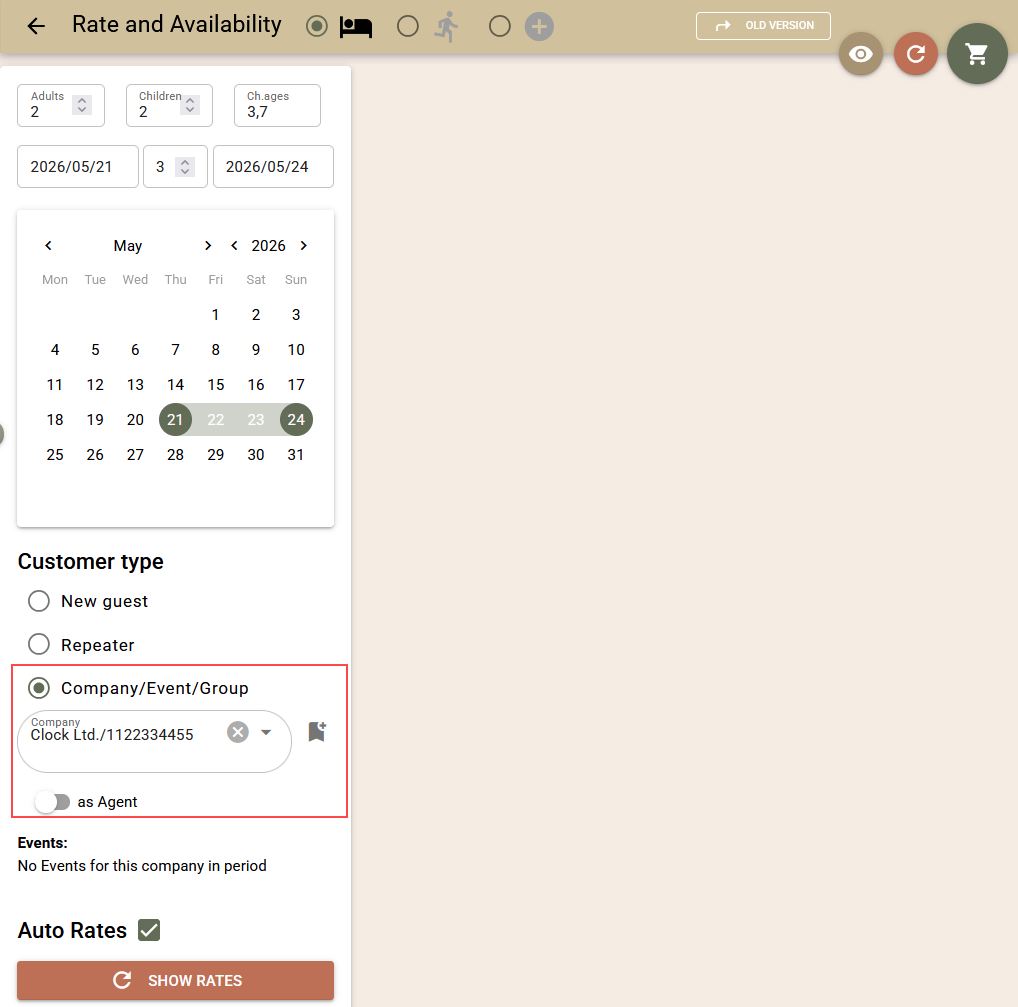
For more information, see the article „Rate and Availability Screen: Creating Bookings“.
Select a product
Products are sorted by room type. Availability for the selected period is displayed for each type.
Green prices indicate that the product is available to be booked. Red prices indicate that the product is unavailable or does not meet the specified criteria.
To add a product, click on its price. It will be added to the cart.
Entering contact information
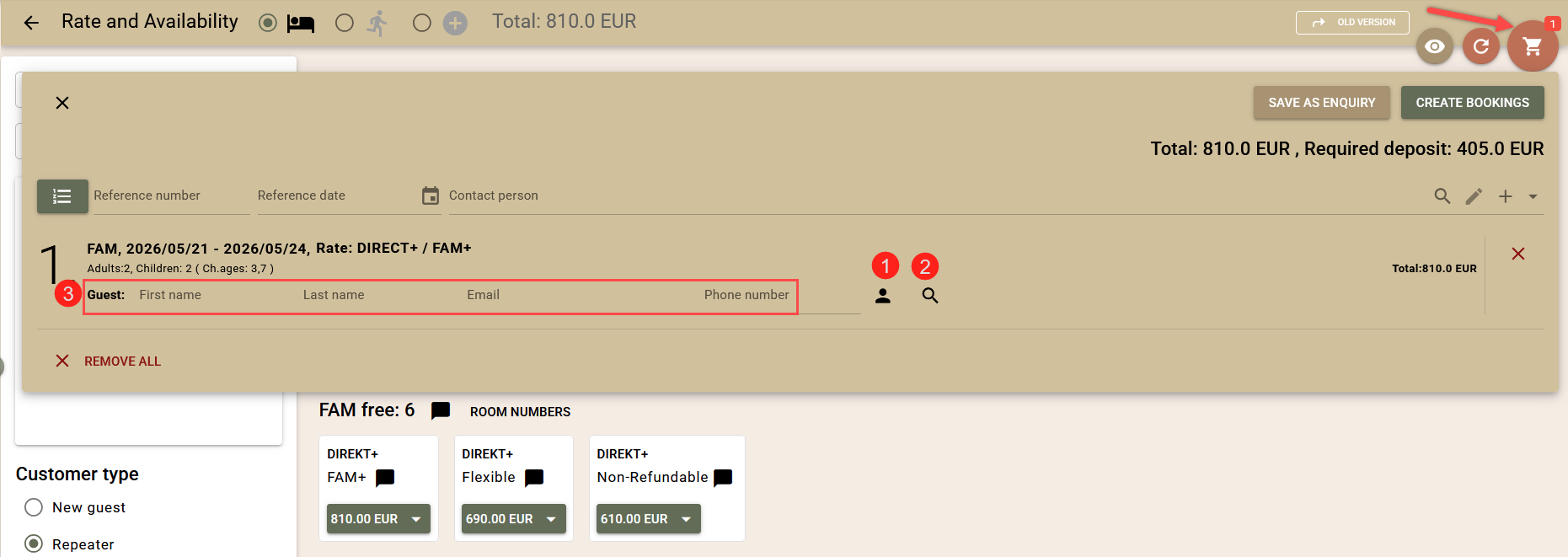
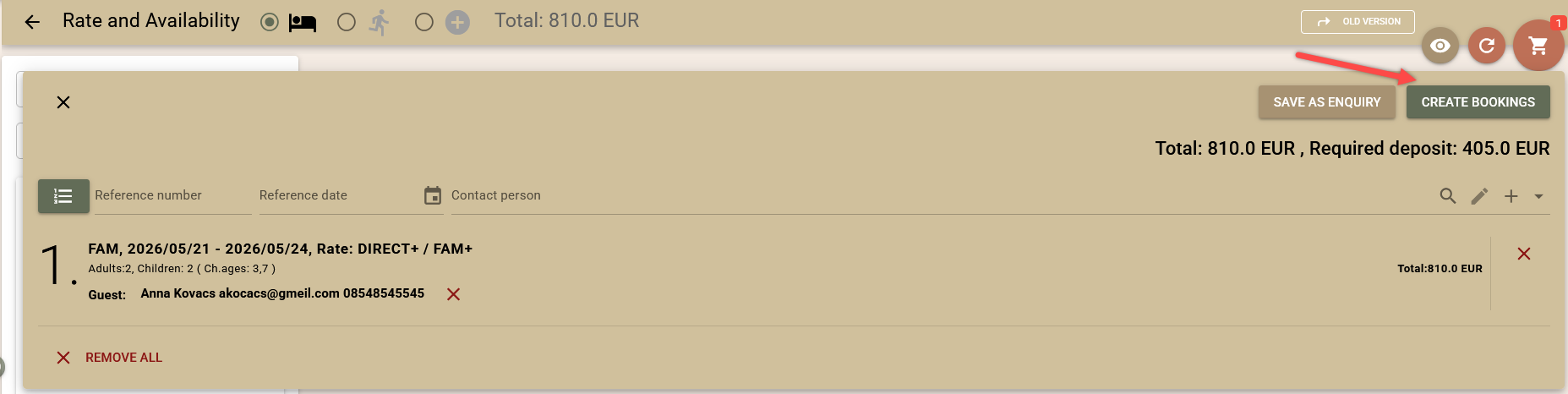
Open the shopping cart. Before creating the booking, you must enter contact information:
- If you selected „Returning guest“ when checking availability, you can link the guest’s profile to the booking by clicking the „person“ (1) in the corresponding row;
- To search for an existing profile of a guest, use the magnifying glass (2);
- If the guest is new, enter their details in the corresponding fields (3). Be sure to add contact information (email or phone).
Create Booking
Once you have verified that the information is filled in correctly, confirm by clicking the "Create Booking" button.
The system displays the progress of the booking creation in real time. Once the booking is created, you can access it via Advanced Booking Search.

Starting a booking from other screens
If you are working with the "Room Calendar" or "Room Plan" operational screens, you can quickly start a new booking for a specific room.
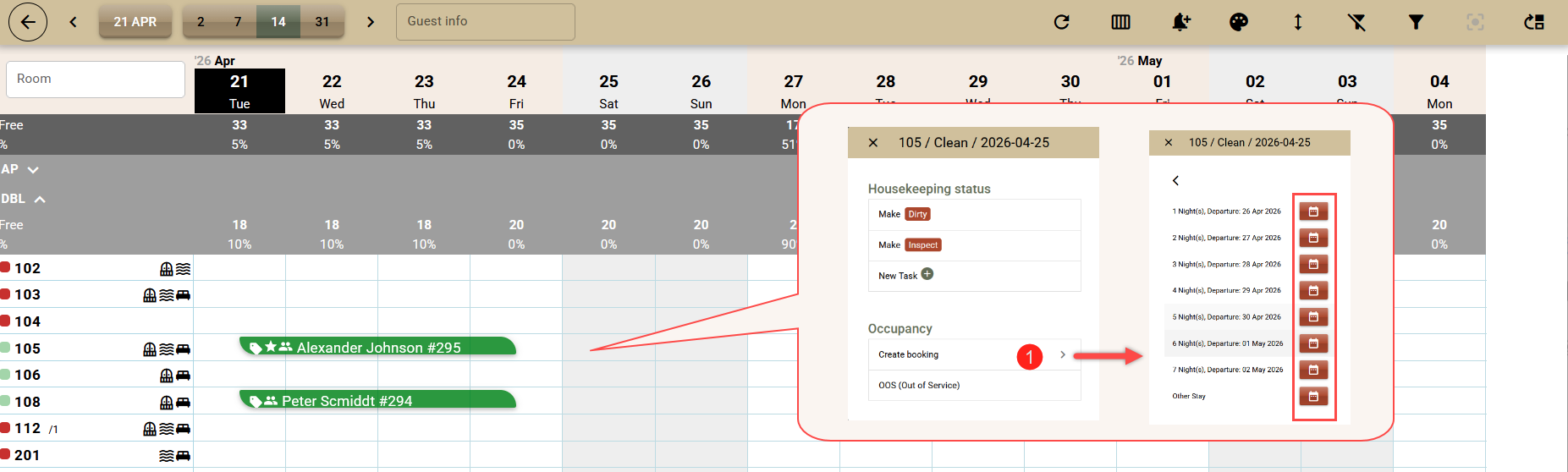
- Room Calendar:
- Click on a cell in the calendar that corresponds to the start date of the booking and the desired room;
- From the context menu, select „Create Booking“ (1);
- In the window that opens, select the button with the „calendar“ icon in the row corresponding to the desired stay period;
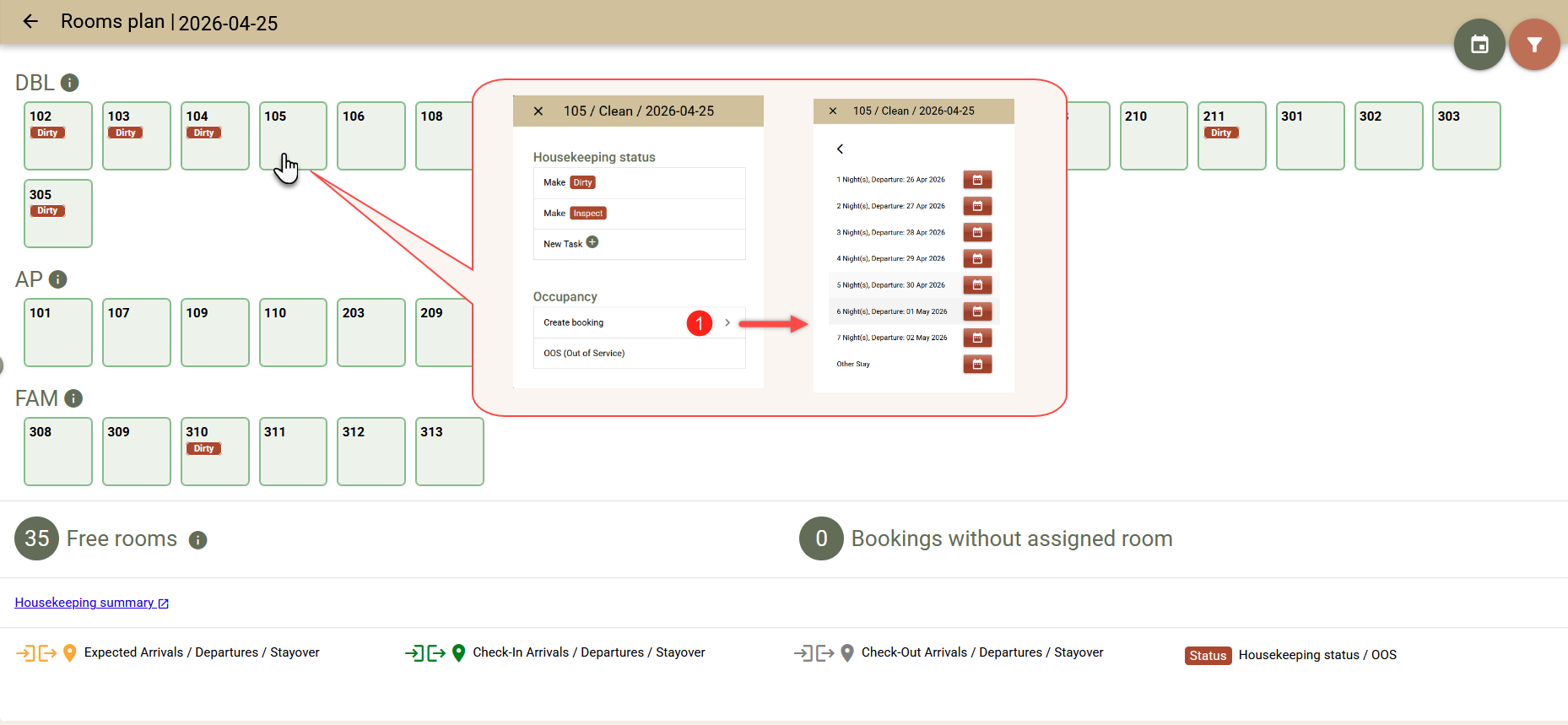
- Room plan:
- Click on an available room;
- From the context menu, select „Create Booking“ (1);
- In the window that opens, select the button with the „calendar“ icon in the row corresponding to your desired stay period;
In both cases, the system will redirect you to the "Rate and Availability" screen, where the dates and room will be preselected, and you can proceed with creating the booking.