
Settings
Adding the QR code to your emails
- if you use our default confirmation email template, the QR code will be automatically added to it
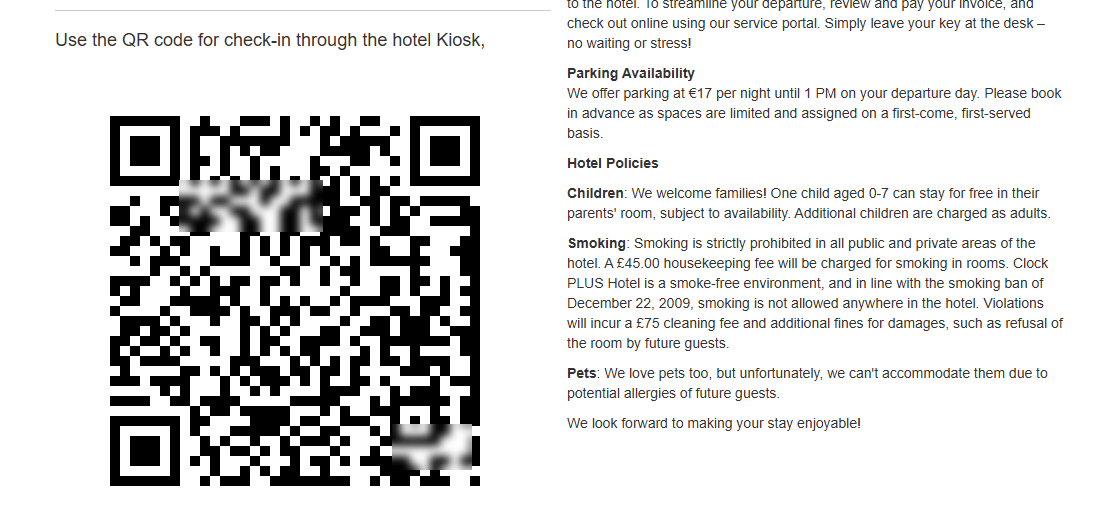
- if you use a custom confirmation email template you must add the {{booking.qr_code | qr_table}} placeholder in it.
- Alternatively, you can add the placeholder to any other email that you've created in the Guest Messaging.
Hotel Pass Email template
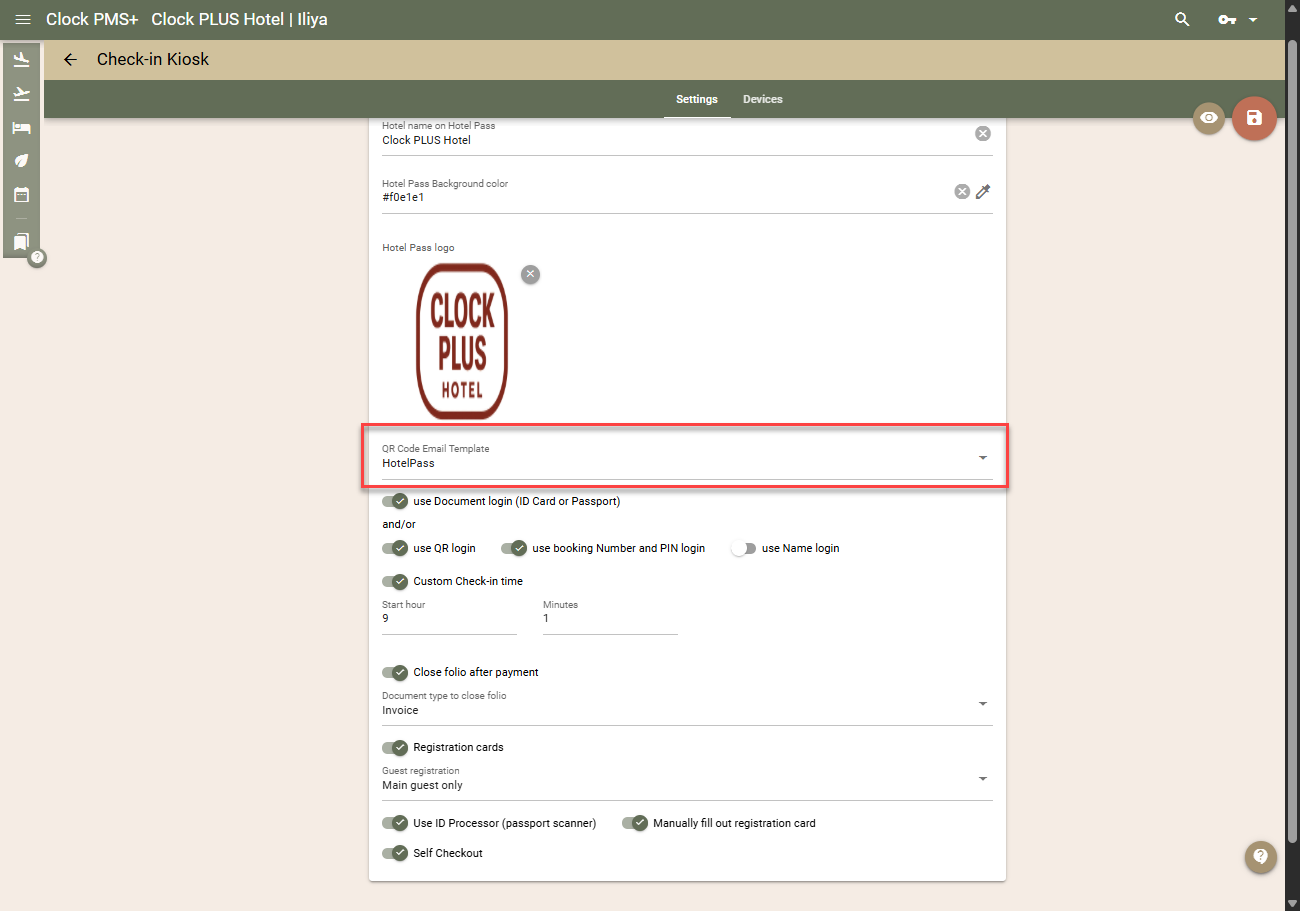
The Hotel Pass is automatically sent once a guest completes their Online Check-in. There is a default template for the Hotel Pass email added in the system. You can load the template in the Guest Messaging, if you wish to apply your own design and content to it. Afterwards, make sure you select you custom Hotel Pass template in menu Settings -> All Settings -> Guest Interaction -> Check-in Kiosk -> Settings -> QR Code Email Template.
Other settings
Besides the settings related to the templates described above, there are several other settings in the Settings -> All Settings -> Guest Interaction -> Check-in Kiosk -> Settings section
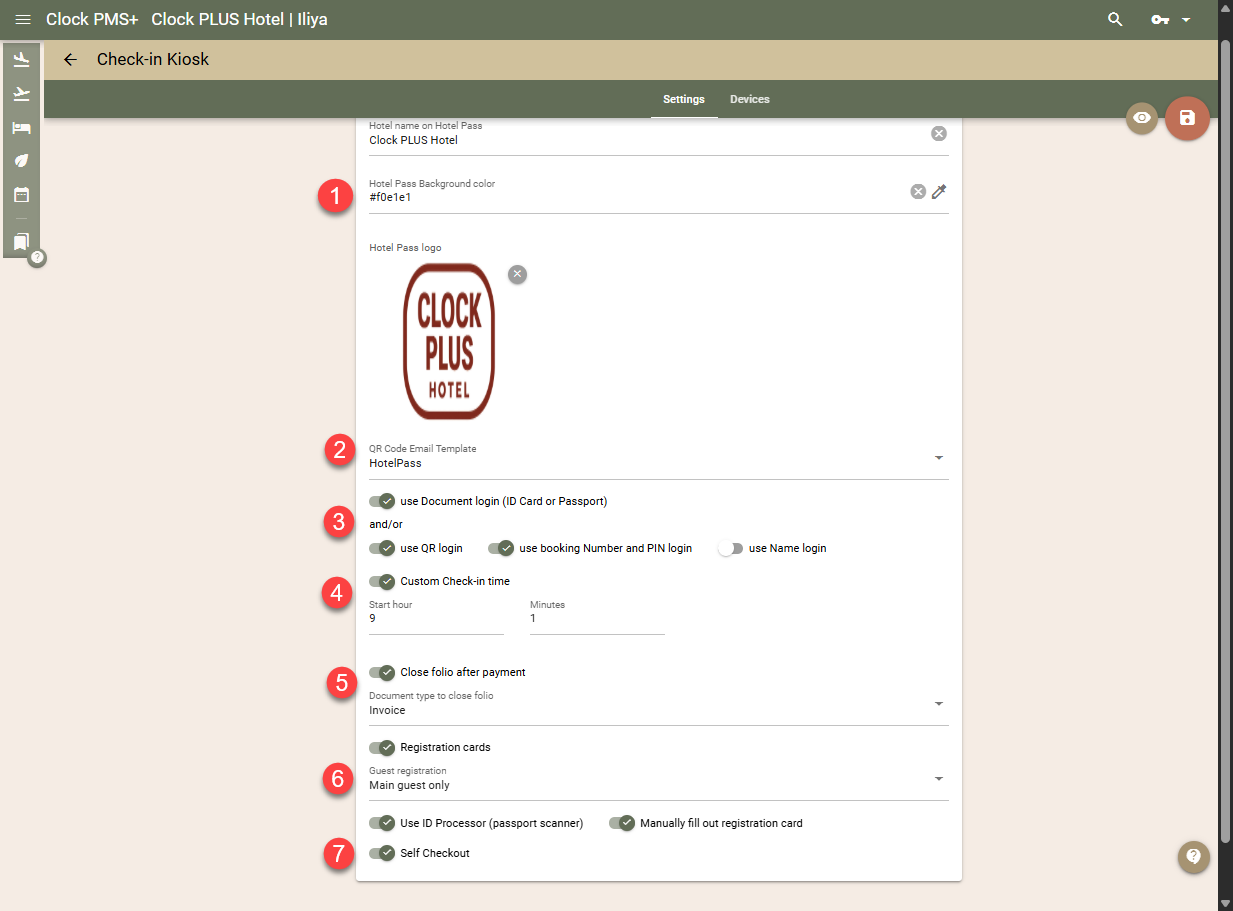
- Hotel name on Hotel Pass; Hotel Pass background color; Hotel Pass Logo (1) - these settings control how the Hotel Pass (QR code) will look when the guest adds it to their Google/Apple Wallet.
- QR Code Email Template (2) - described above.
- Use document login (ID Card or Passport) / Use QR login / Use booking number and PIN login / Use name login (3):
- Use document login (ID Card or Passport) - enable if you will allow guests to login and find their booking by taking a photo of their ID Card/Passport using the camera of your Kiosk device. The name of the main guest of the booking must fully match the name on the ID Card/Passport for the booking to be located.
- Use QR Login / Use booking number and PIN / Use name - enable other login options. Note that to use QR Login, your Kiosk device must have a compatible QR code scanner device - it must automatically read the QR code when such is presented, work in 'keyboard emulator' mode, and transfer the raw information from the QR code without adding any prefixes, suffixes, and/or other. You can enable a maximum of 2 of these options simultaneously.
Important: Logging in with only the guest's first name reduces the security of the Kiosk. Enable this option only if the benefits for your guests outweigh the risk. Please note that someone who knows or guesses a guest’s last name could gain access to another guest’s booking, issue a new key card for a room that is already occupied, or, under certain circumstances, gain access to personal data from the booking..
- Custom Check-in time (4) - by default, check-in on the device will be possible immediately when the check-in time (after midnight) occurs. Enable and set time to allow check-in from another time (e.g. 2:00pm)
- Close folio after payment; Close with Document Type (5) - select whether the folio should be closed (and with what document type) after payment at a terminal connected to the kiosk.
- Registration cards / Use ID Processor / Manually fill registration card (6) - enable if you will allow guests to fill out missing information in their Registration cards during check-in; select how many registration cards need to be completed (one for the whole booking, one per Adult, one per Guest); select how guests can fill out - using the ID processor by taking a photo of their document through the Kiosk camera; fill out manually, or both.
- Self Checkout (7) - enable if you want to allow guests to check out from the Kiosk. Any outstanding balances need to be paid. When the checkout process is completed, the folio will be automatically closed and emailed to the guest.
Section Devices
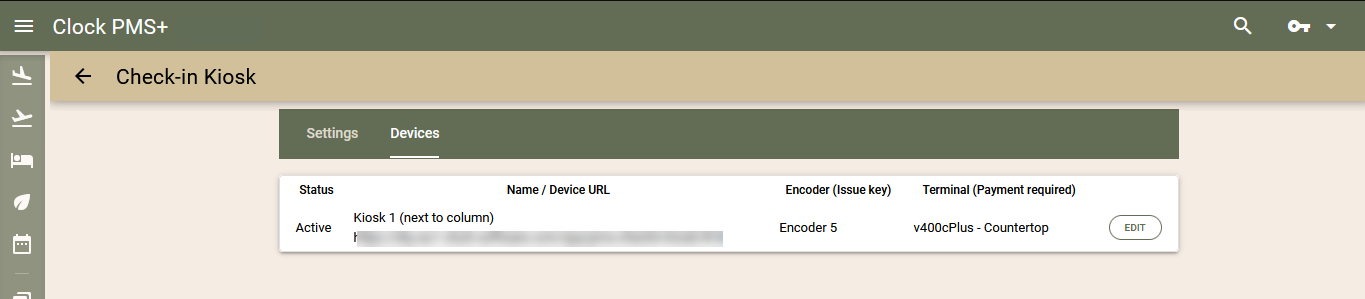
Under section Devices you can:
- disable the kiosk(s) if needed
- select or change the Key card encoder assigned to the Kiosk. If no encoder is selected, the step with encoding a card during the check-in will be skipped.
- select or change the Payment terminal assigned to the Kiosk. If no terminal is selected, payment will not be required during the check-in process.