
In the Rate and Availability screen, you can charge additional services to bookings already added to the cart – for both rooms and activity bookings. This allows you to include services such as dinner, parking, a cot, and others even before finalising the booking.
Adding services to bookings
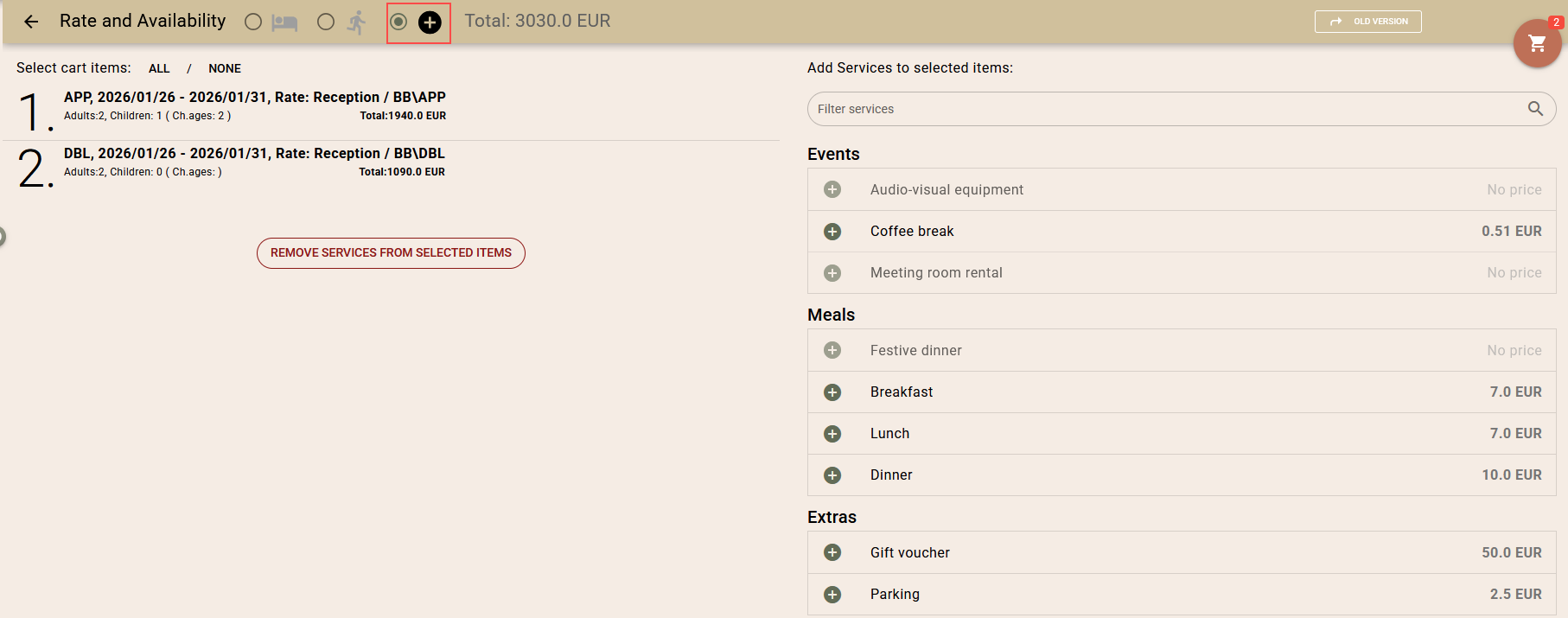
To switch to service adding mode, select the last option from the bar at the top of the screen.
On the left side of the screen, you will see a list of bookings in the cart, and on the right – a list of configured additional services.
To add additional services:
- From the list on the left, select the booking (1) or bookings to which you want to add services;
- From the list on the right, find and click on the service you wish to add. For a quicker search, you can use the search bar (2) at the top of the list.

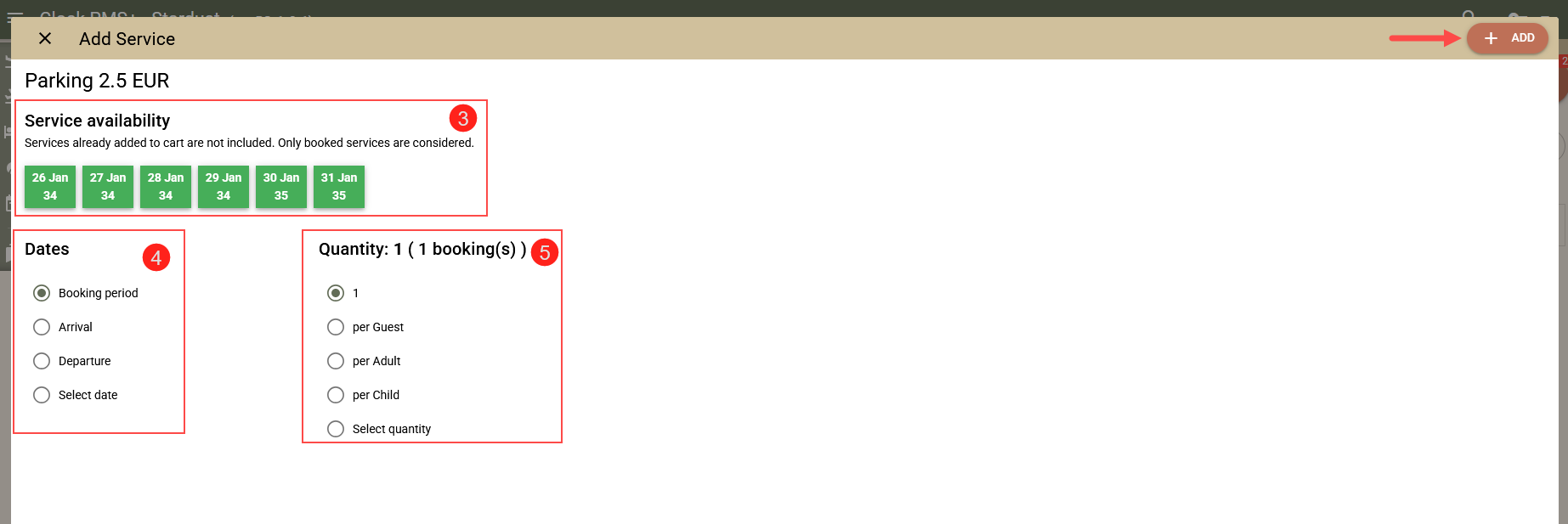
The service charge screen will open. If you have selected a service whose capacity is managed via the capacity counter, you will also see the availability for the period (3) of the selected bookings.
Select the dates (4) for which the service should be added. The following options are available:
- Stay – for each day of the stay;
- Arrival – once on the day of arrival;
- Departure – once on the day of departure;
- Date selection – selection of a specific date or dates during the stay.
Select how to calculate the quantity (5):
- 1 per booking – once for each booking;
- Per guest – for each guest on the booking;
- Per adult – for each adult on the booking;
- Per child – for each child on the booking;
- Quantity selection – specifying an arbitrary quantity.
Complete with the „+ Add“ button.
The system will return you to the previous screen, where you will see the services added to the bookings. For each booking, an updated price will be shown, as well as the current total amount in the cart. If you have made a mistake when charging the services, select the booking and choose the button "Remove services from selected rows", then add the correct services.

You can continue to add services to the bookings in the cart, return to adding bookings, or proceed to the cart for finalisation.