Guest Profile Search
To open the list of your guest profiles, navigate to menu Booking->Guest Profiles.
Once you are in the Guest profiles section, you can search by several different methods:
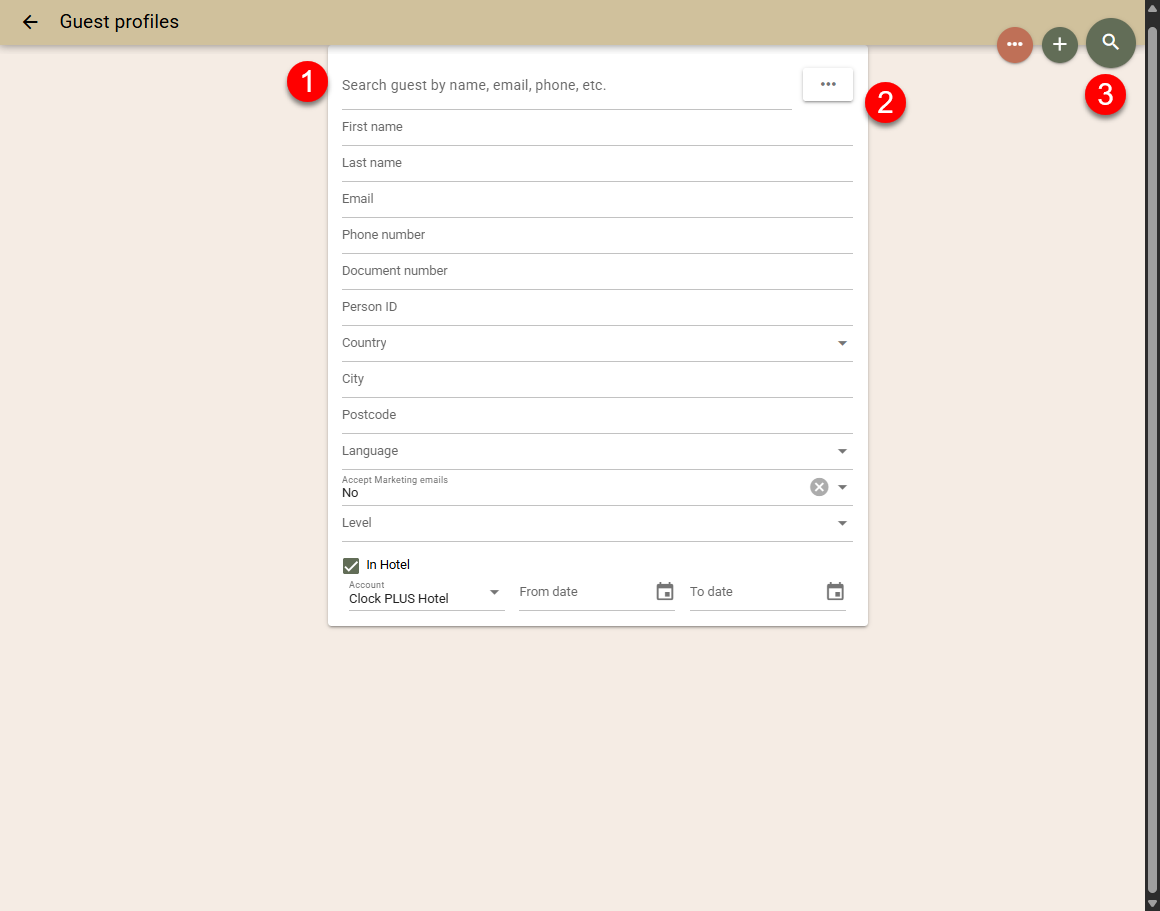
- Text search (1) - search for Guest profiles matching the entered text. You can search by Name, phone or email.
- More filters (2) - will open additional fields by which you can search for a guest
- Show all (3) -will load all guest profiles
Guest Profile
The guest profile page itself is designed to be informative and present a lot of information about this profile in one place. As explained HERE, guest profiles are one of the elements that is shared between all accounts in your subscription, hence, you are able to see if this guest has also stayed in other properties from your organization.
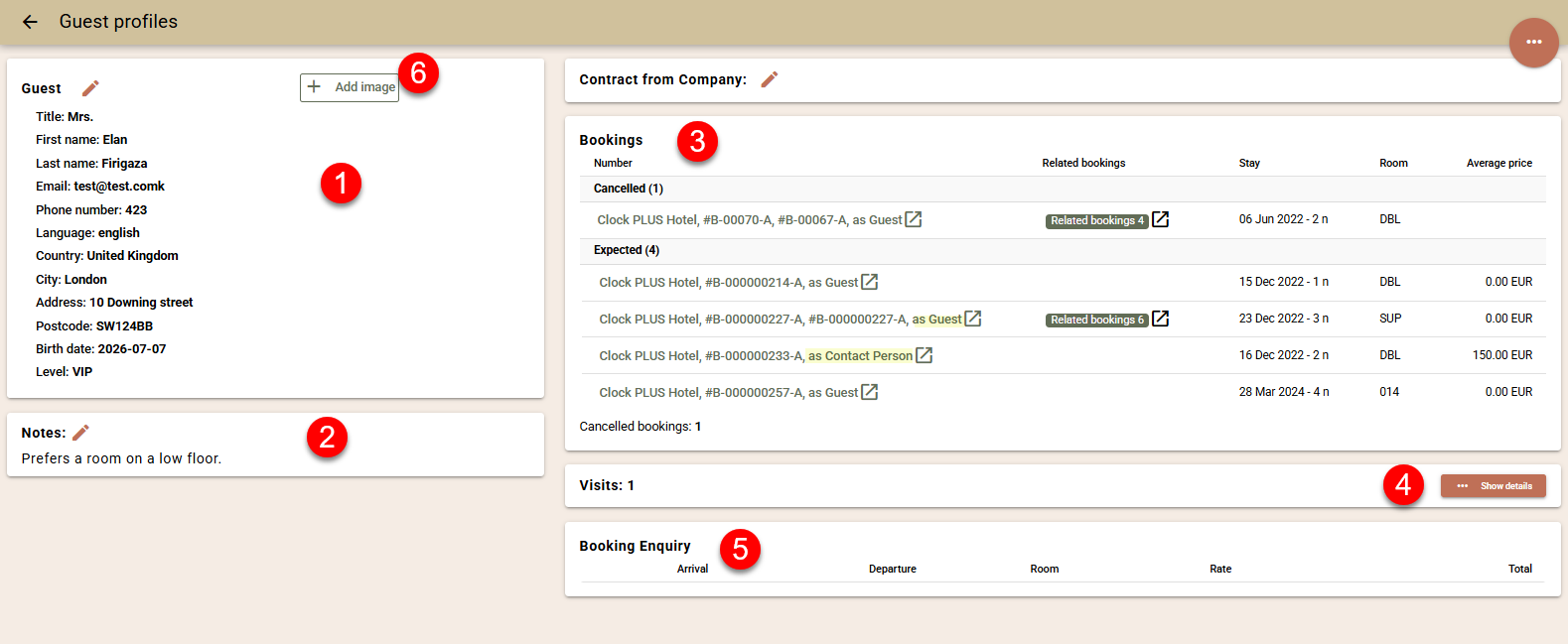
The information that you can see in the Guest profile:
- (1) - View, add, edit the main information about this guest
- (2) - View, add, edit any notes (profile field 'Notes') attached to this profile. These will pop-up in any booking to which this profile is attached.
- (3) - You will see a list of bookings to which this profile is attached, including bookings from other properties in your subscriptions. You will see if this profile has been selected as a Guest or Contact Person in the booking,
- (4) - Clicking on Show details will list any checked-out bookings
- (5) - You will see list of the Booking enquiries sent to this guest.
- (6) - You can attach a photo to this guest profile.
Merging Guest profiles
If you come across two (or more) separate profiles related to the same person, you have the ability to merge them, thus combining their history and information under one profile. This is a manual action. For automatic merging of profiles, please refer to THIS article.
In order to merge guest profiles:
- Search by a common element in the guest profile to load those profiles
- Select the profiles you would like to merge (they will get highlighted in green)
- Click the three dots on the top right and select 'Merge selected guests'.
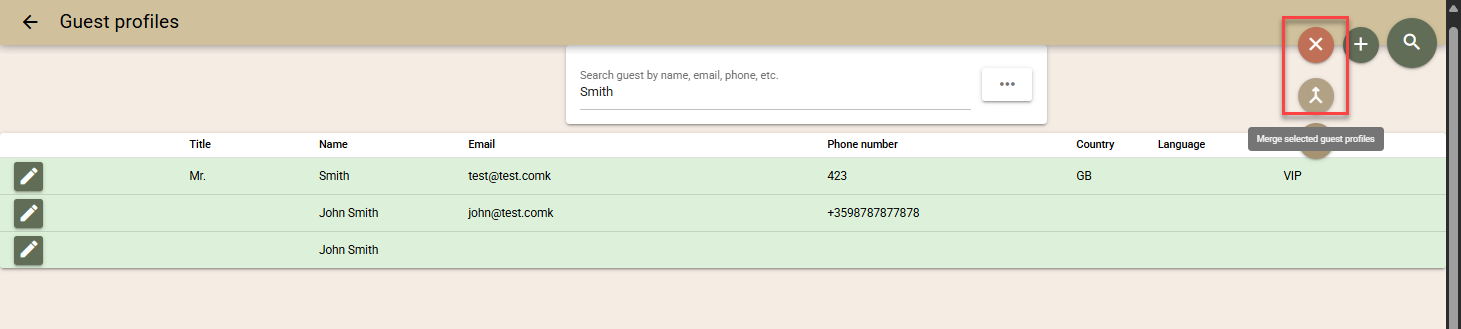
- Select the 'Target guest', i.e. it will be the profile to remain. We recommend selecting the profile that has the most information or the most up to date information to be the target.

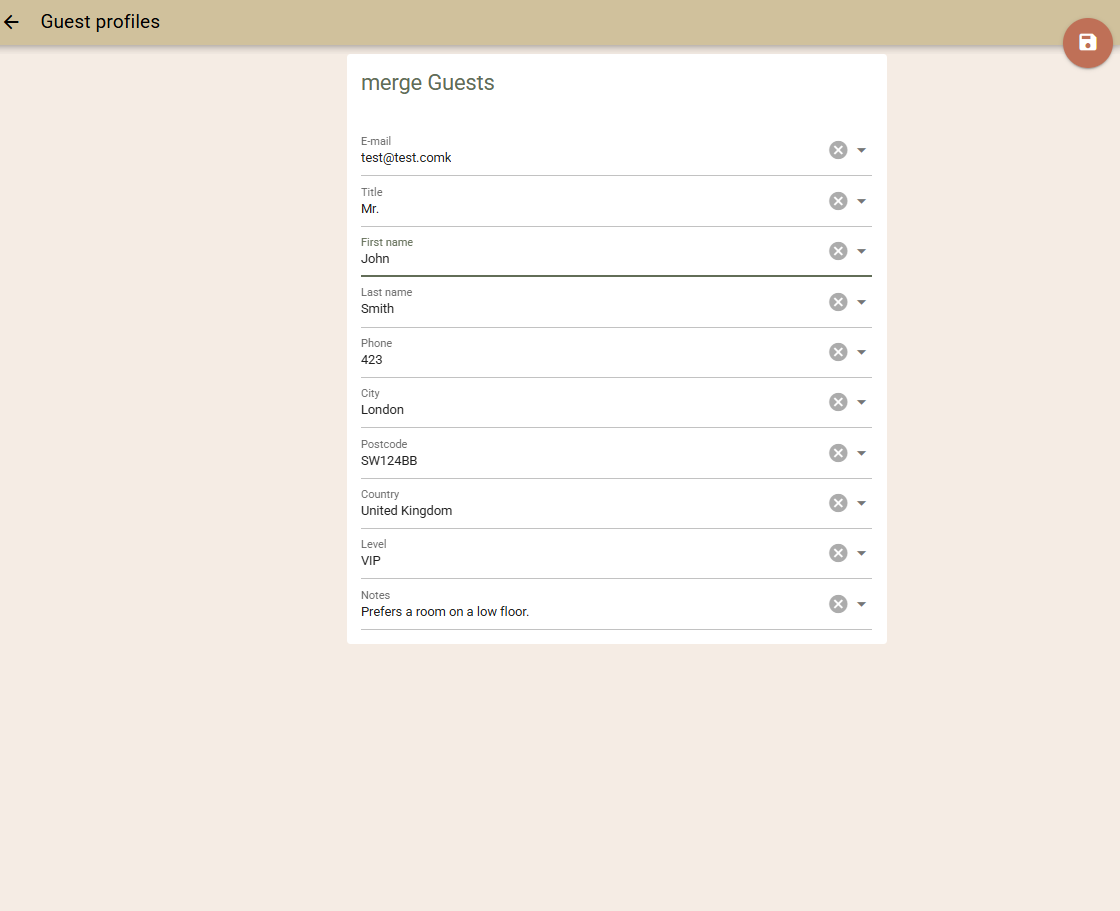
- On the next screen, the system will present to you the completed fields for each of the profiles so you can select the (final) information that will be allocated to the merged profile before saving.