The 'Rate and Availability' screen is the main tool for calculation, rate selection and creating bookings in the system. It combines working with rooms, activities, additional services, customers and blocks into one process, providing a clear view of prices, availability and conditions even before the booking itself is created.
In this article, we will look at how to use the 'Rate and Availability' screen step by step - from selecting a customer and rate, through working with the cart, to finalising the booking.
The screen can be opened from the navigation menu by selecting Available Rooms → Rate and Availability (NEW).
Loading Rates and Availability
Booking Rooms
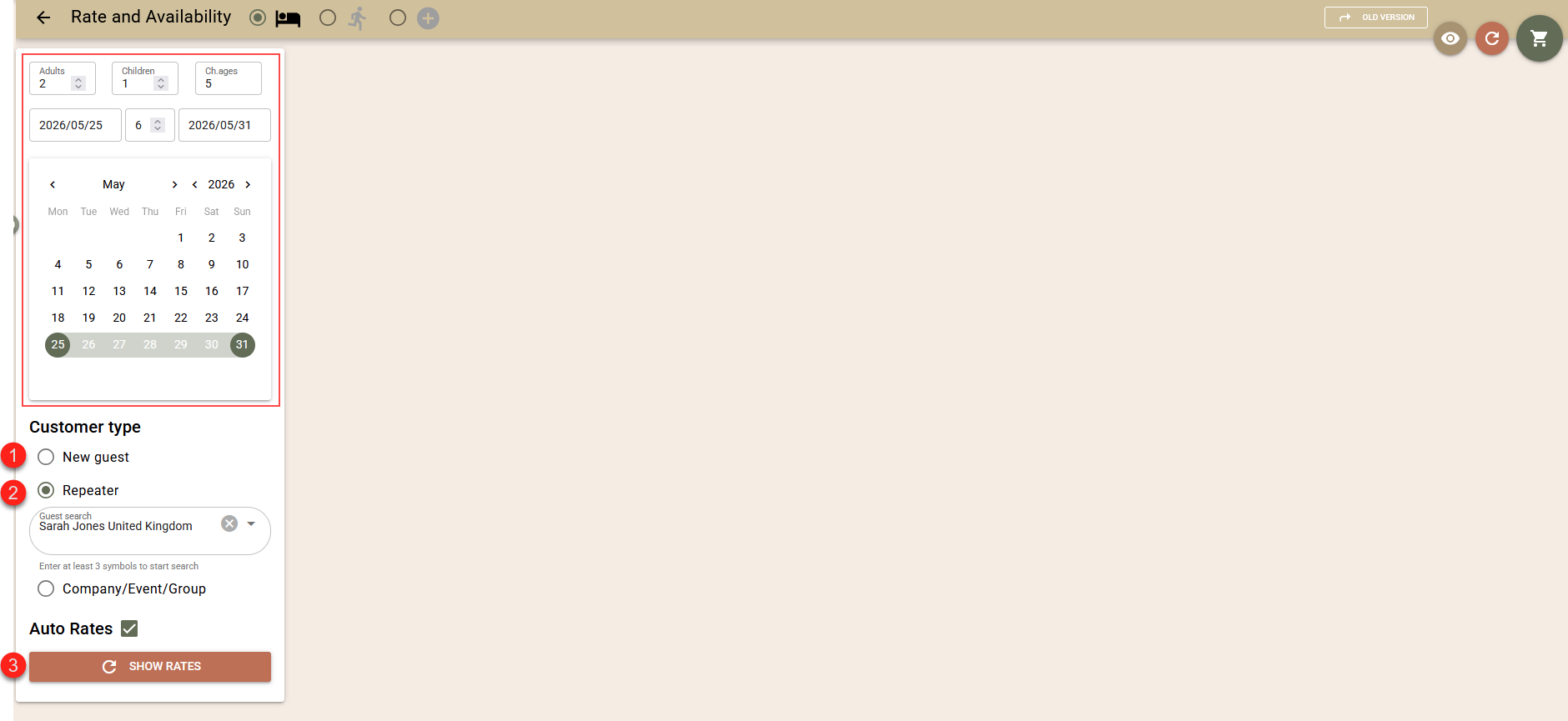
- Enter the number of guests - adults and children. For correct calculation of children's prices, you need to specify their age. If there is more than one child, separate the ages with a comma.
- From the calendar, select the period for which you want to make the booking.
- Specify the type of customer.
Booking for Individual Guest
Choose one of the following options:
- New guest (1) – if the customer is booking for the first time;
- Repeater (2) – if the guest has stayed with you before. In this case, to find them, enter part of their name, email or phone number and select them from the list.
Load the prices using the "Show rates" (3) button.
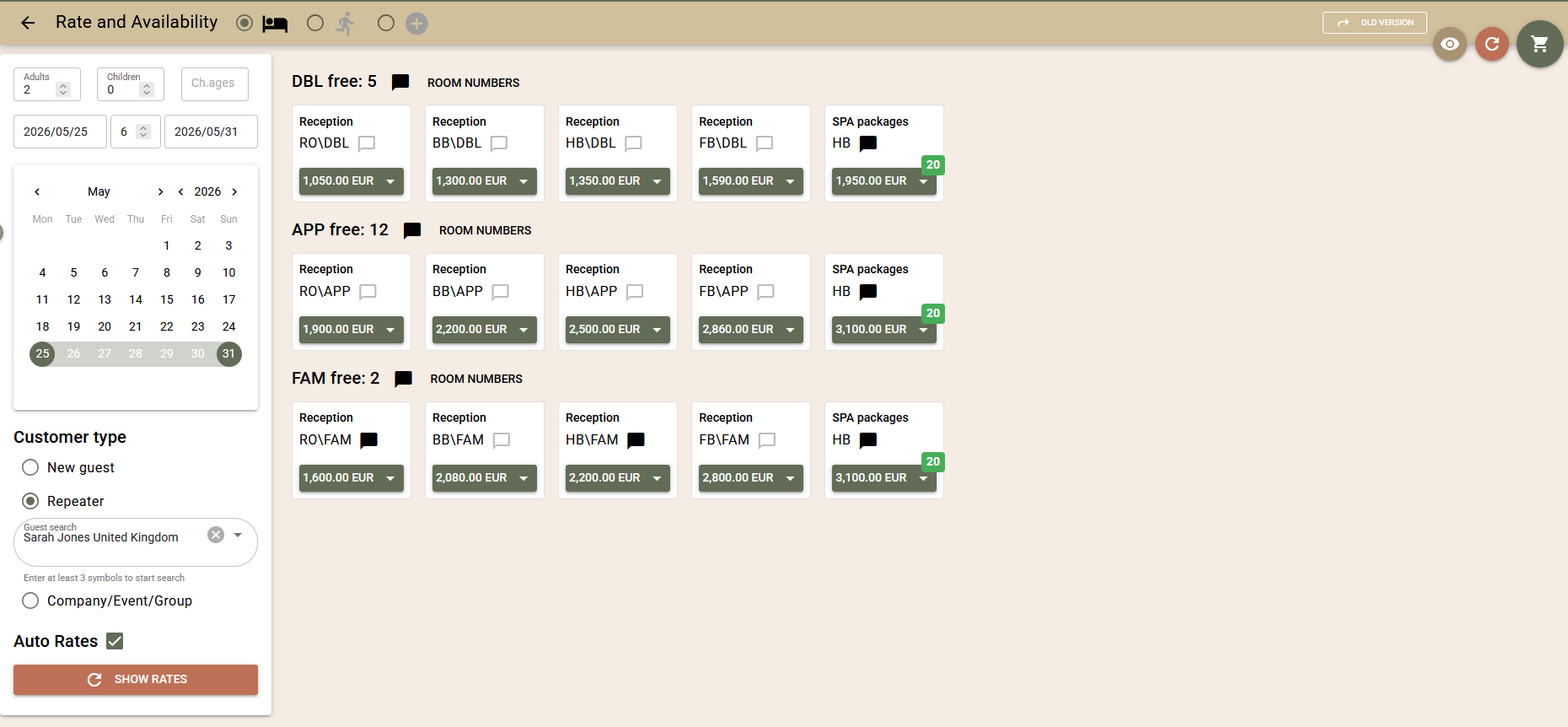
The screen will display the calculated prices of the different products for the selected period and number of guests. By default, the rates configured as 'Favourite Rates' are loaded.
Booking for Company/Event/Block
Select the "Company / Event / Group" option.
Find the desired company in the list and select it (4).
The system will automatically check for available events for this company in the specified period. If there are any, they will be displayed under the company name (5).
You can choose whether to connect the booking:
- only with the Company, or
- with a specific Event.
If you select Event, the system will display all available Room Blocks (6), including optional ones, if any.
You can then choose whether to connect the booking with a specific Block or only with the Event.
Load the prices using the "Show rates" button.
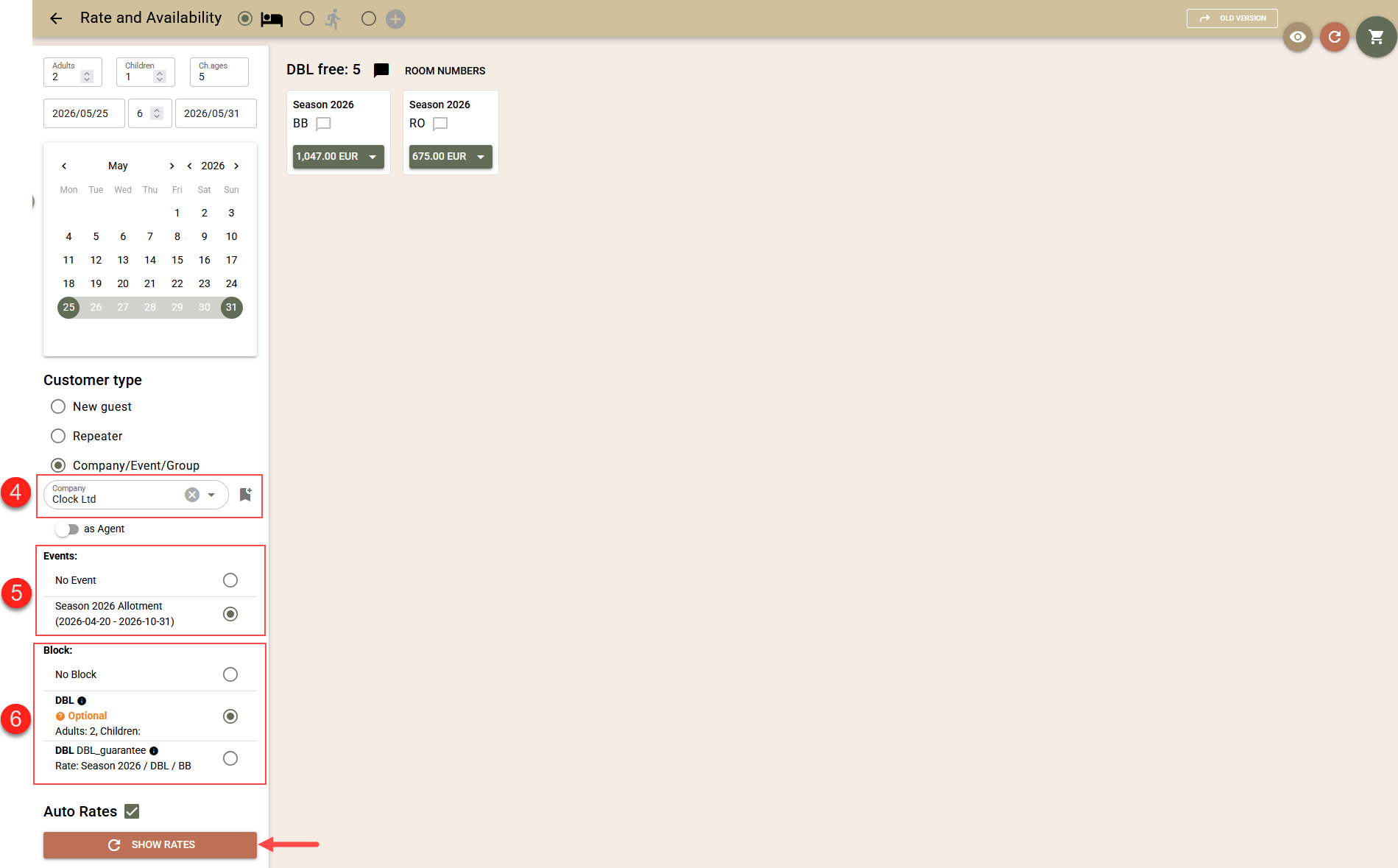
The screen will display the rates associated with the selected Company or Block (if one is selected). If there are no associated rates available, the system will load the rates from the "Preferred Rates" list.
Products for Booking
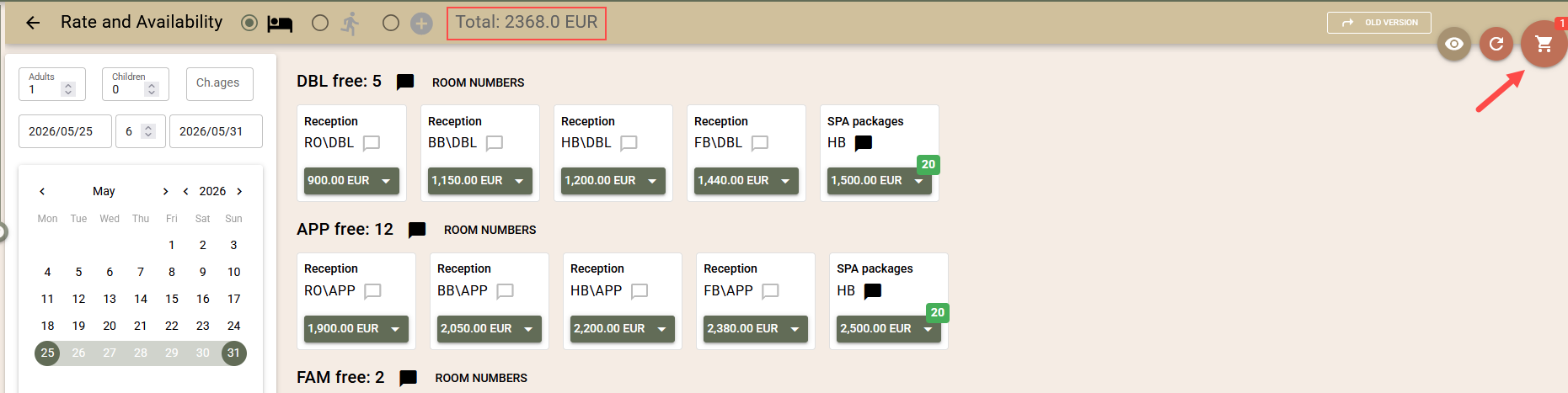
The list of products is sorted by room types. For each room type, the number of available rooms for the selected period is displayed.
Products whose prices are coloured in green are available for booking. Products with prices in red are not available.
To see details of the rate and booking conditions, click on the arrow next to the price.
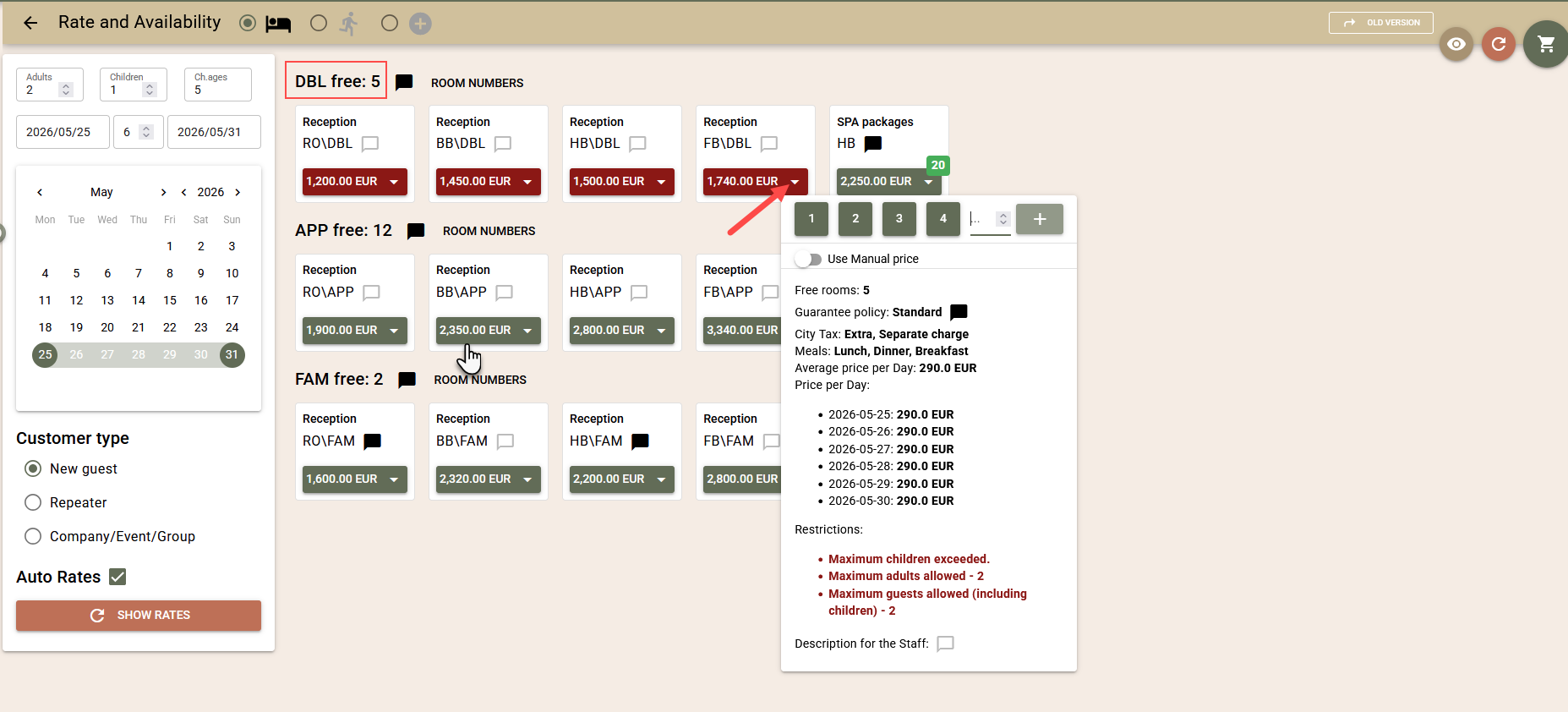
To add a product to the cart, click on its price. Each click adds one booking to the cart. For each added booking, the parameters set in the search are applied - period, number of guests, Company, Event and Block.
You can use different search parameters and add different products to the cart, including bookings for Activities, which you can then finalise all at once. The number of added products is written on the "Cart" button in the upper right corner, and their total amount is visible in the bar at the top of the screen.
Booking Activities
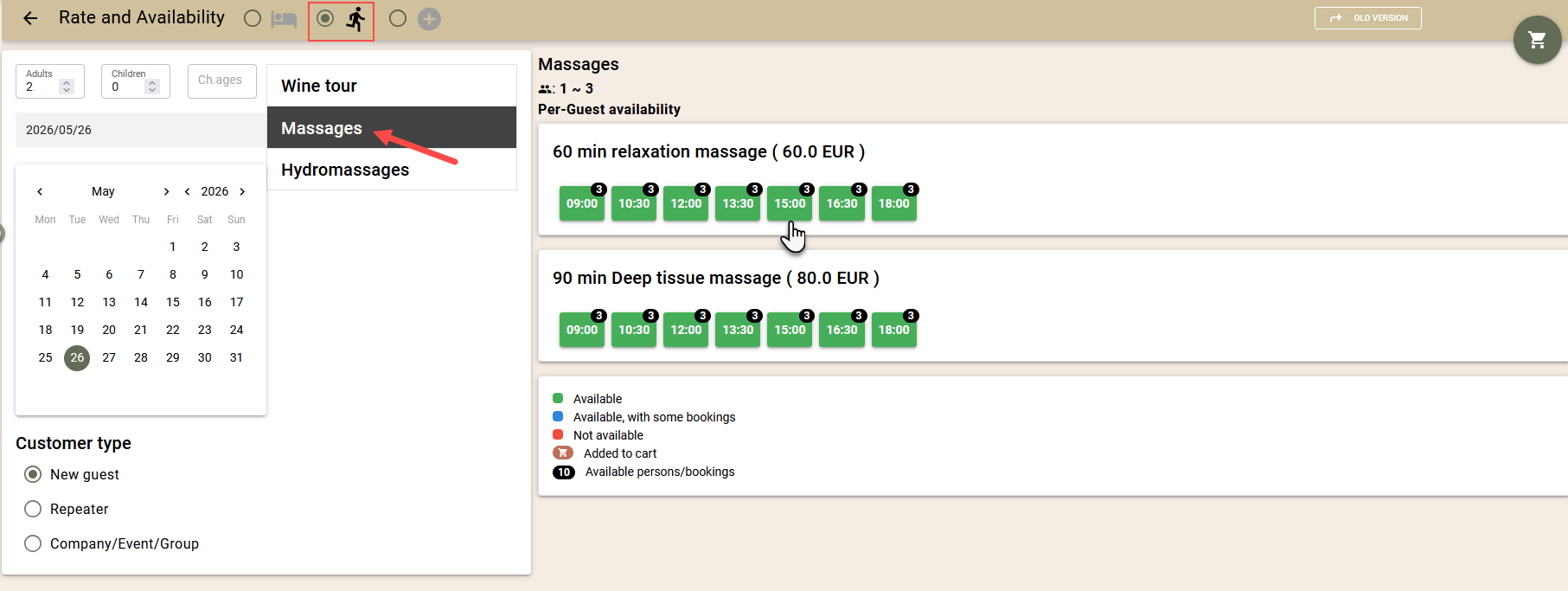
To switch to activity booking mode, select the second option from the bar at the top of the screen. Similar to room bookings, you first need to enter search parameters for availability and prices.
- Specify the number of guests and the age of the children, if any.
- Select the date for which you want to book an activity. Unlike room bookings, activities are booked only for a specific date.
- Specify the type of customer, similarly to room bookings.
- Select the type of activity and the screen will load the possible options with the available time slots and availability for booking.
- To book a specific slot, click on it and the booking will be added to the cart.
You can set different parameters and add bookings for different dates and activities to the cart, which you can finalise all at once. The number of added products is visible on the "Cart" button, and the total amount of the bookings is visible in the bar at the top of the screen.
Working with the Cart and Finalising Bookings
To finalise the bookings, you need to open the cart.
Click on the "Cart" button in the upper right corner of the screen.
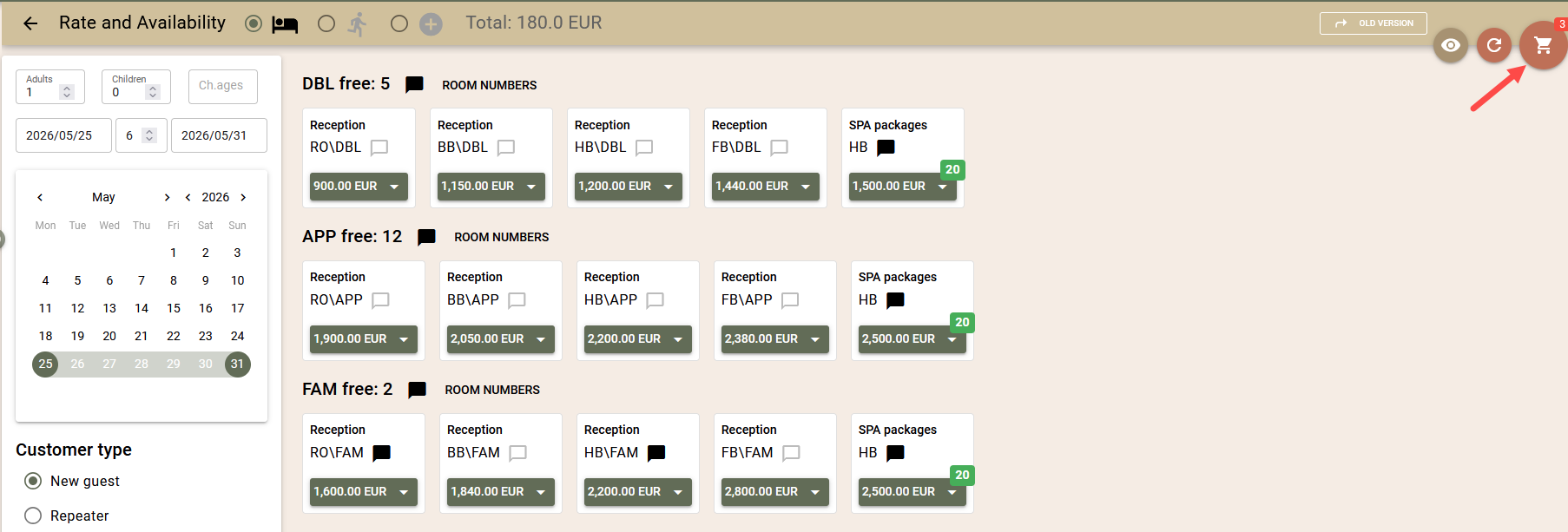
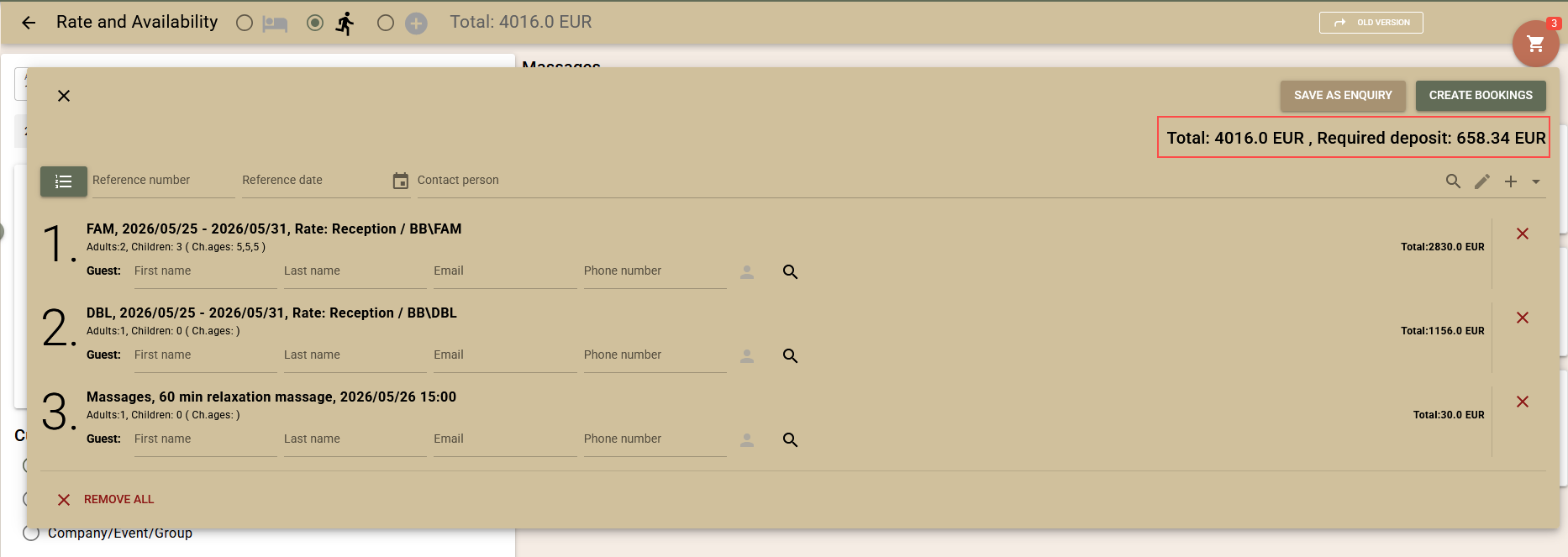
You will see all added bookings. A final price is calculated for each booking, and above the list of bookings are shown the total amount of all products in the cart and the amount of the required deposit.
Review the list carefully. If necessary, you can:
- remove an incorrectly added booking via the "X" button at the end of its row;
- return to booking mode to add new bookings to the cart.
Contact details
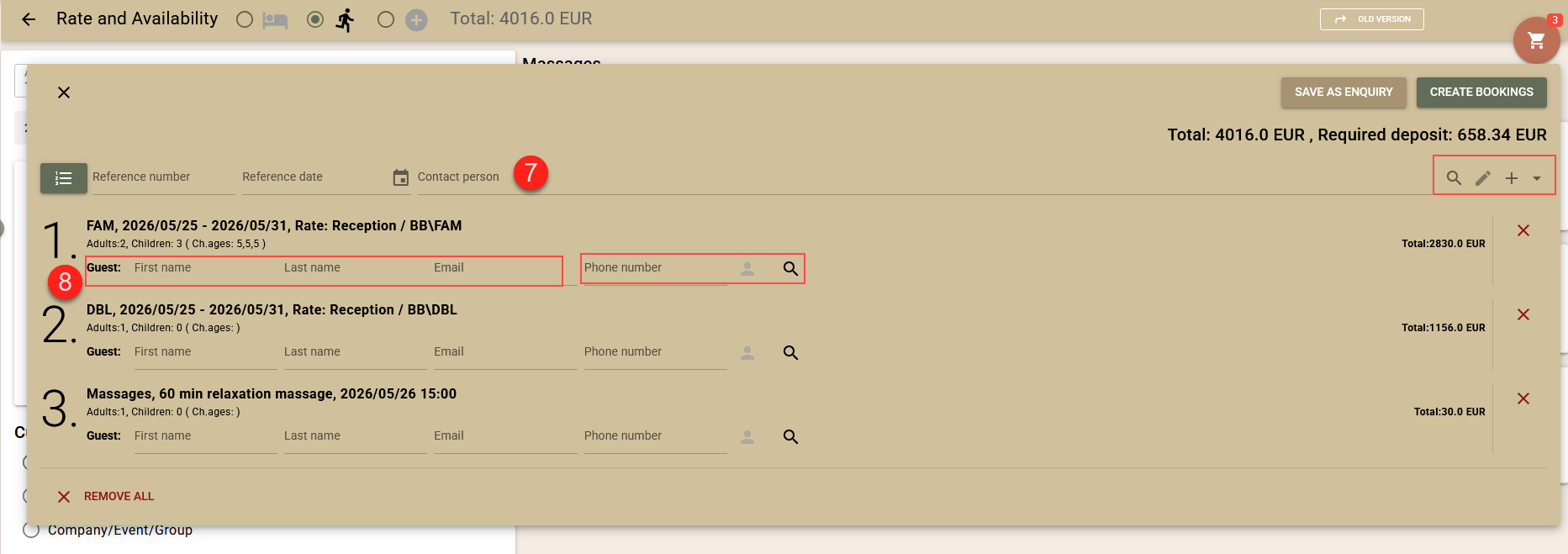
Before creating the bookings, it is necessary to fill in the contact details. You have the following options:
- Contact person (7) – you can select an existing guest profile or create a new profile, which will be saved as the contact person for the bookings in the cart. To search existing profiles, use the button with the “magnifying glass“ icon, and to add a new profile – the button “+“. The system will automatically suggest profiles linked to the selected Company or Returning guest.
- Guest (8) – for each booking, you can enter details for the main guest. Type the details in the fields to create a new profile, or use the button with the icon “magnifying glass“ to search for an existing profile. By using the "person" icon, you can also select one of the automatically suggested profiles.
Reference data
The reference data includes reference number and reference date. The reference number serves as a grouping marker for the bookings to which it is applied, and the reference date can be important for calculating the price (e.g. for discounts under tour operator agreements). You can set a common reference for all bookings in the cart or separate reference data for each booking.
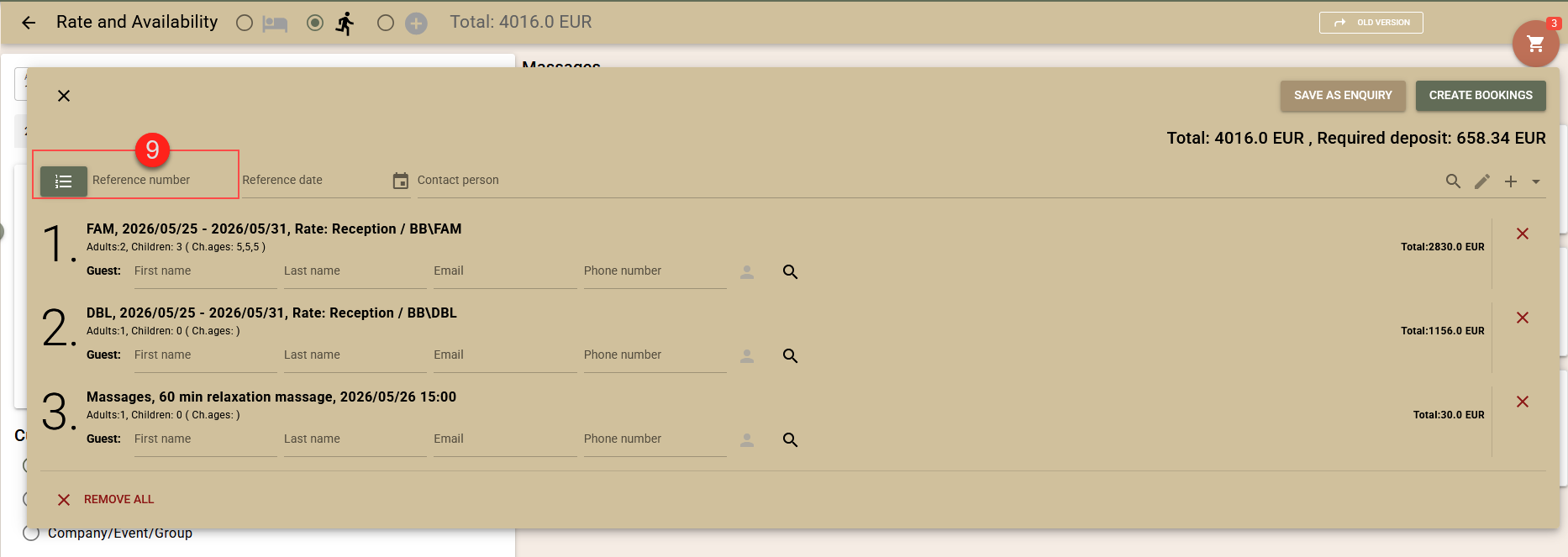
- Common reference for all bookings in the cart - for this purpose, use the fields above the booking list (9). If you leave the "Reference number" field blank, the system will automatically group all bookings created at once and apply a common reference number to them.
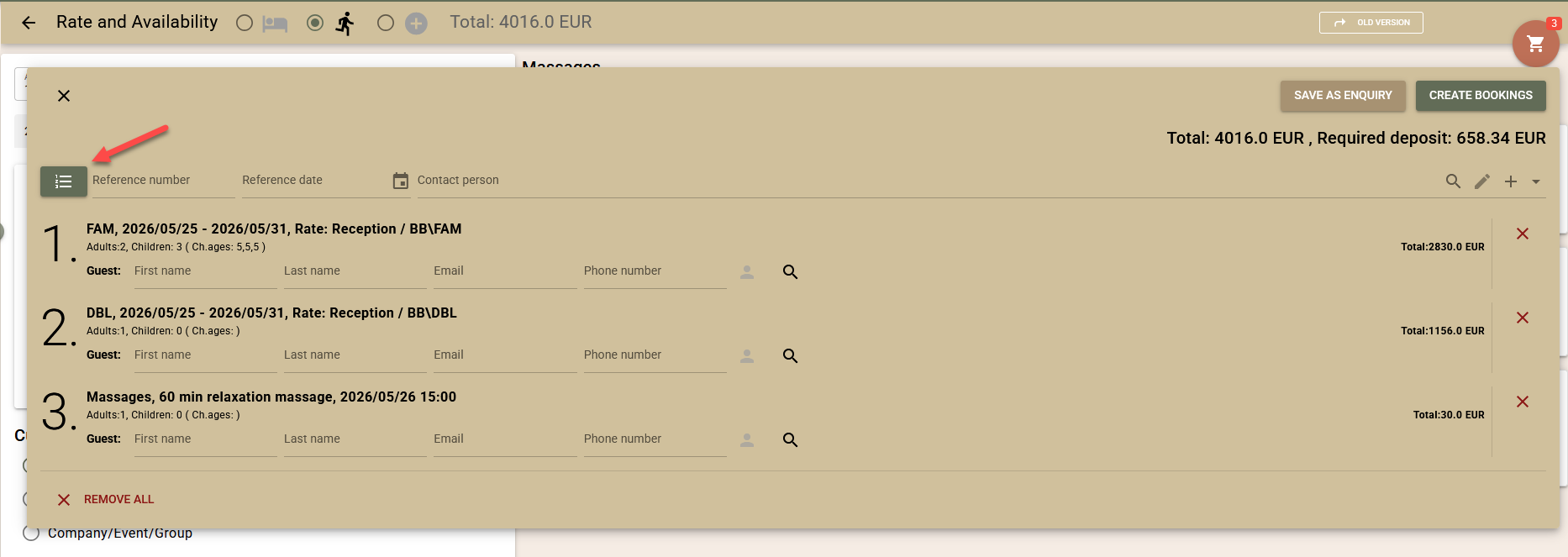
- Reference for each booking separately
- Click on the button in front of the "Reference number" field at the beginning of the list;
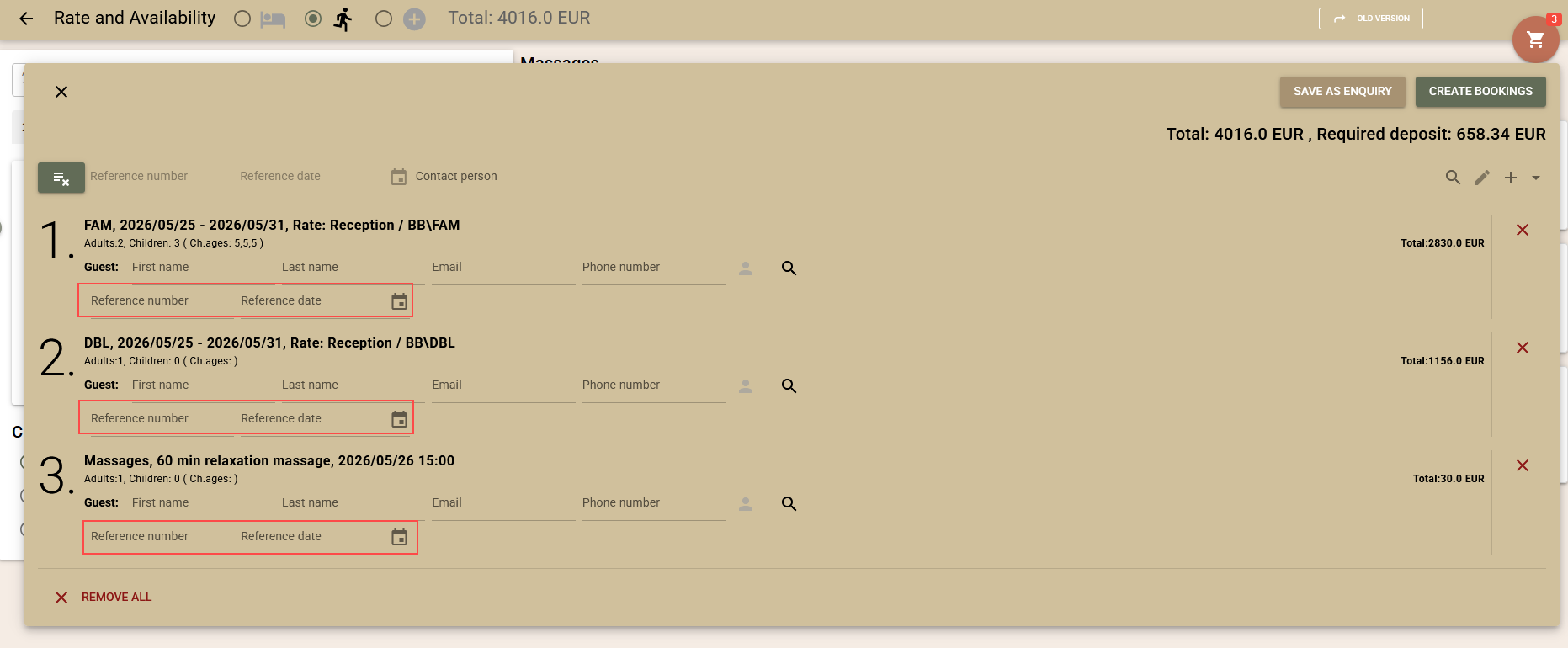
- For each booking in the cart, separate fields for reference datawill be displayed, and the common reference number will be disabled. When the per-booking reference mode is enabled, automatic grouping is not performed, even if the reference fields remain blank;
- To return to the common reference mode, click the same button again.
- Click on the button in front of the "Reference number" field at the beginning of the list;
Creating the bookings
Once you have made sure that the bookings in the cart are added correctly and you have filled in the necessary information, confirm their creation via the “Create bookings“ (10) button.
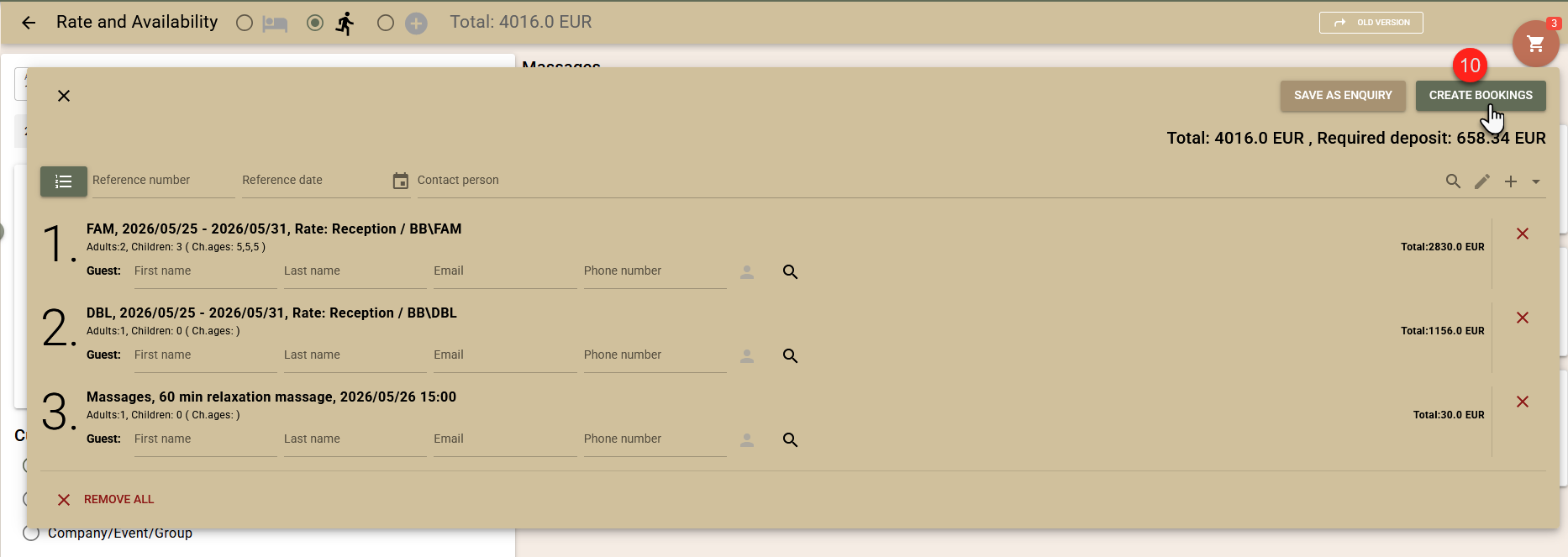
Once you have ensured that the bookings in the cart are added correctly and you have filled in the necessary information, confirm their creation via the "Create bookings" button (10).
A window will open where you can track the progress of creating the bookings. If an error occurs while creating a booking, the system will display a message. In cases where the cause of the error can be resolved, use the "Retry creation of failed bookings" (11) button to finalise them.
You can view successfully created bookings via the "Open in advanced search" (12) button.
