
The "Rate and Availability" screen allows you to apply various additional settings to the reservations in the cart before they are created. In this article, we will discuss how to work with reference data, discount codes, activation codes, and manual routers.
Reference data
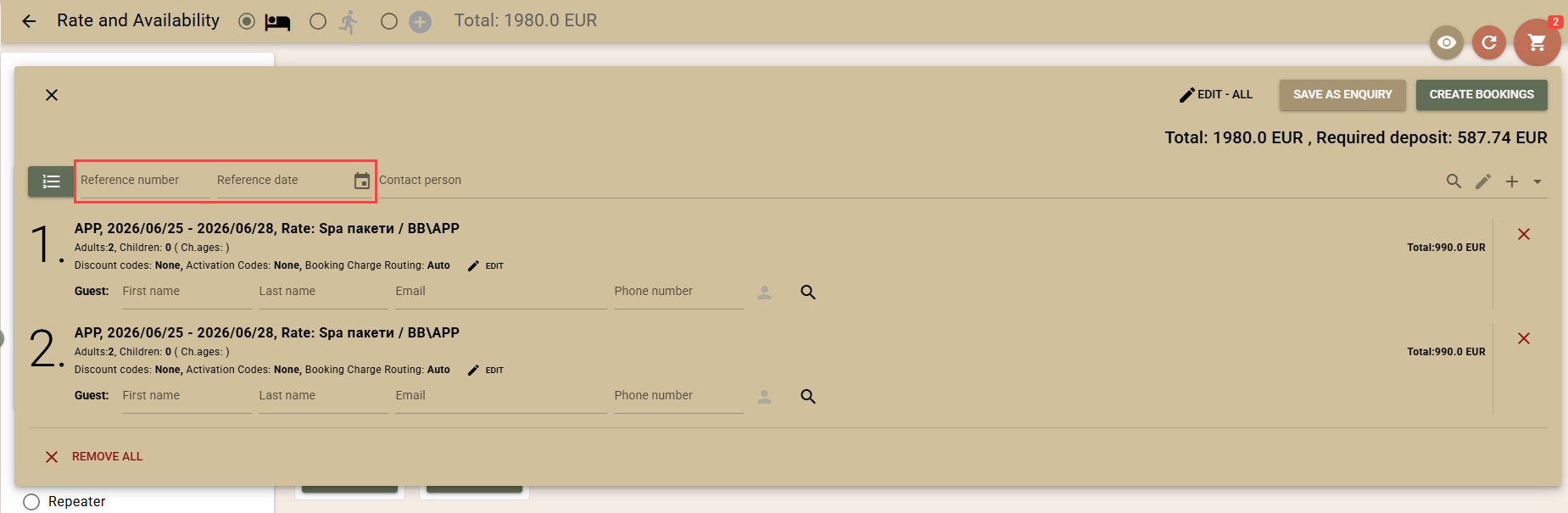
The reference data includes reference number and reference date. The reference number serves as a grouping marker for the bookings to which it is applied, and the reference date can be important for calculating the price (e.g. for discounts under tour operator agreements). You can set a common reference for all bookings in the cart or separate reference data for each booking.
- Common reference for all bookings in the cart - for this purpose, use the fields above the booking list. If you leave the "Reference number" field blank, the system will automatically group all bookings created at once and apply a common reference number to them.
- Reference for each booking separately
- Click on the button in front of the "Reference number" field at the beginning of the list;
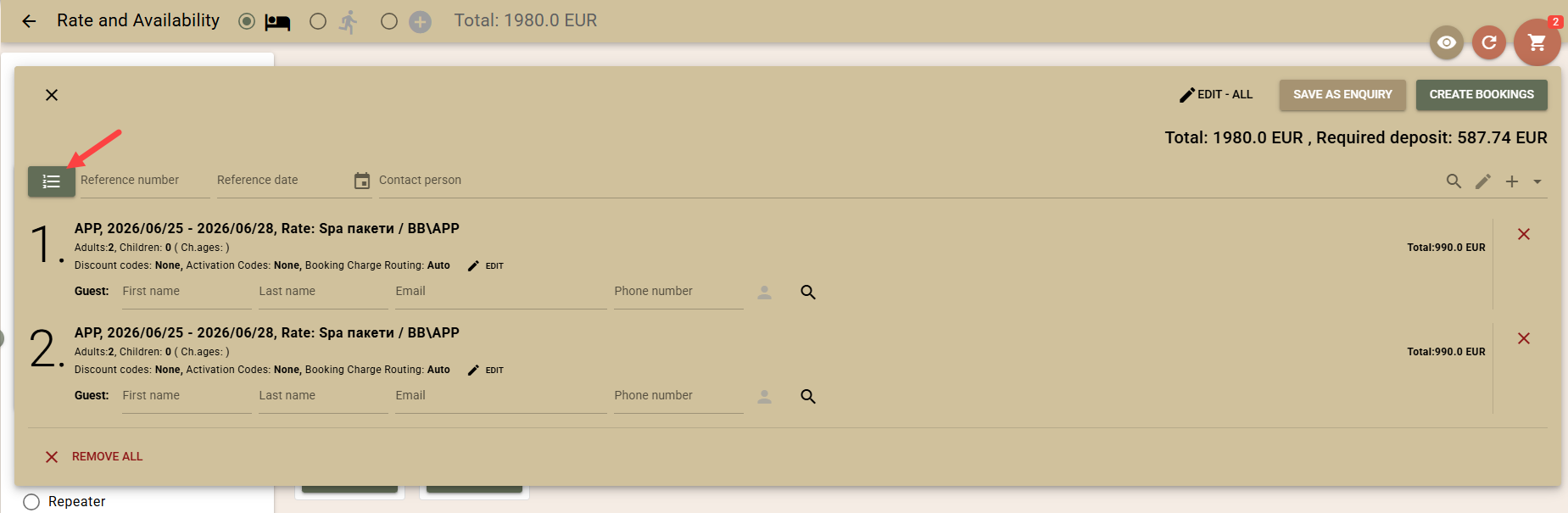
- For each booking in the cart, separate fields for reference datawill be displayed, and the common reference number will be disabled. When the per-booking reference mode is enabled, automatic grouping is not performed, even if the reference fields remain blank;
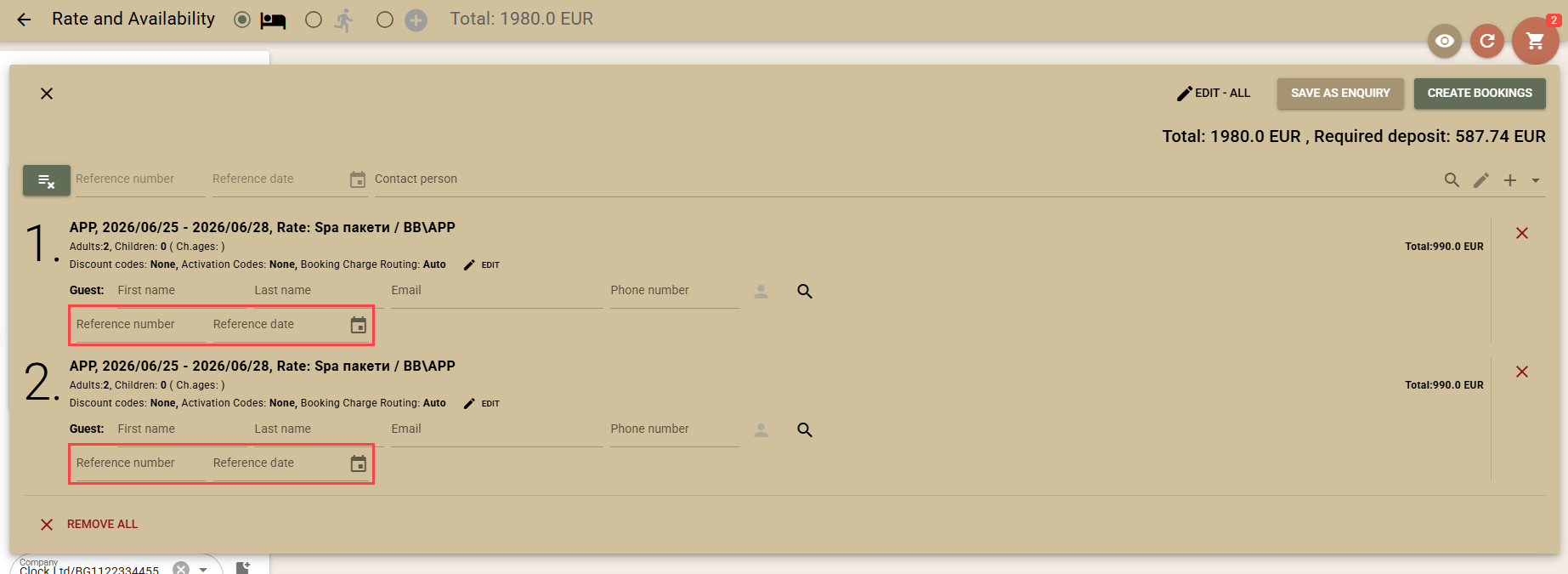
- To return to the common reference mode, click the same button again.
- Click on the button in front of the "Reference number" field at the beginning of the list;
Discount codes
Before creating reservations, you can apply a discount to them. To do this, you will need predefined Discount Codes.
You can apply a discount to all bookings in the cart or to a specific booking only.
- To apply a discount to all reservations, use the "Edit - All" button above the list of reservations. To apply a discount to a specific reservation, select the "Edit" button in the corresponding row.
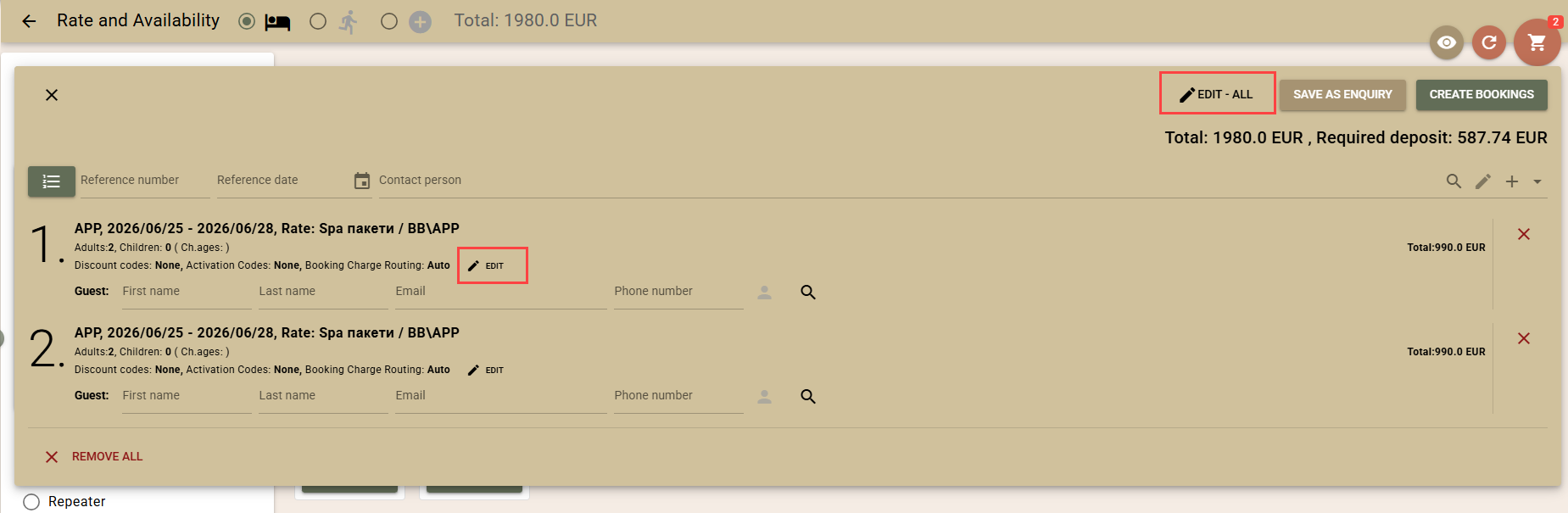
- In the „Discount Codes“ field, select the codes you want to apply and confirm your selection.
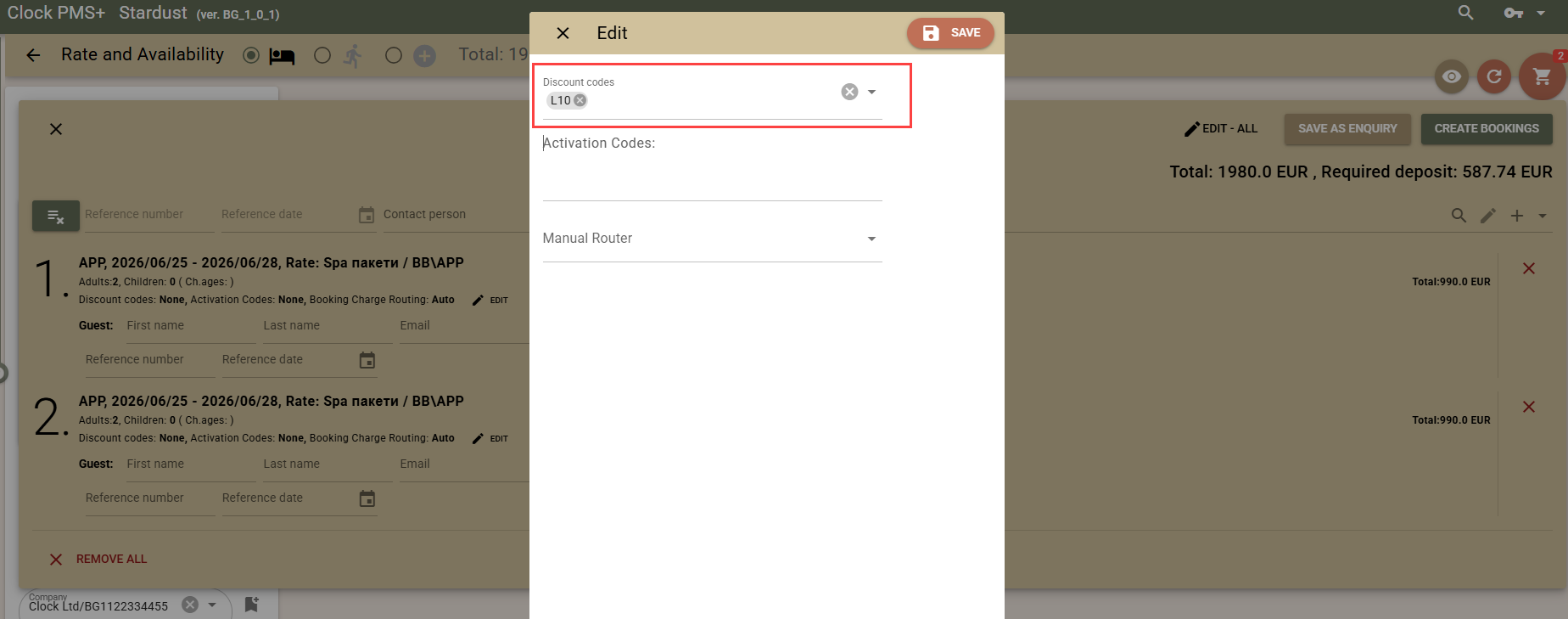
The selected code automatically updates the price of the reservations and the total cart value. The discount also applies to the required deposit amount, when applicable.
Important: The discount codes entered in the shopping cart are transferred to the created reservations and applied to the folios of the respective reservations. If part of the charges are transferred to another folio, for example to a Company folio, they will not be covered by the discount. The discount applies only to charges that are on the reservation folio.
Note: To be able to apply discounts when creating reservations, the „Apply Discount Codes“ right must be enabled for your user.
Activation Codes
Activation codes are part of the functionality of Tour Operator Contracts and are used to activate package services and special offers – SPA, skiing, golf, and others.
You can apply one or more activation codes to the reservations added to your cart.
- To apply a code to all bookings, use the „Edit – All“ above the list of reservations. To apply a code to a specific booking, select the „Edit“ button in the corresponding row.
- In the „Activation Codes“ field, select the codes you want to apply and confirm your selection.
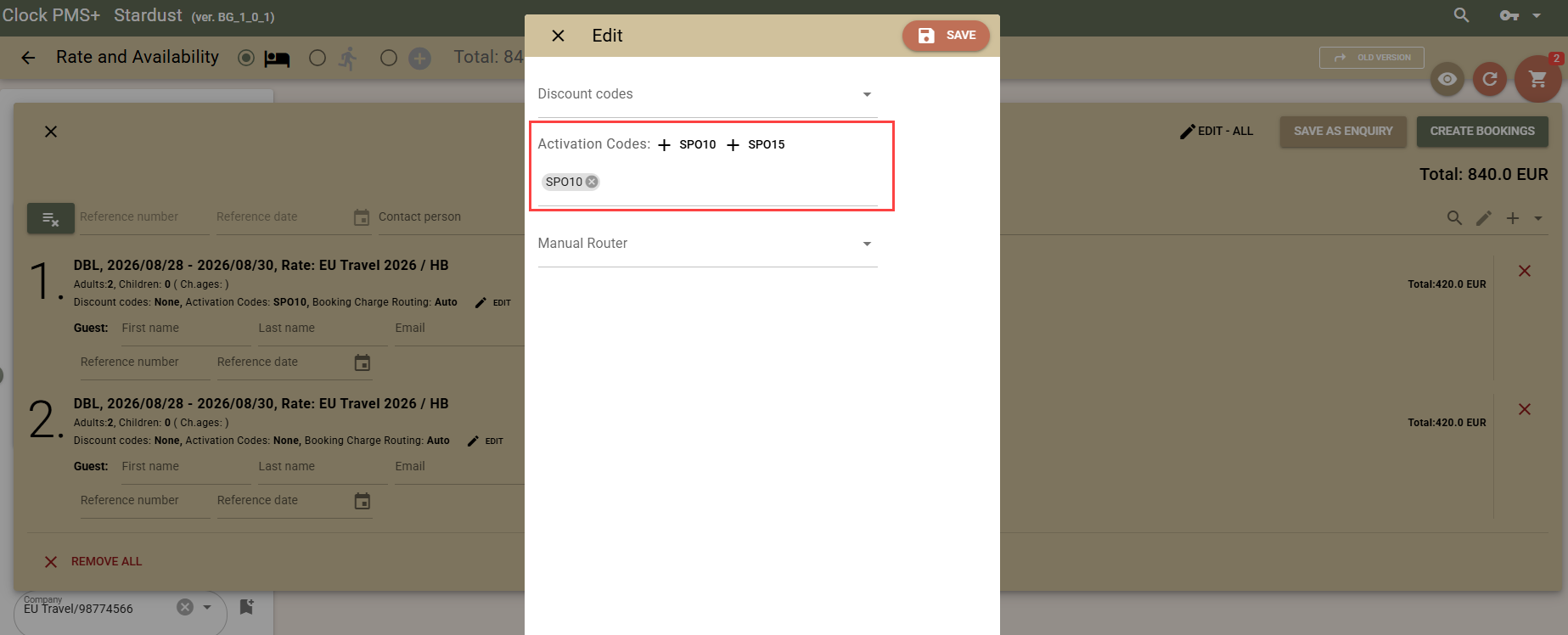
The added codes are reflected in real time on the prices of individual reservations and on the total cart value.
Note:
- When setting activation codes for an individual reservation, the codes are loaded from the contract associated with the rate of the respective reservation.
- When using „Edit – All“, the activation codes are loaded from the contract associated with the first reservation in the cart. Therefore, it is not recommended to mix reservations from different contracts in a single transaction.
Manual router for reservations
The charge routers apply rules for the automatic distribution of charges. The system automatically recognises whether routing should be applied to a given reservation and which rules are valid for it.
If necessary, you can change the default routing by setting a manual router.
- To apply a router to all reservations, use the „Edit – All“ button above the list of reservations. For a specific reservation, select the „Edit“ button in the corresponding row.
- In the „Manual Router“ field, select the router you want to apply and confirm your selection.
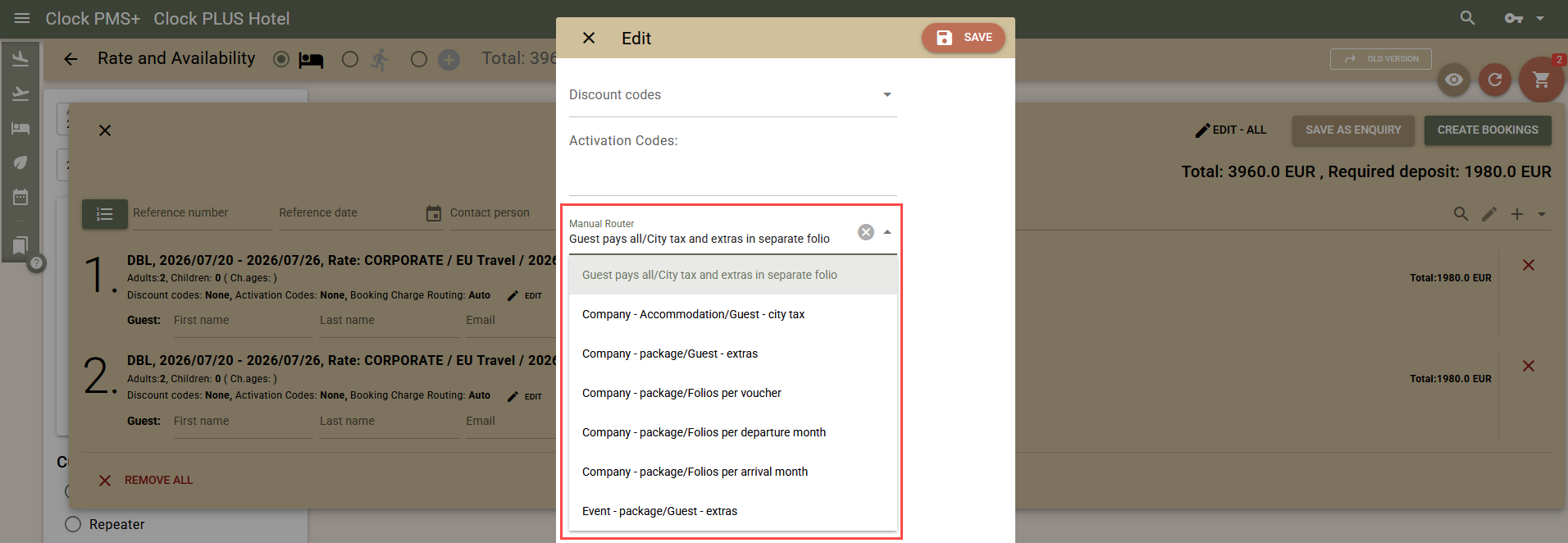
The selected router will be recorded when the reservation is created and will be used for subsequent billing of its services.