
Once the routers are configured, they can be applied at various levels in the system to automatically manage the distribution of charges. This article will explore how routers are used in practice, the order of priority between them, and how automatic routing affects charges for different types of bookings.
Setting a Router in a Company or Event
After configuring a router, you can link it to a Company or Event to be automatically applied to the relevant bookings.
Company
The router is selected in a Company Agreement linked to the Company. The validity of the agreement is taken into account – if the agreement expires, the router set in it will not apply after the expiry date.
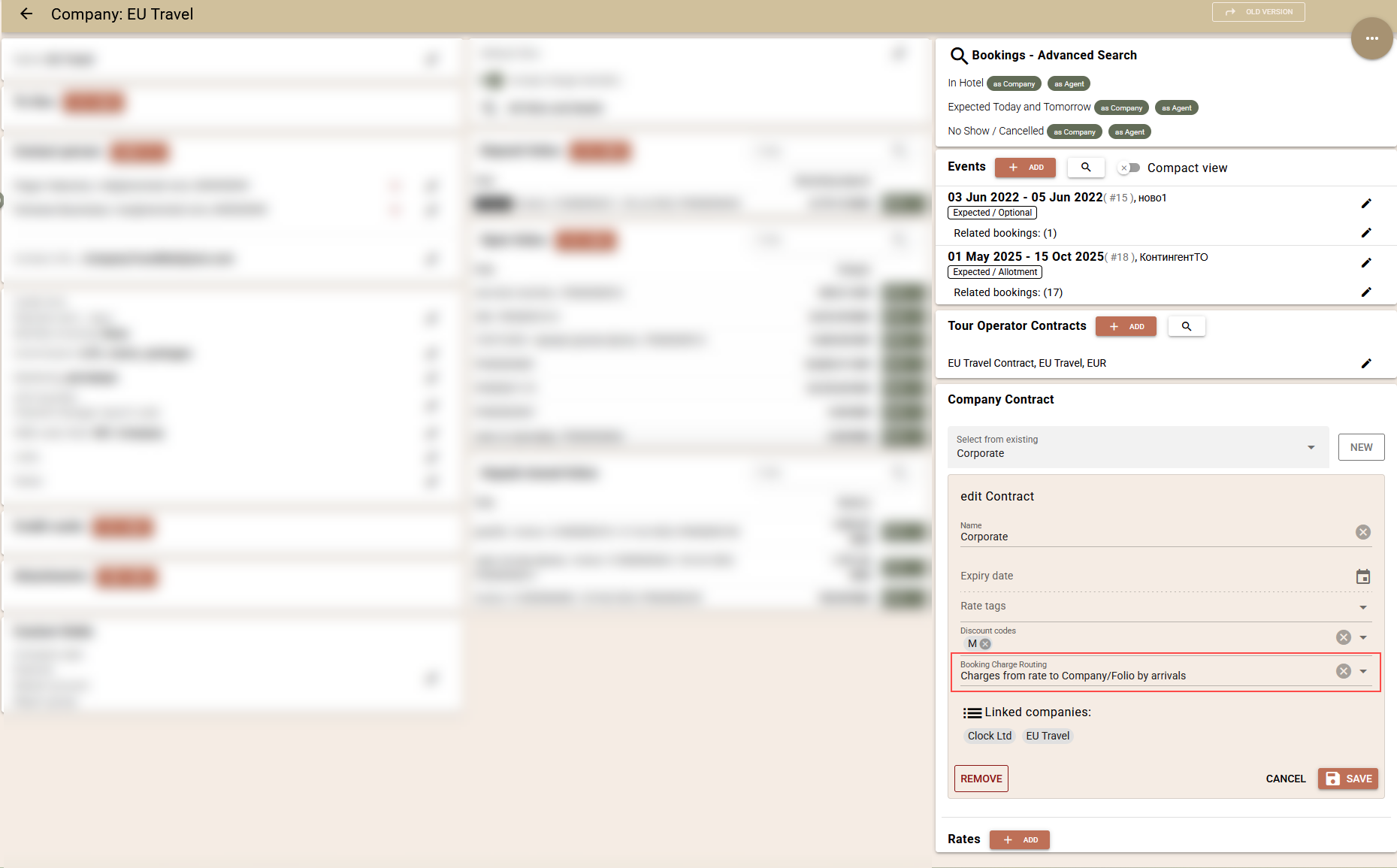
Event
The router can be selected directly in the Event. When a router is set at both the Event and Company level, bookings will use the router from the Event, as it has a higher priority.

Important: Pay attention to the role with which you use the Company in the booking. If the router has configured transfer instructions to an Agent, the corresponding company must be used in the booking with the Agent role. Accordingly, if the rules in the router are intended for a Company, it should be used with the Company role, not as an Agent.
Booking
In the booking, the routing of charges is managed via the "Charge Routing" field.
The possible values are:
- Previous version – the existing mechanisms for directing charges are used, using the fixed transfer methods;
- Automatic – activates the new mechanism for automatic routing via configured routers;
- None – automatic routing is disabled.
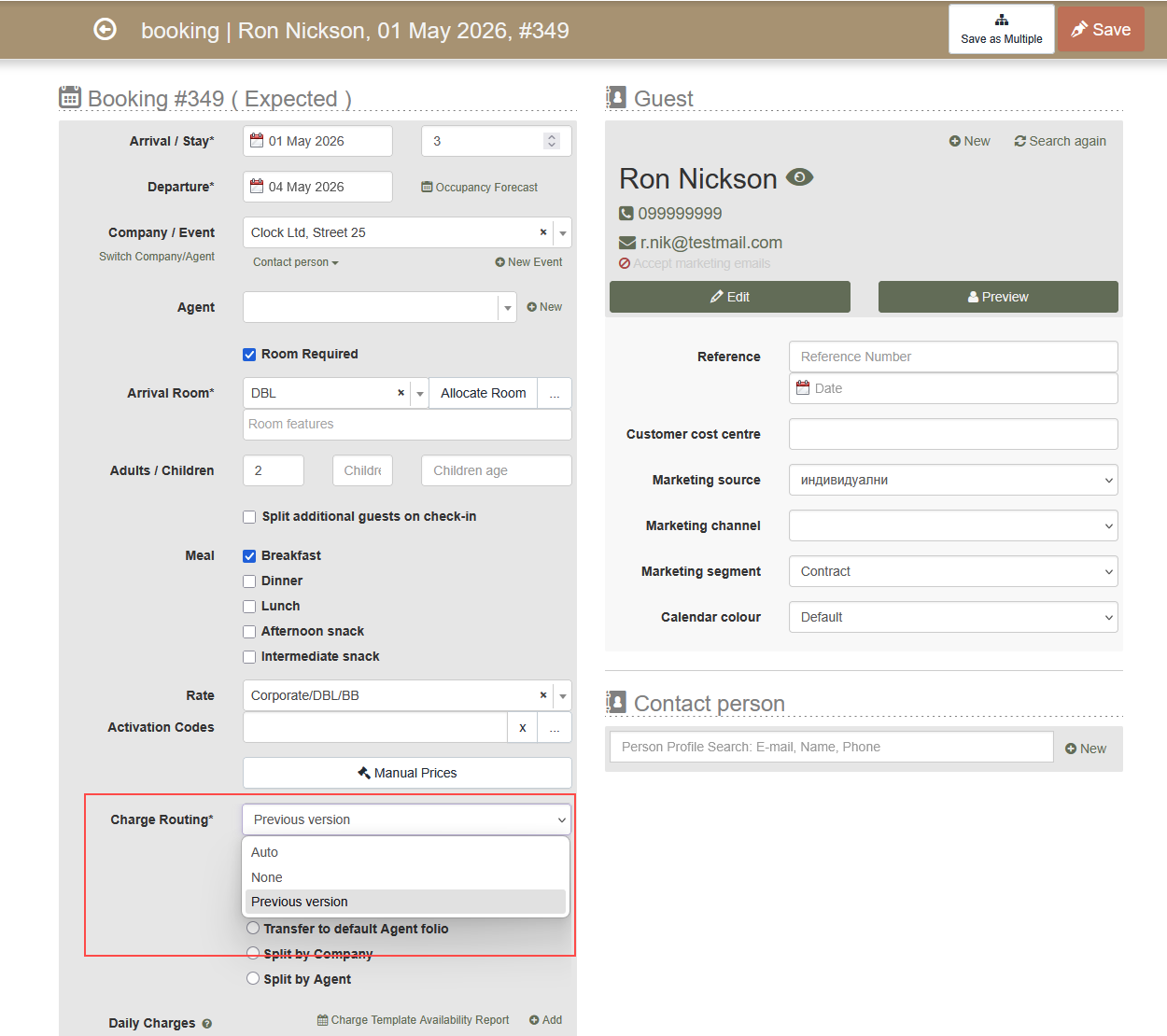
By default, the new booking creation screen opens with the value "Previous version" in order to preserve the familiar view and behaviour. When ready to work with Routers, you can change the default value to None or Automatic.
This setting is managed from Settings→ Bookings→ Booking - fields→ Charge Routing.
How automatic routing works
When the value "Automatic" is selected for charge routing in the booking, the system uses the pre-configured routers as follows:
- Searches for a configured router according to the Event, Company and Agent selected in the booking;
- If a router is set at any of these levels, it is applied automatically;
- If there are routers in more than one place, the following priority is used:
- Event (highest priority);
- Company;
- Agent.
- If no router is set at any level, the charges remain in the booking.
Manual selection of a router for a specific booking
It is possible to manually select a router for a specific booking via the "Manual Router" field. The router selected at the booking level has the highest priority and replaces all routers set at the Event, Company or Agent level.
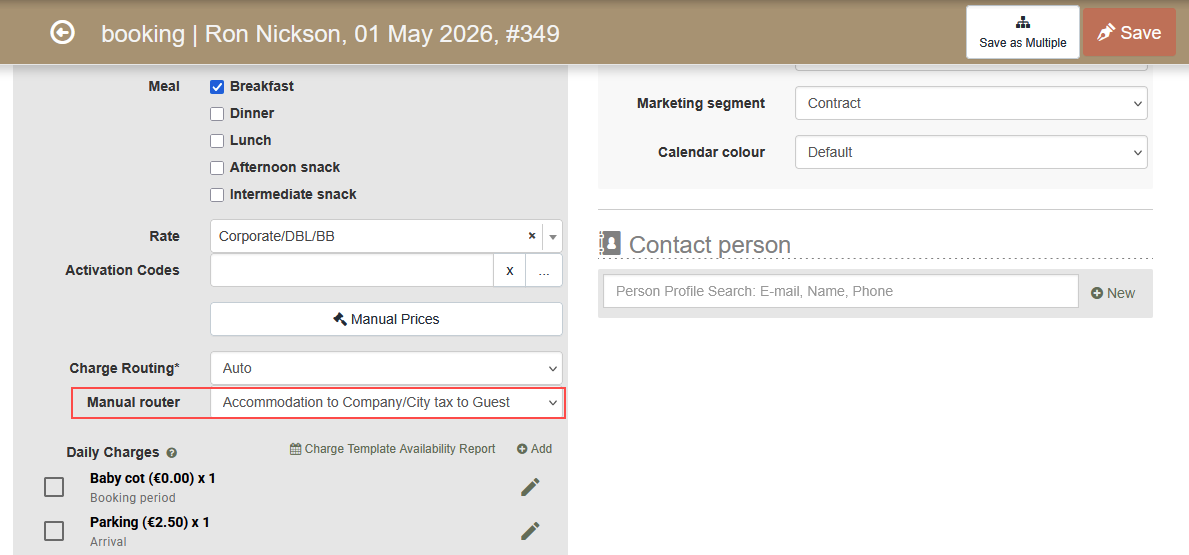
This allows you to create exceptions to the general rules for individual bookings.
Editing this field requires the "Charges: Transfer" permission.
Important for the application of routing:
- Automatic distribution is only performed at the time of charging – both for automatic and manual charges;
- Changes to the Company or router do not affect already charged services. Use the re-routing function for this purpose ;
- Manually moved charges remain in the folio in which they were transferred.
Company roles in the booking
The company can participate in the booking with the role of Company or Agent. The router always executes the instructions defined in it, regardless of where it is selected – in the booking, Company, Agent or Event.
For example: If you select an Agent whose router contains transfer instructions to a Company, the charges will be transferred to the Company in the booking.
To avoid unexpected results, it is recommended that companies are used in the same role – either as an Agent or as a Company in bookings.
Manual Charges and POS Transfers
Manual Charges
Manual charges on a booking can also be routed automatically. To do this, you need to use the "Charge" button in the booking, in the "Rates and Folios" section. In this case, the charges will follow the configured rules for automatic routing.

Charges added directly to a folio are not routed and remain where they were created.
POS Transfers
Transfers from POS to a room are also routed automatically, provided that the value "Automatic" is selected for charge routing in the booking and a linked router is available.
Even when a specific folio is selected in the POS system, the router can move the charges according to the set rules.
Re-routing of charges
Given the dynamics in bookings - changes in stays, accommodation conditions and more - you have a feature to re-route existing charges.
The function is available via the booking screen, section "Rate and Folios" → "Re-Route charges".
When the function is executed, the system reviews all charges (automatically or manually added) regardless of which folio they are currently in.
Based on the currently active router (by Company, Agent, Event or manually selected in the booking) and the current routing rules, the system determines which folio the charges should be in and transfers them automatically.

The following charges are not affected by the feature:
- charges in closed folios;
- charges belonging to other bookings;
- POS transfers.
Channel Managers
If the old options for transfer to Company have been used for a given channel manager in the company mapping, they are retained and continue to work without the need for additional changes. Such bookings are created with the value "Charge routing: Previous version".
To switch to automatic routing via a configured router:
- Set the desired router in the Company itself, according to the settings described above;
- Remove the value for "Charge Transfer" from the Company mapping in the channel manager;
- From this point on, all bookings for this Company – whether created via the channel manager or otherwise – will use the new routing mechanism.