
Error handling and export logic in the RoomCloud interface
Below you can find a detailed explanation of how errors are handled in the RoomCloud interface and how the export retry mechanism works.
1. Error detection and automatic retries
When an error is detected during data export, it is recorded for the specific RoomCloud room type and rate (product).
An email notification with the subject ROOMCLOUD CHANNEL MANAGER EXPORT ERROR will be sent. The email contains detailed information about:
The affected product (room type and rate)
The exact error returned by RoomCloud
After the error is detected, the system will initiate an automatic retry process.
If the retry attempt is not successful, it will be recorded as a consecutive error. When several consecutive errors occur, the system will gradually delay the next export attempts in order to avoid overloading the interface.
At this stage, an email with the subject ROOMCLOUD CHANNEL MANAGER EXPORT DELAYED will be sent to the hotel’s email address. The message will again include:
The affected product
The error description
2. Export suspension after multiple consecutive errors
If a large number of consecutive export attempts fail, the system will completely stop sending data for the affected product.
In this case, an email with the subject ROOMCLOUD CHANNEL MANAGER EXPORT STOPPED will be sent, containing details about the suspended product.
No further export attempts will be made for this product until the issue is resolved and the export is manually reset.
3. Checking export delays and suspended products
You can check the current status of export delays or suspended products at any time via the Channel Manager settings.
Please follow these steps:
Go to Navigation menu → Settings → All settings → RoomCloud
Edit the RoomCloud connection
Open the Rate map tab
Review the Export delay column
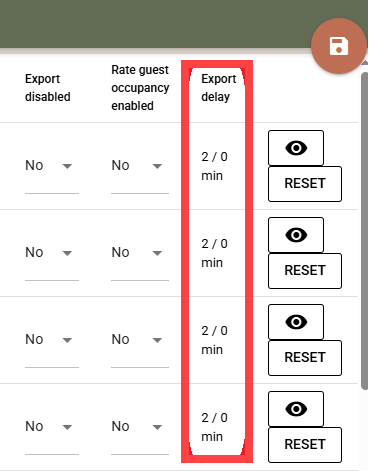
When a product is delayed or suspended, the column will display two numbers:
The first number shows how many consecutive errors are currently recorded
The second number indicates the delay (in minutes) before the next retry attempt
4. Automatic recovery after the issue is resolved
If the any of the delayed attempts ends up with a successful response by the Room Cloud system:
The delay counter will be automatically reset
The interface will resume normal operation without further action required
How to resolve RoomCloud export errors
To identify and resolve the cause of the error, please contact the Clock support team. Based on the specific error, we will advise you on the appropriate next steps.
After the issue has been resolved:
Open the RoomCloud connection settings
Click the Reset button for the affected product
This will restore normal data communication for that product
Important verification step
Please review the data in the OTAs approximately 30 minutes after the error has been resolved and the export reset. If you notice any discrepancies, notify the Clock support team and provide:
The name of the OTA
The affected date(s)
The incorrect availability and/or price
The correct values that should be displayed
This information is required for further investigation and data verification.
Most common RoomCloud errors
503 – Service Unavailable
The RoomCloud system is temporarily unavailable or not responding correctly.
This issue is usually resolved automatically after a few retry attempts.
Problem on portals update – Too many connections (1004)
The RoomCloud system is under heavy load and is rejecting new connections.
In most cases, the issue is resolved automatically after several retry attempts.